Getting Started with the Financial Consolidation Model
Return to the Financial Consolidation Model Overview.
The Jedox Financial Consolidation Model is a prebuilt, configurable OLAP‑based application designed to streamline group-level reporting—covering preparatory tasks, automated eliminations, and final reporting for IFRS, US GAAP, and more. This guide walks first‑time users through the model’s configuration, deployment, and consolidation workflow.
To get started with the Financial Consolidation model, you can install it with a sample configuration that includes sample data, or set it up without sample data to work directly with your company’s figures. Instructions for installing the model with sample data are available in Setting Up the Financial Consolidation Model.
This guide focuses on the Excel workbook method, where you compile your company’s data into worksheets and then upload them to the Jedox database. While Jedox also supports other approaches—such as editing elements in the Modeler or connecting directly to your ERP via Integrator—this document specifically covers the Excel method. You are free to choose whichever option best suits your needs.
The Financial Consolidation model provides a sample Excel workbook that contains a sample configuration and data set. You can access it in Jedox Web under:
Designer > Models > Financial Consolidation > Files > Sample Data > Financial Consolidation Sample Data (IFRS).
Before customizing the workbook with your own configuration and data, first save a local copy by selecting Export from the context menu.
To configure dimensions and cubes, upload your modified Excel workbook into the model using the following steps:
- Open the Modeler and navigate to [Database Name] > Dimensions or Cubes. Right-click on the specific Dimension or Cube name, and select
Upload filefrom the context menu. - The Dimension/Cube Upload Wizard opens and guides you through the steps.
- Select the modified copy of the workbook from your local file system. For details, see Uploading and Downloading Dimensions and Cubes.
Managing Languages in the Model
You can add or remove languages from the model through the Internationalization settings in Modeler.
Removing Languages
To remove a language, open Modeler and navigate to [Database Name] → Internationalization. Select the language(s) to remove, then click Delete (–).
After removing a language, you can ignore any workbook attributes associated with it. Localized columns follow the pattern AttributeName@xx_XX where xx_XX is the language and country code. For example, in the Version worksheet, the attribute Label will appear as Label@de_DE (German), Label@fr_FR (French), and Label@es_ES (Spanish).
Adding Languages
To a language, open Modeler and navigate to [Database Name] → Internationalization. Click New (+) and select the desired language from the list.
After adding the language, open the worksheet for the dimensions or cubes you want to update with translations. Add a new column for the translation, using the same naming pattern as above. For example, to add a Portuguese (Brazil) translation for the Name attribute in the Version dimension, add a new column labeled Name@pt_BR to the worksheet.
Financial Consolidation model's Start Page
The Financial Consolidation model provides a structured experience through its Start Page and Side Navigation, making it easier to access key processes and reports. The side navigation allows you to quickly move between different areas of the model, while framesets enable reports to open alongside the navigation panel for improved usability.
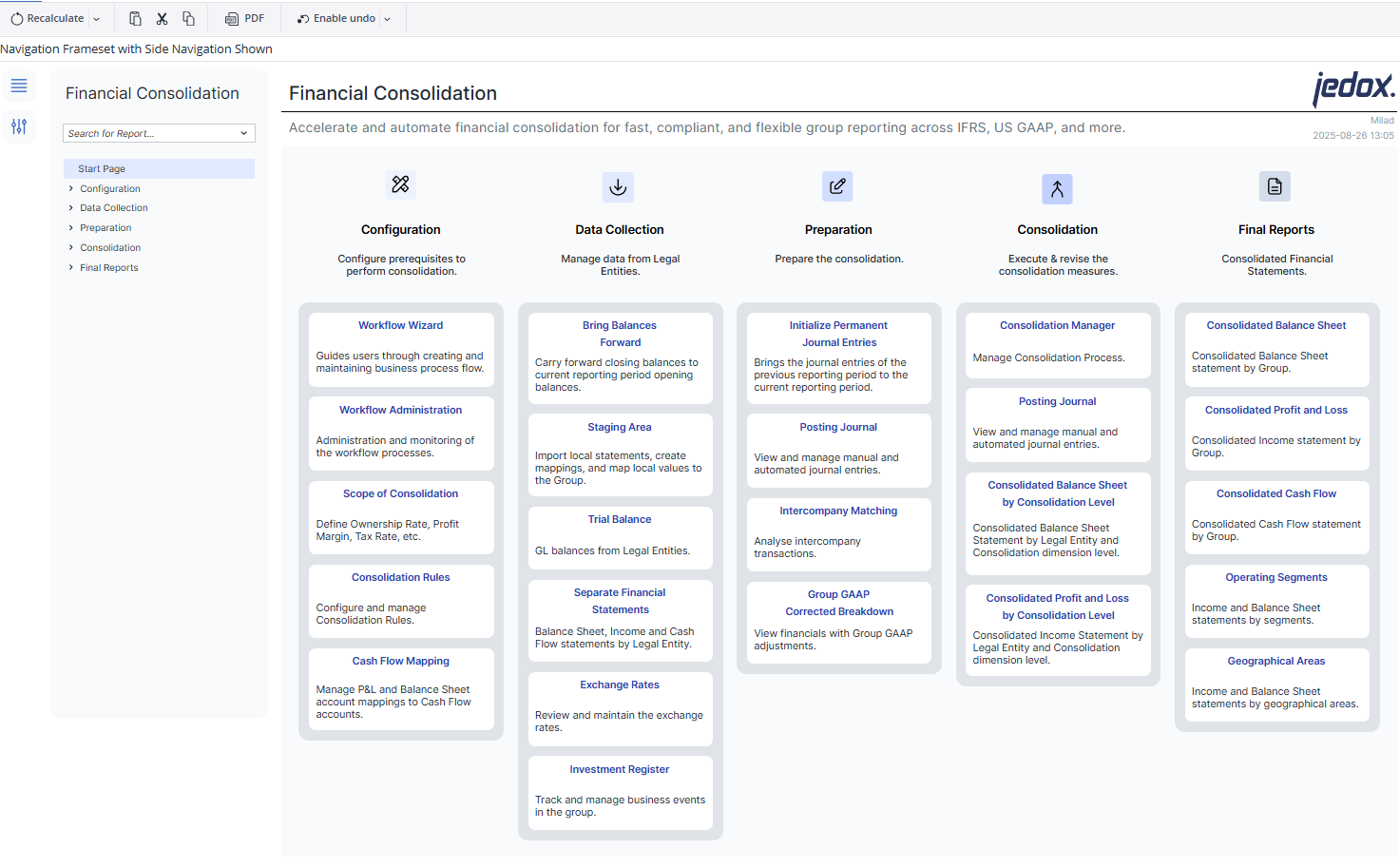
When you open the Start Page, you’ll see the main workflow organized into five phases:
-
Configuration – Set up prerequisites for consolidation.
-
Data Collection – Manage and import financial data from legal entities.
-
Preparation – Prepare, validate, and adjust data before consolidation.
-
Consolidation – Execute and review consolidation measures.
-
Final Reports – Generate consolidated financial statements.
1. Configuration
Before performing consolidation, configure the model to match your group structure.
-
Workflow Wizard: The Workflow Wizard helps key users create and manage workflow tasks. To use the workflow features in your work environment, you need a cube with at least three dimensions. The Workflow building block will use these dimensions: Version, Time, and Step. These dimensions define workflow tasks, allowing the key user to set deadlines and assign user groups. See the Workflow Wizard article for more information.
-
Workflow Administration: The Workflow Administration helps collect planning data while giving users controlled and timely access to reports. Users can only enter and change planning data within specific workflow activities. Any changes made outside these activities are not allowed. This restriction enables the workflow administrator to manage changes more effectively and maintain the integrity of the data. See the Workflow Administration Report (Financial Consolidation) article for more information.
-
Scope of Consolidation: This report shows the business relationships within the Scope of Consolidation Cube. This allows you to view and customize these relationships as your financial consolidation structure grows and changes. The top two tables in the report are scope-neutral, meaning their content remains unchanged regardless of the scope. The tables below them are scope-specific, so their content varies according to the specific scope. See the Financial Consolidation Scope of Consolidation article for more information.
-
Consolidation Rules: This report provides data on various Consolidation Rules, and enables users to create and configure them. See the Consolidation Rules Report article for more information.
-
Cash Flow Mapping: Map P&L and Balance Sheet accounts to Cash Flow accounts.
2. Data Collection
Collect and manage data from legal entities.
-
Bring Balances Forward: Carry forward balances from the previous period.
-
Staging Area: Import local statements and map to group values.
-
Trial Balance: Import GL balances from entities.
-
Separate Financial Statements: Review entity-level statements.
-
Exchange Rates: Review and maintain exchange rates.
-
Investment Register: Track and manage investments.
3. Preparation
Prepare data for consolidation with validation and adjustments.
-
Initialize Permanent Journal Entries: Bring in prior-period journal entries.
-
Posting Journal: Manage manual and automated journal entries.
-
Intercompany Matching: Analyze and match intercompany transactions.
-
Group GAAP Corrected Breakdown: View adjustments for Group GAAP.
4. Consolidation
Execute the consolidation process and review outcomes.
-
Consolidation Manager: Manage the overall consolidation process.
-
Posting Journal: Review journal entries at the consolidated level.
-
Consolidated Balance Sheet by Consolidation Level: Analyze consolidated balance sheet by entity and consolidation dimension.
-
Consolidated Profit and Loss by Consolidation Level: Review income statement by entity and consolidation dimension.
5. Final Reports
Generate standard financial reports at group level.
-
Consolidated Balance Sheet
-
Consolidated Profit and Loss
-
Consolidated Cash Flow
-
Operating Segments (by segment)
-
Geographical Areas (by region)
Several reports have been converted to Canvas, offering a clearer layout and interactive features. These include:
-
Group GAAP Corrected Breakdown Report
-
Scope of Consolidation Report
-
Intercompany Matrix Report
-
Intercompany Relation Summary Report
-
Intercompany Relation Report
-
Cash Flow Mapping Report
This setup ensures that frequently used reports and processes are easily accessible, while the canvas-based design provides a modern, user-friendly reporting environment.
Check out some of the Jedox Models Article
Models are predefined applications comprising files/reports, OLAP databases, Integrator jobs, scheduled tasks, and settings. Read this article for more information on Jedox Models.
Read this article for more information on the support lifecycle of each Model.
Installation of Premium Models
Besides free Models, Jedox also offers Premium Models, which require a specific license to be in place before they can be installed and used. The model will only be usable for as long as the license is present and valid. Read this article for more information.
Updated August 29, 2025