
Reporting Agent
The Reporting Agent acts as the mastermind behind your analyses, sharply assessing Dynatables and KPIs to identify key drivers and uncover what truly impacts your performance - all this with the great advantage of just engaging in a straightforward natural language conversation. You can also access the chat history to reuse previous interactions and thus avoid repeating tasks.
With its ability to process multidimensional complex queries, the Reporting Agent provides smart KPI insights and business-language explanations, helping you gain deeper understanding of your data and reach better decisions.
Besides, it accelerates Dynatable setups, view creation, ad hoc reporting, and reporting workflows, saving time and effort.
Prerequisites
Some configuration is required to maximize the Reporting Agent's potential, and this should be done in the Modeler.
Every dimension belonging to a cube which could be queried from the Reporting Agent should have the following settings in place:
-
Dimension type: this can be selected in the dimension properties under the advanced settings (Modeler > Cube > Dimension > Dimension Name > Advanced > Type). To obtain the information on the key drivers that influenced the KPI performance, the cube from which the data insights are generated must have dimensions with the "Business dimension" type selected.
-
Default read elements: ensure that you set the Default Read Element for each dimension (also done from the dimension properties). This is especially important for the Currency dimension, and the Reporting Currency should be set as a default read element.
-
Name attribute: set the name attribute for every dimension.
-
Attributes in Version dimension: create the attributes "Comparison Version 1" and "Comparison Version 2" in the Version dimension.
Reporting Agent Advantages
• Data insights for KPI performance commentary
• Attribute support: user can reference entities or accounts by their user-friendly names
• Multi-turn conversations
• Replay a query
• Detailed analysis for multidimensional
complex queries
• Conversation history

Other Jedox
AI-powered services
JedoxAI helps you explore and understand your data without having to write complex formulas or manually set up pivot tables. Simply enter a query and JedoxAI will do the work for you.
Learn more about:
Access
The Reporting Agent has two access possibilities in Jedox Web:
-
From Reports or the Designer, a KPI card on a dashboard, or an embedded web spreadsheet, via the Data Insights option from the context menu.
Right-click on any planning cell or KPI card and select "Ask JedoxAI", then "Data Insights" from the context menu.
-
Within an existing Dynatable or when creating a Dynatable from scratch.
Ensure that the database and cube have been selected. Once your Dynatable is ready, click on the JedoxAI button on the upper-right side of the screen to open the chat interface where you can enter your prompts.
When starting a conversation, remember that a well-crafted prompt helps the Reporting Agent deliver more accurate, relevant, and reliable results, as with any other AI agent. Therefore, you might want to check our Query Best Practices for the Reporting Agent.
To make the content in the chat more visible, you can use the mouse to expand the JedoxAI window horizontally to a specific width. If you close the window, the chat remains accessible at any time through the JedoxAI button on the top right corner of the screen.
The Reporting Agent comes with general capabilities that are available in all areas, as well as specific capabilities for Data Insights and Dynatables.
General capabilities
Multidimensional complex queries
Would you like to better understand the data rather than just viewing it differently? Answers to your questions are standardized and include detailed explanations, including a summary of the headline and key insights for each answer.
Examples:
- "Show me a multi-year comparison of revenue, COGS, and Gross Profit for 2024 and 2025"
- "What does the sales forecast look like based on past data"
- "Give me key insights on regional revenue"
The responses are provided as text explanations, not as updated tables.
Attribute support
The Reporting Agent can access information about the attributes of the elements. You don't need to query data using the technical names of the elements. With attribute support, you can reference entities or accounts by their user-friendly names.
Example: the query "Show me 311200 for 2024" can be replaced by "Show me Gross Profit for 2024".
Multi-turn conversations
JedoxAI supports multi-turn conversations, which means you can ask follow-up prompts without repeating the entire context. It tracks everything shown on the screen, allowing for deeper analysis.
Examples:
- "What is my revenue for 2024-12?"
- "Compare total revenue Actual vs Budget YTD and highlight the largest deviations by entities"
Natural language understanding
The Reporting Agent is able to understand natural language and engage in normal human-like conversations, which means you can interact with it in a simple, context-aware, intuitive way without needing complex technical knowledge. It makes the whole analysis process more flexible and effective.
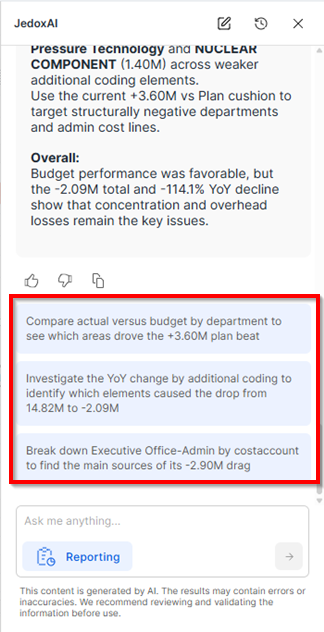
Proactive query suggestions
The Reporting Agent intelligently suggests relevant queries based on the user's context, intent, or recent activity, allowing users to select one instead of typing their request manually.
The suggestions show up at the end of each answer. Click on the desired one, and the respective text will appear in the prompt bar. To confirm the query, click the send button.
Replay a query
You can re-run any previous query by selecting it from the chat history and clicking the replay button just next to it. This is useful for returning and comparing results or reapplying something after you have changed the table.
Copy query and response
Copy the query and response at any time to re-enter the query or save the insights generated by JedoxAI.
New conversation
Use the eraser button in the upper right corner of the JedoxAI window to start a new chat.
Chat history
Click on the clock icon in the upper right corner of the JedoxAI window to access the chat history. There you can select a particular conversation or, by clicking on the 3-dot menu next to each of them, delete or rename it. The search bar is another resource for finding a specific conversation easily. Conversations are retained for 30 days.
User-friendly asset naming
All assets rendered by the Reporting Agent as part of a query response, such as Dynatables and Charts, receive user-friendly, properly cased names that reflect the query itself and the data contained in the table or chart, helping users quickly understand their context.
Feedback
At the bottom of each answer or analysis from the Reporting Agent, you find feedback options. Choose between the thumbs-up and thumbs-down icons to tell if the results were helpful. If not, you can also elaborate more in the field below.
When done, click Submit.
Feedback is an integral part of the model's learning and improvement process, leading ultimately to more accurate answers.
Capabilities in Data Insights
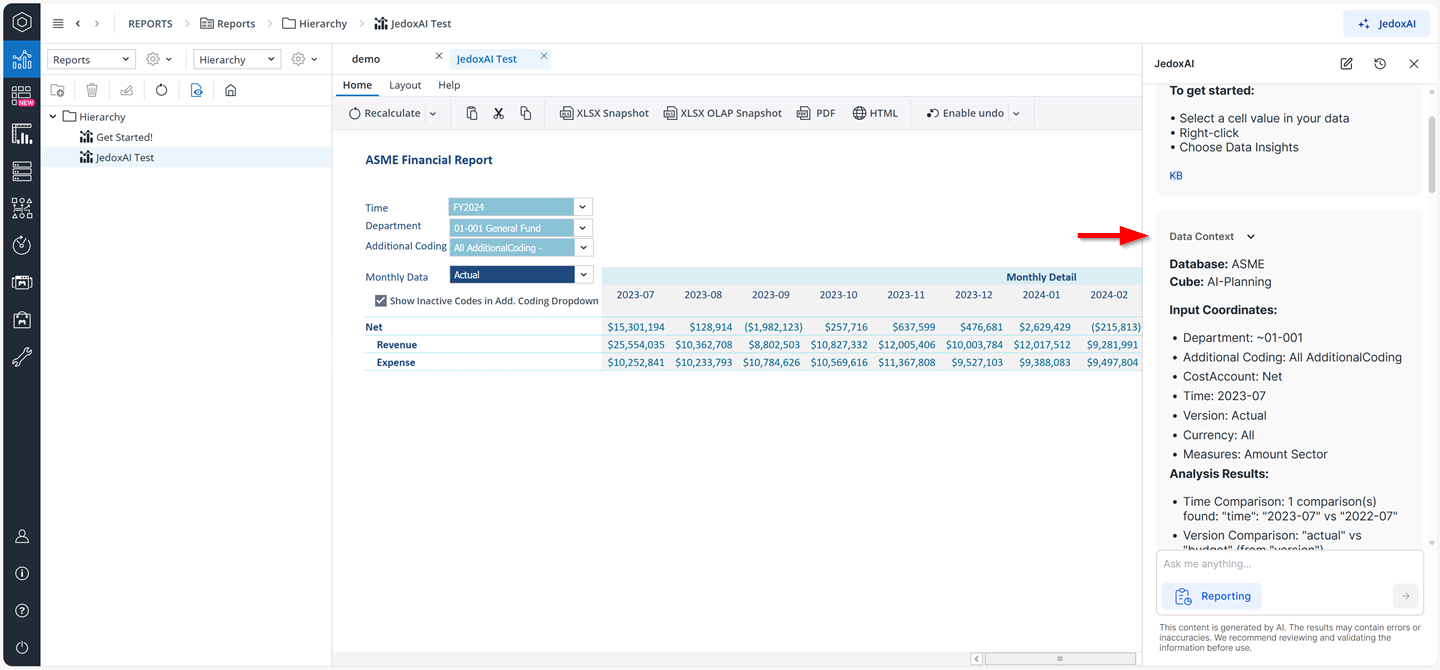
Data context
Expand the Data Context menu to see the data coordinates used to generate the query response, thus ensuring the presented results are correct.
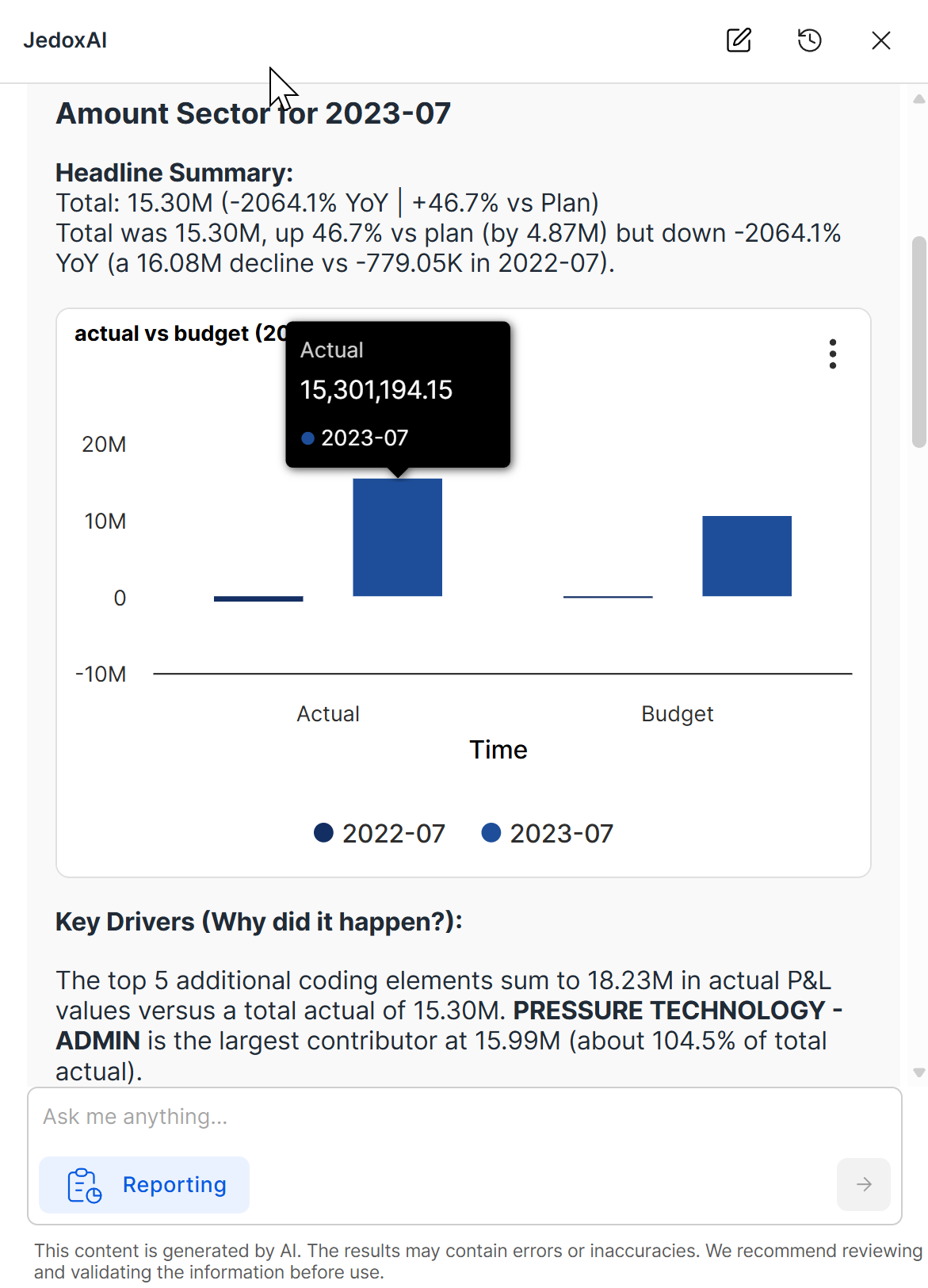
Detailed analysis
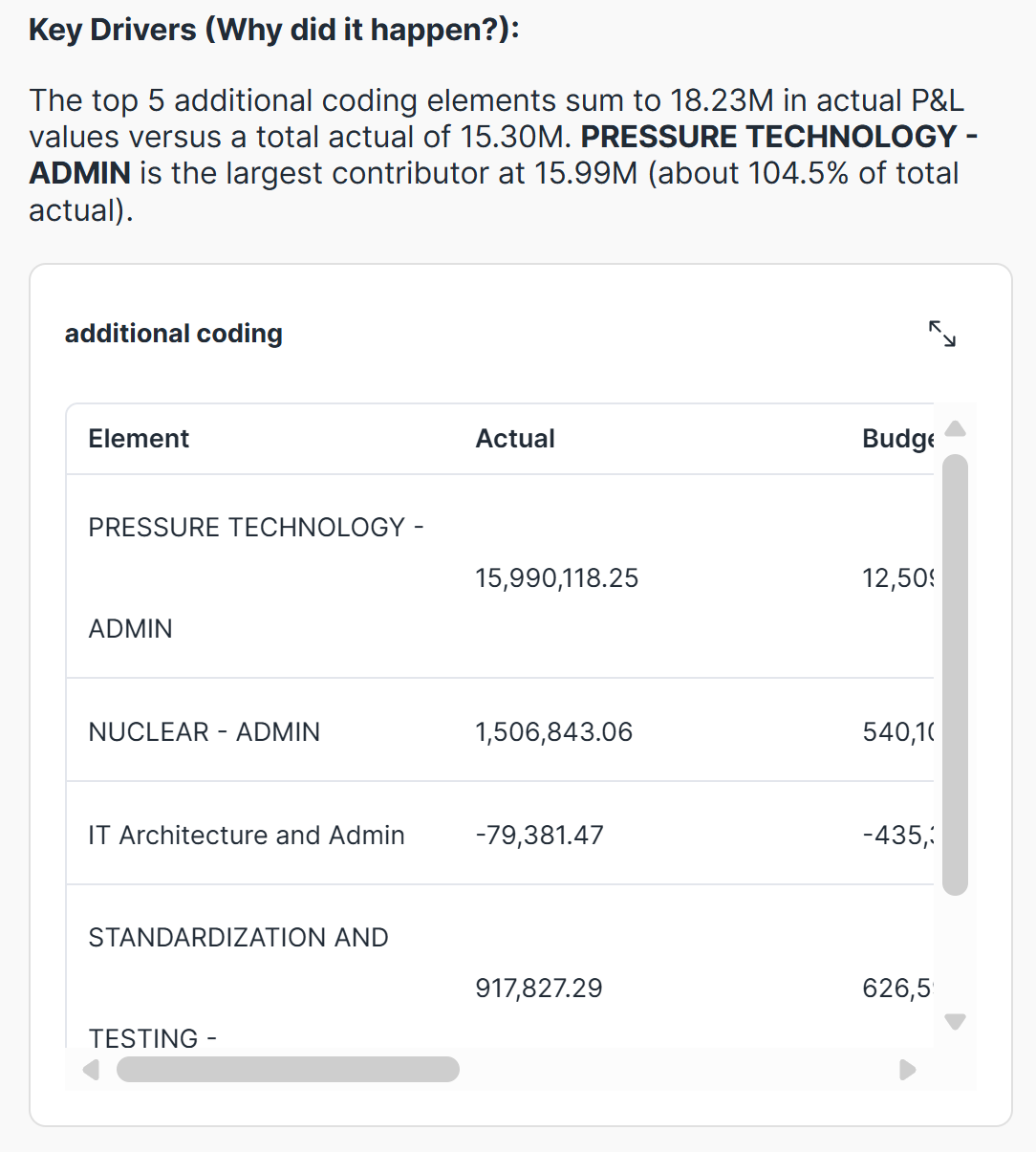
Text-based summary of the data used to generate the response in order to identify its key factors. It provides an overview of KPI performance by comparing different versions and time periods, lists the drivers behind the KPIs, and outlines their impact and outlook.
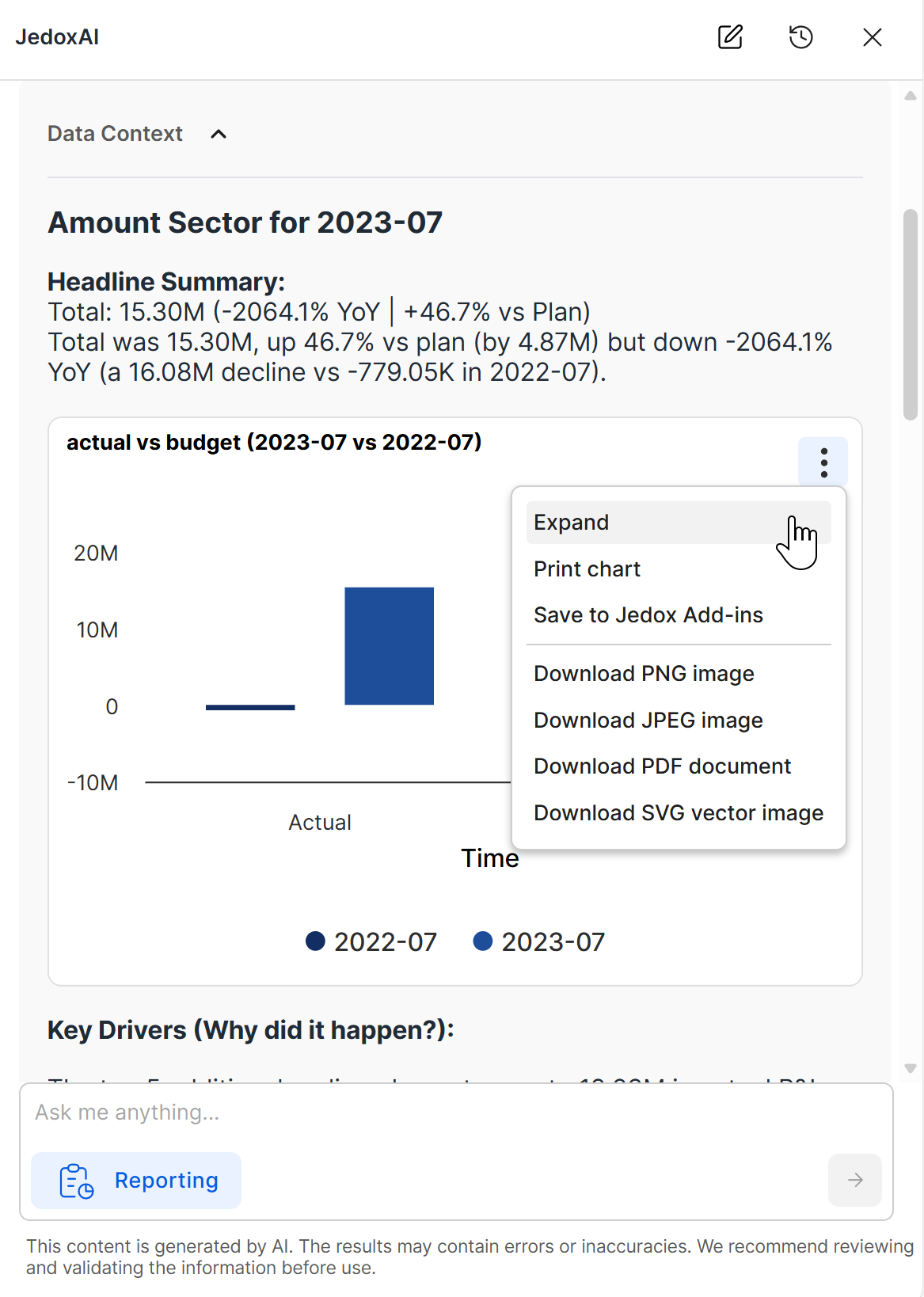
Data visualization
Chart or table-based visualization of the data for a quick and better overview of the current status.
Click on the 3-dot context menu on the right side of the window to expand, print, or download the chart in PNG, JPEG, PDF, and SVG formats.
Furthermore, you can expand the tables by clicking on the square-arrow icon and then edit or save it for further use.
Context-aware version comparison
The Reporting Agent supports flexible, context-aware version comparison, helping users analyze and understand changes across scenarios.
It can compare any supported versions, with Actual vs. Budget used as the default comparison when no other attributes are set in the Version dimension.
To compare different versions, set the "Comparison Version 1" and "Comparison Version 2" attributes in the Version dimension.
You can also specify in your prompt which versions and time periods the Reporting Agent should compare.
Capabilities in Dynatable
Pivoting data
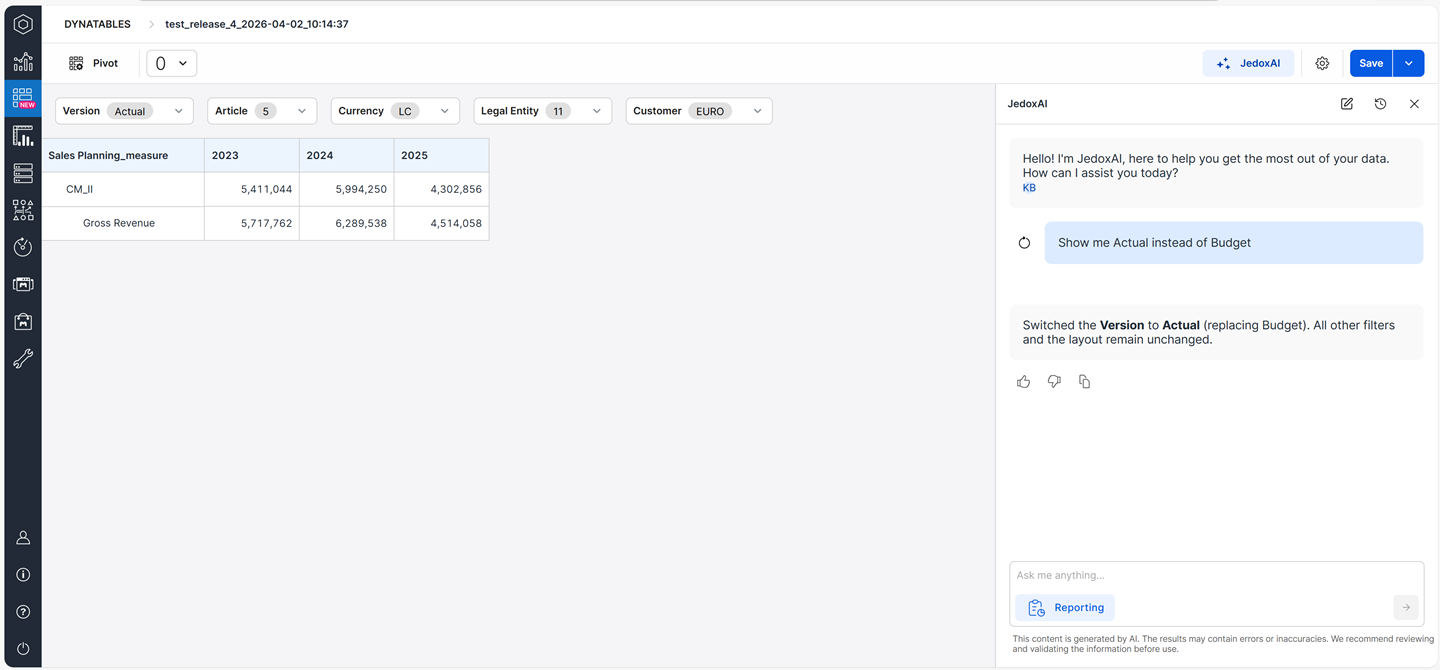
The Reporting Agent can customize the data displayed on the table. Metrics can be swapped, time periods changed, or specific categories highlighted. You can quickly redesign your data without having to search through filters or drop-down menus.
Examples:
- "Show me Actual instead of Budget"
- "Move Legal Entities to the rows"
Data analysis
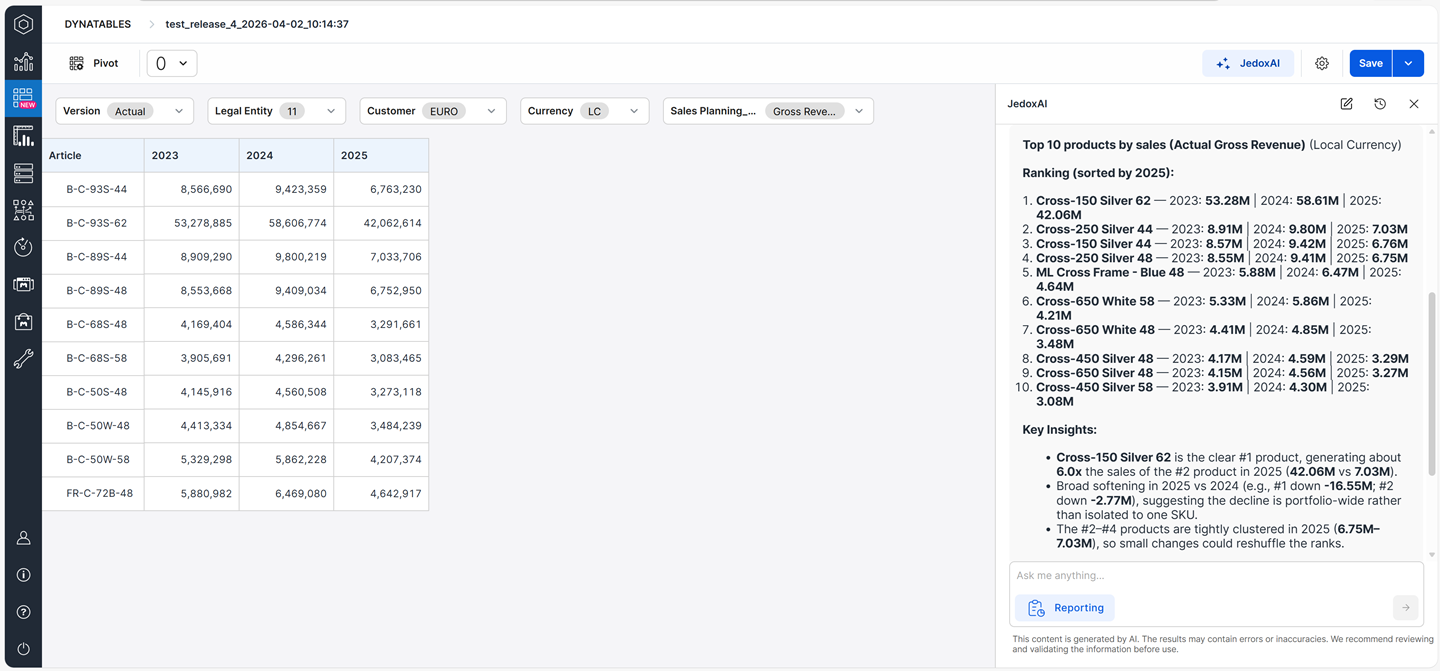
Would you like to create a new table for a specific analytical query based on certain criteria? For example, type in: "Show me the top 10 products by sales", and your Dynatable will be updated with a new layout or filtered view.
Limitations
-
The Reporting Agent works with a single cube context, that is, users can query only one single cube at a time.
-
Charts cannot be edited or saved.
-
Standalone mode for the reports is not supported for JedoxAI yet.
-
Variance calculation results is restricted to narrative results.
-
The Reporting Agent currently does not support ranking on variance type queries, for example: "Which customers are showing the largest negative variance to Budget in Units sold in 2024?". This capability will soon be added to the Agent.
Updated October 13, 2026