
Planning Agent
The Planning Agent enables users to perform complex planning tasks by using natural language queries, from splashing (entering and distributing data) to time-series forecasting. In Jedox, splashing allows users to enter a value at a consolidated level and distribute it across base-level cells, while forecasting predicts future values based on historical data. Both processes normally require mastering complex syntax and selecting appropriate parameters. The Planning Agent removes that barrier by translating natural language requests into splashing and forecast commands, with no need to learn underlying technical implementation.
Planning workflow
1. Access
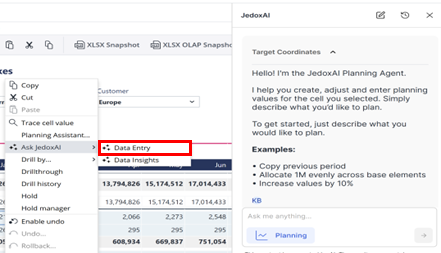
First, enable the features.rollout.planning_agent_reports feature flag on your Jedox Web instance. Then, you can access the Planning Agent from Reports or from the Designer. Right-click on a planning cell, select Ask JedoxAI from the context menu, and next Data Entry. The conversation starts automatically, adopting the target coordinates of your selected cell (cell dimensions and element IDs). The Agent supports flexible cell targeting: you can splash onto different cells and select multiple cells simultaneously. Rule-calculated cells and user permissions are handled according to platform behavior.
For full access details, see Requirements and access conditions.
2. Write a prompt
The Planning Agent works like any other chat agent. Type your planning intent in the prompt bar in the lower right corner of the web interface. Use clear natural language, for example: "Increase only populated cells by 5%", or "Add 100k to all base cells".
Multiple planning or splashing requests can be submitted in a single query, and the Agent processes them in sequence without requiring confirmation for each individual step. The Agent distinguishes between base and consolidated cells, absolute and relative values, and populated and non-populated cells. For guidance on obtaining accurate results, see Writing effective planning commands below.
After you submit a prompt, the Agent displays a text-based loading indicator while it processes your request. The indicator updates dynamically to reflect the current processing step — for example, "Understanding your request…" or "Applying forecasting values…" — so you can follow along as the Agent works.
3. Preview message for validation
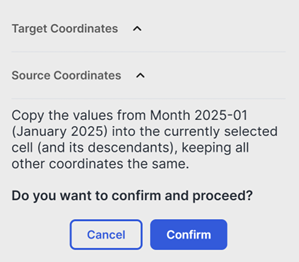
Based on your prompt, the Planning Agent identifies a planning parameter or command and shows a preview of the change about to be applied. Click the arrow next to Target Coordinates to review all the information and see the number of cells that will be affected. Click Confirm or Cancel.
4. Writeback into In-Memory DB (OLAP) and report refresh
If you confirm the task, the splashing command is written back into the Jedox In-Memory DB. The report is then updated to show the latest changes.
Planning Agent Advantages
• Works like any other chat agent — no splashing syntax required
• Supports flexible cell targeting and multi-cell selection
• Handles multiple planning requests in a single query
• Distinguishes between base and consolidated cells, absolute and relative values, and populated and non-populated cells
• Built-in undo mode for safe, reversible planning
• Time-series forecasting with automatic algorithm selection
• Conversation history retained for 30 days

Other Jedox
AI-powered services
JedoxAI helps you explore, understand, and act on your data — from generating reports to entering and forecasting planning data, all through natural language.
Learn more about:
Advanced planning options
▶ Enable undo
With this feature, planning actions can be reviewed and reversed before they are made final, giving users more control over planning data and making it easier to correct mistakes.
1. Enable undo before starting
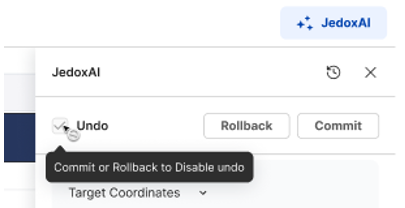
When a new Planning Agent conversation starts, the undo banner appears at the top of the chat. Select the checkbox to enable undo before sending the first request. Once enabled, the chat clearly indicates that the conversation is in undo mode: requests are visually highlighted, and the latest completed action includes an undo option next to the feedback buttons.
2. Undo the latest action
The most recent Planning Agent action can be undone while continuing to work in the same conversation. This makes it straightforward to correct the last change without restarting the full planning flow.
3. Roll back or commit all actions and release undo lock
At any point, you can either roll back all changes made during the undo session or commit them to finalize. The undo lock is only released once you carry out one of these actions. The Agent identifies which child cells belong to the consolidated cell under lock and warns users to lift undo locks before proceeding. This also blocks other users from planning on that data slice. This prevents accidental permanent modifications while planning actions are still pending.
▶ Time-series Forecasting
The Time-series Forecasting feature allows users to generate a data forecast and compare it to a budget or any other version, or write it back directly into a report.
For forecasting to succeed, ensure that:
- There is sufficient source data for the measure to forecast.
- Ideally, for each data point to forecast, approximately two to three data points of source data are available.
- Forecasting is possible on daily, monthly, and yearly levels; the same requirements apply.
1. Forecast setup and data selection
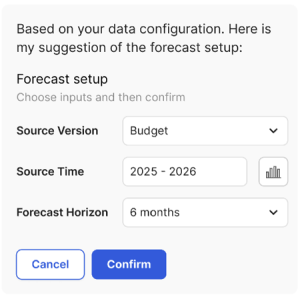
To generate a forecast for a planning cell, select it and ask the Agent to forecast. The Agent retrieves the necessary data from the Jedox cube and preselects sensible defaults where possible, including the version of the target cell, the historical source data, and a reasonable forecast horizon.
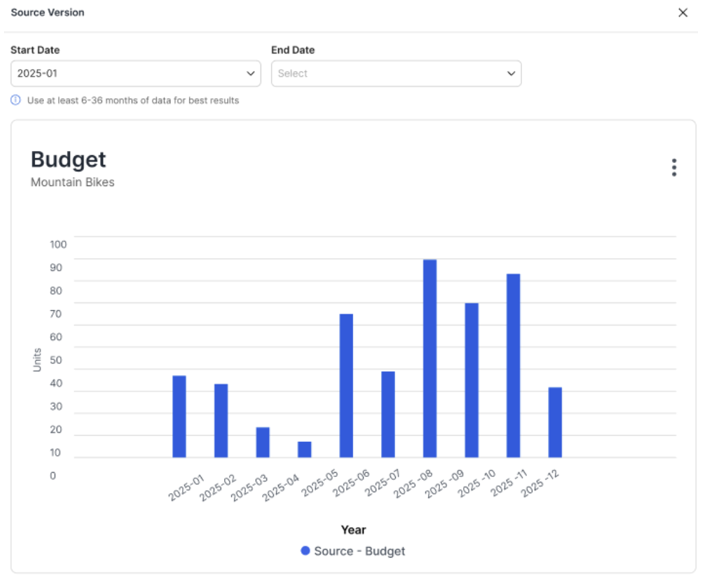
2. Graphical review of historical data
Before running the prediction, available historical data can be reviewed in a dedicated chart view. The chart shows available months for the selected version and measure, and allows adjustment of the start and end period used for the forecast.
3. Forecast generation, review, and writeback
The Planning Agent runs different forecasting algorithms and automatically selects the result with the highest accuracy, so the most suitable forecast is returned without requiring manual algorithm selection.
After the forecast is calculated, the Agent shows a compact result card with options to view, confirm, or cancel the forecast. The detailed view displays the predicted values in a chart and allows comparison of forecast data with the selected source data.
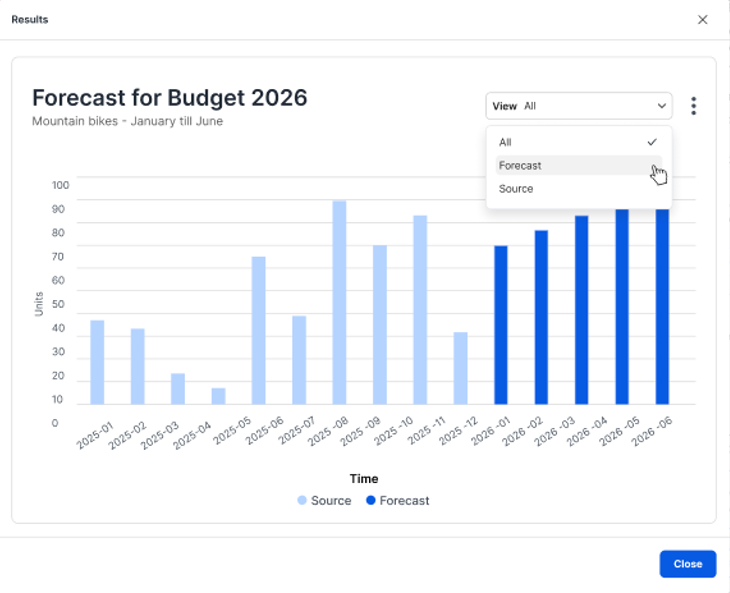
You can ask the Agent to provide a deeper analysis and explanation of the forecast data, including insights on trends, seasonality patterns, and how the forecast compares to the historical data.
Click Confirm to write the forecast values back into the Jedox In-Memory DB. If you cancel, no data is written back.
Reference and history
Conversation history
Click on the clock icon in the upper right corner of the JedoxAI window to access the chat history. There you can select a particular conversation or, by clicking on the 3-dot menu next to each of them, delete or rename it. The search bar is another resource for finding a specific conversation easily. Conversations are retained for 30 days.
Requirements and access conditions
The following conditions must be met for the Planning Agent to function:
- The feature flag
features.rollout.planning_agent_reportsmust be enabled on the instance. - The Planning Agent only works on plannable cells, specifically cells using the PALO.DATA and PALO.DATA.C functions.
- Target cells must not be locked by the Report Designer, and Cells must be selected under Rights.
- The Agent respects the splashing rights of the user. See Rights Objects in Jedox for more information.
- For the Time-series Forecasting feature to work correctly, it is recommended to use one Time dimension, set up via the Time Editor.
Writing effective planning commands
Writing effective prompts produces more accurate results with less back-and-forth clarification. The following principles apply.
Be clear and direct, with sufficient detail. Examples:
- Distribute 1.2M evenly across all customers
- Add 100k to all base cells
- Set base values to 0
- Increase only populated cells by 5%
- Fill out my Budget based on the historical data of the last 3 years
- Forecast my data for January till June by using Actuals of 2025 and 2026 as baseline
When using the copy splashing command, define the source coordinates clearly. Examples:
- Copy last year actuals
- Copy Actual 2025 to Budget 2026
Be specific about distribution. If setting or adding a value, specify whether the intent is to directly change the base cells below the consolidated target cell or to adopt the distribution of the consolidated target cell.
Splashing parameters and commands
| Command | Description |
|---|---|
| Copy | Reads values from one cube cell and applies them to another, maintaining the distribution of the source. |
| Like | Splits a value over the base cells based on the distribution of another source cell. |
#
|
Splits the value over the base cells based on the existing distribution. If no base cell is populated (all base cells are zero), the value is split evenly across all base cells. |
##
|
Adds the positive or negative value over the base cells based on the existing distribution. If no base cell is populated, the increase or decrease is split evenly across all base cells. |
!
|
Overwrites all related base cells with the specified value. |
!!
|
Adds the specified value to all related base cells. Negative values are subtracted from the base cells. |
!#
|
Overwrites the specified value only on populated base cells. |
!!#
|
Adds the specified value only to populated base cells. Negative values are subtracted from the populated base cells. |
Future outlook
The following capabilities are planned for future releases of the Planning Agent:
- Scenario planning: create new scenarios based on user needs, apply reversed planning, and compare scenarios.
- Driver-based forecasting: forecast a KPI based on its real business drivers.
Updated November 2, 2026