
Knowledge Agent
Furthermore, the Knowledge Agent is also accessible from the Modeler, offering intelligent support throughout the modeling process, so that users can build, troubleshoot, and optimize models faster and with greater confidence.
Receive troubleshooting steps, links to relevant resources, personalized recommendations, and guidance through product features. The search engine's dynamic learning capabilities will improve over time, adapting to your preferences and evolving needs.
Access
In Jedox Web, you can access the Knowledge Agent:
-
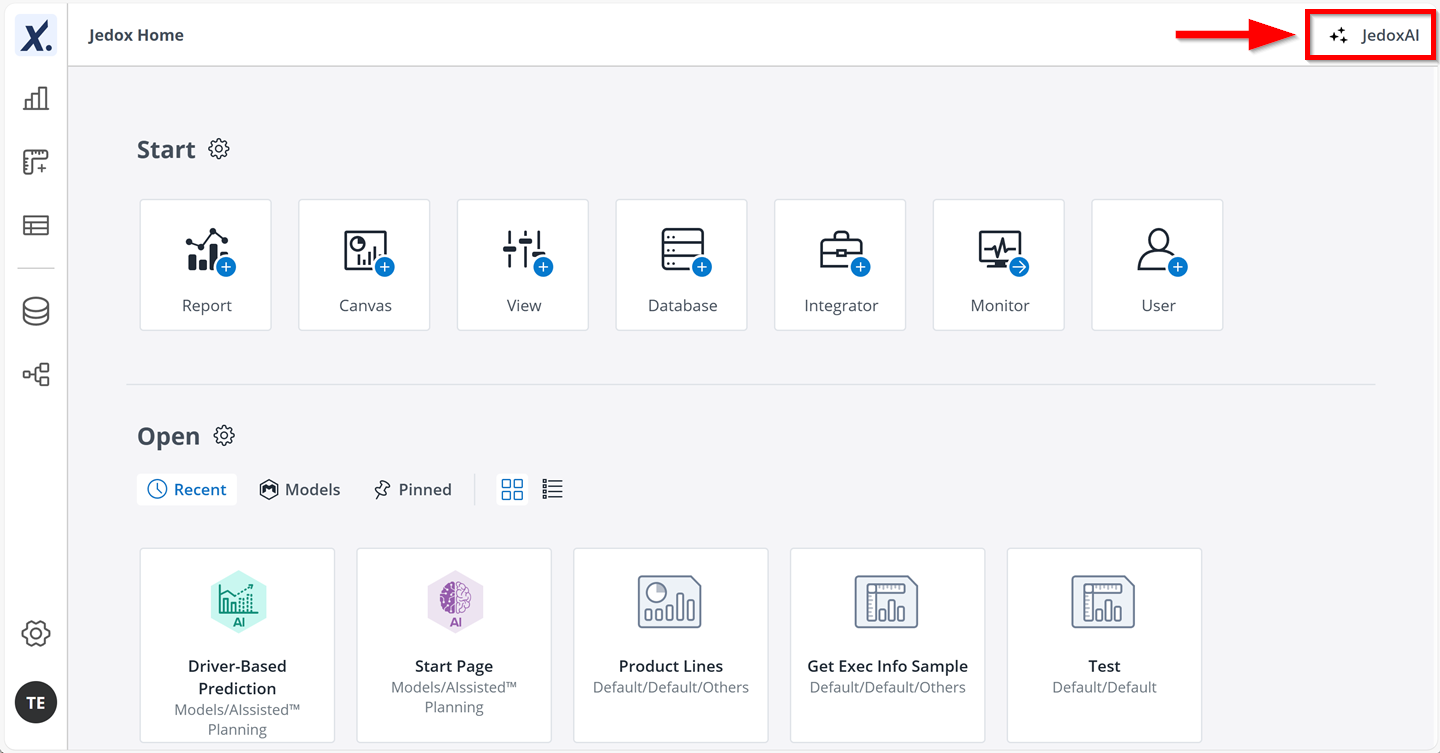
From the Homepage
Navigate to the Jedox homepage. The JedoxAI button is in the upper-right corner of the Homepage.
-
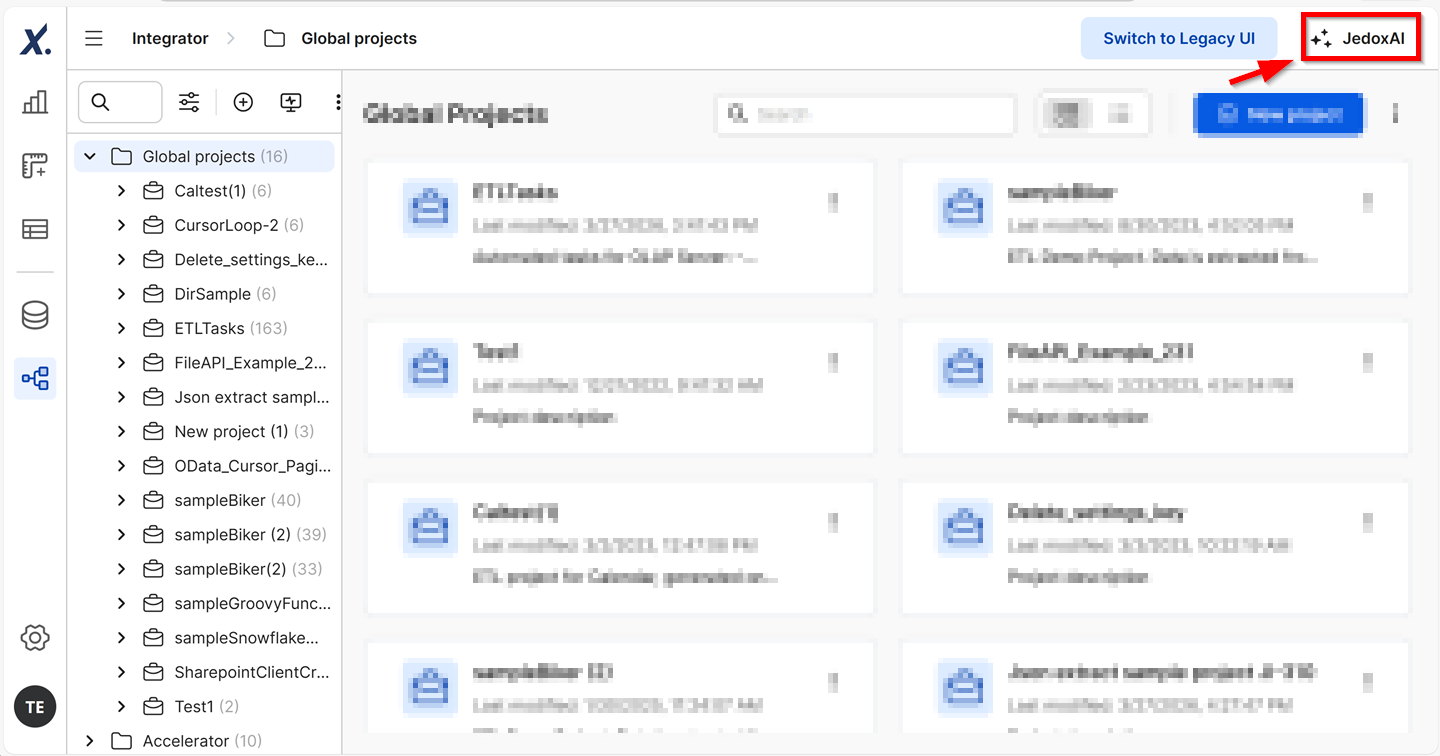
From the new Integrator UI
Navigate to the new Integrator UI from the nav bar. The JedoxAI button is in the upper-right corner. Note that the new Integrator UI is an in-preview feature that must be enabled by Jedox Support. It is recommended to test it in non-productive environments.
-
From the Modeler
As always, the JedoxAI button is in the upper-right corner of your screen.
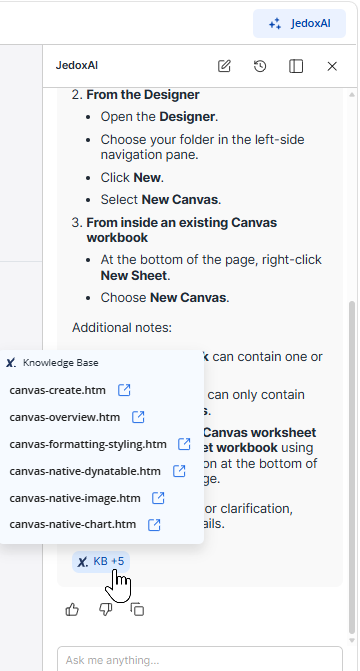
To make the content more visible, you can use the mouse to expand the JedoxAI window horizontally to a specific width.
A blue KB badge follows each answer from the Agent. It shows from which Knowledge Base articles the information is coming. Hover over it and click on any of the links to access the respective article.
Knowledge Agent Advantages
• It works intuitively like any other chat agent
• Supports multi-turn conversations
• Ability to understand natural language
• Context awareness
• Chat history
• Troubleshooting skills
• Assistance with scripting-based functionalities in the new Integrator UI

Other Jedox
AI-powered services
JedoxAI helps you explore and understand your data without having to write complex formulas or manually set up pivot tables. Simply enter a query and JedoxAI will do the work for you.
Learn more about:
Writing a prompt
The Knowledge Agent works intuitively like any other chat agent. Just type your question in the prompt bar on the lower right corner of the web interface using natural language, e.g. "How to connect to an external OLAP server?", and the Agent will provide you with a step-by-step answer. Ensure that the prompt is detailed and provides sufficient context for the Agent to understand what to do.
Multi-turn conversations
JedoxAI supports multi-turn conversations, which means you can ask follow-up prompts without repeating the entire context. It tracks everything shown on the screen, allowing for deeper analysis.
Examples:
-
"How to create a dashboard?"
-
"What components can be added to a Canvas?"
-
"Can you elaborate more?"
To reset the chat and start over, use the eraser icon in the upper right corner of the JedoxAI window.
Natural language understanding
The Knowledge Agent understands natural language, which gives the user the possibility to ask questions in a human-like, conversational way, making the search process easier, quicker, and more focused.
Examples:
-
"How can I create users in Jedox?"
-
"What are the current JedoxAI capabilities?"
-
"What are the key features of the Financial Consolidation Model?"
-
"How to synchronize my test instance with prod instance?"
-
"How to create a Snowflake connection?"
Context awareness
On the Homepage, you can query the Knowledge Agent to learn about the available capabilities.
In Integrator, the Knowledge Agent recognizes your current position on the user interface, such as which extract or transformation you are in or which field you are currently interacting with. Based on this, it generates answers tailored to your current context.
Note that the Knowledge Agent is not context aware in the Modeler yet, but this is a planned feature.
Chat history
Click on the clock icon in the upper right corner of the JedoxAI window to access the chat history. There you can select a particular conversation or, by clicking on the 3-dot menu next to each of them, delete or rename it. The search bar is another resource for finding a specific conversation easily. Conversations are retained for 30 days.
Troubleshooting
If you encounter issues with the Integrator (e.g., if an error occurs when testing a connection), the Knowledge Agent understands the context of the error and assists you in understanding and resolving the issue.
Assistance with scripting-based functionalities in the new Integrator UI
Integrator requires technical knowledge of scripting, such as Groovy or SQL. This dependency has now been reduced with the help of the Knowledge Agent. It can help generate Groovy, JavaScript, SQL, and RScript, allowing you to create Integrator jobs faster.
Simply make a request such as "Give me a Groovy script to load my data into the Sales cube", and the Knowledge Agent will generate a script for you to copy into the code editor and customize as needed.
Support in the Modeler
The Knowledge Agent provides help throughout the modeling process, being able to explain cubes, dimensions, and business rules, assist with rule syntax, interpret error messages, recommend modeling best practices, identify performance optimization opportunities, and answer questions based on the current model.
Feedback
At the bottom of each answer from the Knowledge Agent, you find feedback options. Choose between the thumbs-up and thumbs-down icons to tell if the results were helpful. If not, you can also elaborate more in the field below.
When done, click Submit.
Feedback is an integral part of the model's learning and improvement process, leading ultimately to more accurate answers.
Updated October 13, 2026