
The Jedox Add-on for Google Sheets enables you to work with Jedox data directly in Google Sheets. You can insert stored Views and manually enter PALO functions to build reports that integrate with your Jedox models.
Installation and access
Install the Jedox Add-on from the Google Workspace Marketplace. After installation, access it through Extensions > Jedox for Sheets™. Note that there is no ribbon; all features are available from the Extensions menu and sidebar.
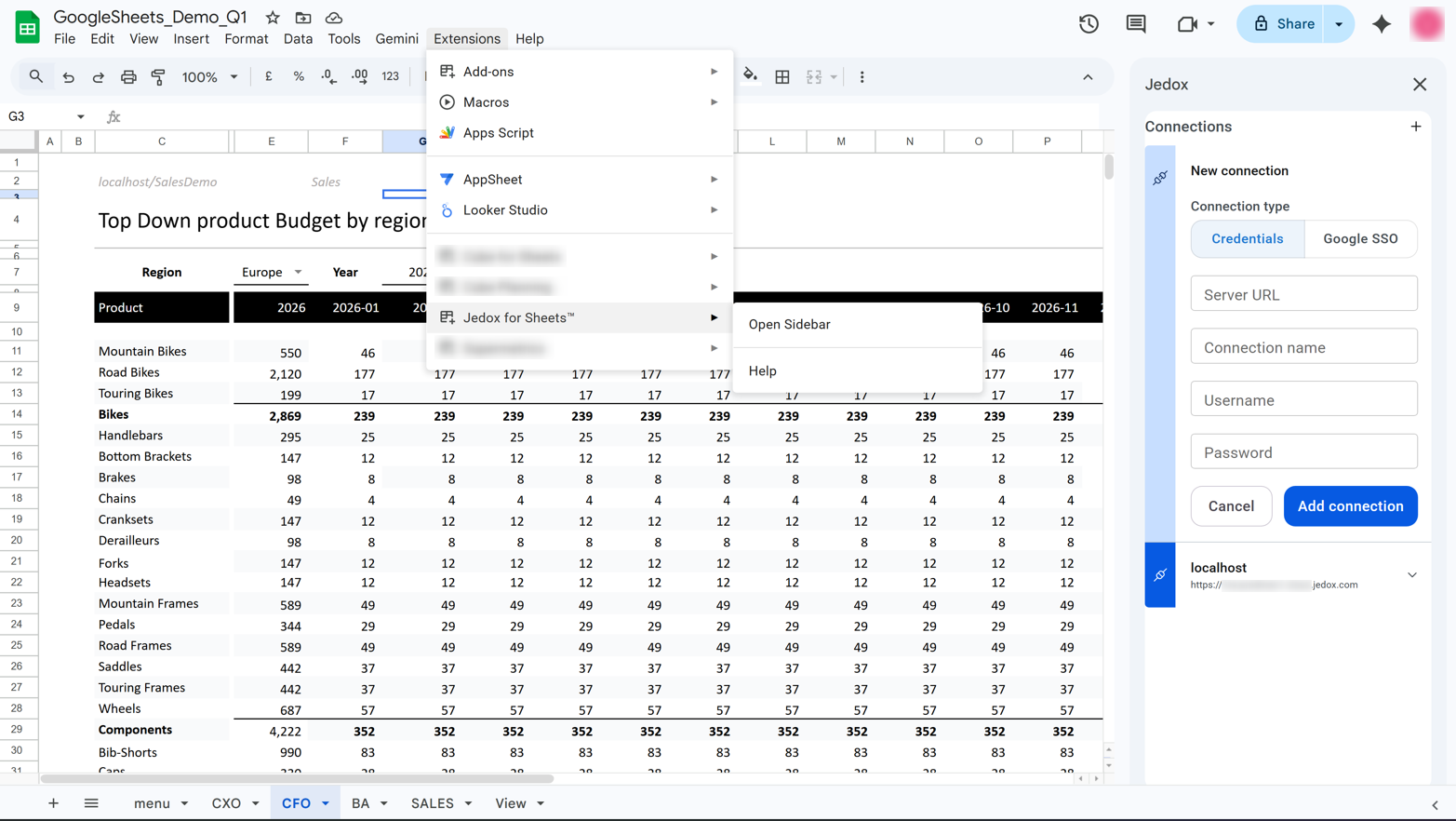
Sidebar options
The sidebar provides quick access to key features:
- Views — Display and access all available stored Views
- Connections — Manage and switch between your existing connections
- Settings — Access add-on logs for troubleshooting and diagnostics
- Help Center — Access the Jedox Knowledge Base, Jedox Support, and feedback options
The sidebar window is fixed and cannot be expanded or resized.
Creating and managing a connection
After installation, establish a connection to a Jedox server:
- Navigate to Extensions > Jedox for Sheets™ and open the sidebar
- Open Connections to create and manage connections
- Enter server URL and authentication details
- Authenticate using single sign-on (SSO) or username and password
- Save the connection
About SSO — For Google Sheets, Jedox supports OAuth 2.0 / OpenID Connect (OIDC) instead of traditional SAML flows. This approach is better suited to Google's security model and provides a smoother user experience with fewer authentication prompts.
How it works — Google handles authentication using OAuth 2.0 / OpenID Connect and issues a JWT (JSON Web Token). This JWT securely transmits the authenticated user's identity to the Jedox In-Memory DB (OLAP), which validates the JWT. End users are automatically authenticated without additional steps.
Configuration requirements — To use SSO, contact Jedox Support to configure JWT for your Jedox Cloud instance. The email address associated with the Google account must exist as a user in Jedox. For example, if the Google account is name.surname@company.com, the same user must exist in Jedox Web with exactly that email address.
Automatic session recovery
The add-on automatically keeps your session active as long as the sidebar is open. When you close the sidebar, your session remains valid for one hour; reconnection is attempted when you reopen it within that time. If you return after one hour or if automatic reconnection fails, you will be prompted to connect again.
Working with stored Views
Views are inserted into the spreadsheet as static data without using PALO functions, while maintaining a connection to the Jedox server.
After connecting, you can insert a stored View from the Views section in the sidebar. When a stored View is opened, the Active section displays the View associated with the selected sheet. The All section lists all available stored Views. Use the Refresh ( ) button to synchronize the sidebar with the active sheet. If the selected sheet does not contain a View, the Active section is hidden.
The add-on supports Views that contain aliases, aggregation functions in POV dimensions (Sum, Max, Min, Average), Lists, stored Subsets, and Virtual Dimensions. Hover over a stored View to access the More options menu (...), where you can pin or delete the View. Pinned Views are displayed at the top of the All section for easier access.
You can search Views by name, database, or cube, sort them (newest created Views display first by default), and filter by database and cube.
Stored Views are read-only within the add-on. They cannot be edited, expanded or collapsed, and do not support writeback operations.
Using PALO functions
Once the connection is established, you can manually insert supported PALO functions directly into cells to read or refresh data from the Jedox In-Memory DB.
Supported PALO functions are: PALO_DATA, PALO_DATAC, PALO_DATAV, PALO_DATA_AVG, PALO_DATA_CNT, PALO_DATA_MAX, PALO_DATA_MIN, PALO_DATA_SUM, PALO_EL, PALO_COORD, PALO_EXPANDTYPE, and PALO_SUBSET.
Refresh and recalculation
Google Sheets does not support manual recalculation (like F9) for custom functions. PALO functions recalculate only when a dependency changes. To control recalculations on demand, PALO functions include a calculation trigger as their first argument:
Example: =PALO_DATA(trigger, connection, cube, element1, element2,...)
- The first argument (trigger) can be any cell reference.
- When this cell changes, the function is recalculated.
- The remaining arguments define the connection, cube, and coordinates.
We recommend using a common trigger cell for all PALO functions within a sheet or workbook. Example: =PALO_DATA($A$1, "localhost/Demo", "Sales", "All Products", "Europe", ... ). Changing the value in cell $A$1 triggers recalculation for the entire report.
Alias support in PALO.DATA functions
When a cell contains an alias entered via PALO_ESELECT, you can use that cell directly as an argument in any PALO_DATA variant (PALO_DATA, PALO_DATAC, PALO_DATAV, PALO_DATA_SUM, PALO_DATA_AVG, PALO_DATA_CNT, PALO_DATA_MAX, and PALO_DATA_MIN). The alias is resolved to the real element name in a “hidden” _jdx_alias_ map sheet before the query is sent to the server, so the function returns the correct cube value without any manual conversion. This hidden sheet is visible in the sheet tab bar and can be hidden manually if needed.
After inserting approximately 800 PALO_ESELECT formulas with aliased elements in a single sheet, PALO_DATA may start returning errors. Open the Views page or click Refresh to synchronize pending aliases to the hidden sheet and ensure that subsequent aliased formulas can still be resolved.
Multi-user collaboration
In shared Google Sheets, custom PALO functions execute using the sheet owner's session rather than the session of the user triggering them. A collaborator may access data through the owner's active session, regardless of their own authorization. This occurs when both the collaborator is working on the file and the owner's session is still active (either the owner is actively working or has not explicitly disconnected and the session timeout has not expired).
See Migrating Reports to Google Sheets for more information.
Updated October 19, 2026