
Task pane navigation
Task panes are interface surfaces that typically appear on the right side of the window / worksheet within Word, PowerPoint, Excel, and Outlook.
From the task pane's hamburger menu, you can quickly access the sections Home, Views, Custom Reports, Settings, and Notifications on spreadsheet interactions with Jedox objects, e.g. error messages.


Furthermore, there is an additional pane within the desktop application, marked with an < icon on Windows and an i icon on macOS, which includes the following options: Get Support, Reload, Security Info, Attach Debugger on Windows, and View Source and Clear Web Cache on macOS.

.png "Click to enlarge")
Cell options
To access additional cell options, right-click a string cell, select Jedox from the context menu, and choose from the available features listed below. These features are available in Jedox Views and Custom Reports using PALO functions.
To access additional relevant information that is not initially presented in your custom report or View, select an aggregated cell and right-click on Jedox >Drillthrough. The detailed base-level information behind the aggregated data will be loaded into a new sheet labeled Drillthrough.
Select Drill History to view the audit history for that cell. If changes have been made within the cube area and cell auditing is enabled, a new sheet will open displaying a list of audit entries, including the date and time, user, value, and command associated with each change.
Users with write permissions can select a string-type cell stored in the cube, e.g. Comments, to open the text editor, allowing text input.
The Cell Tracer allows you to trace the origin of calculated values on PALO.DATA* cells. The Cell Tracer dialog is available from the context menu. Right-click on a cell and navigate to Jedox > Cell Tracer.
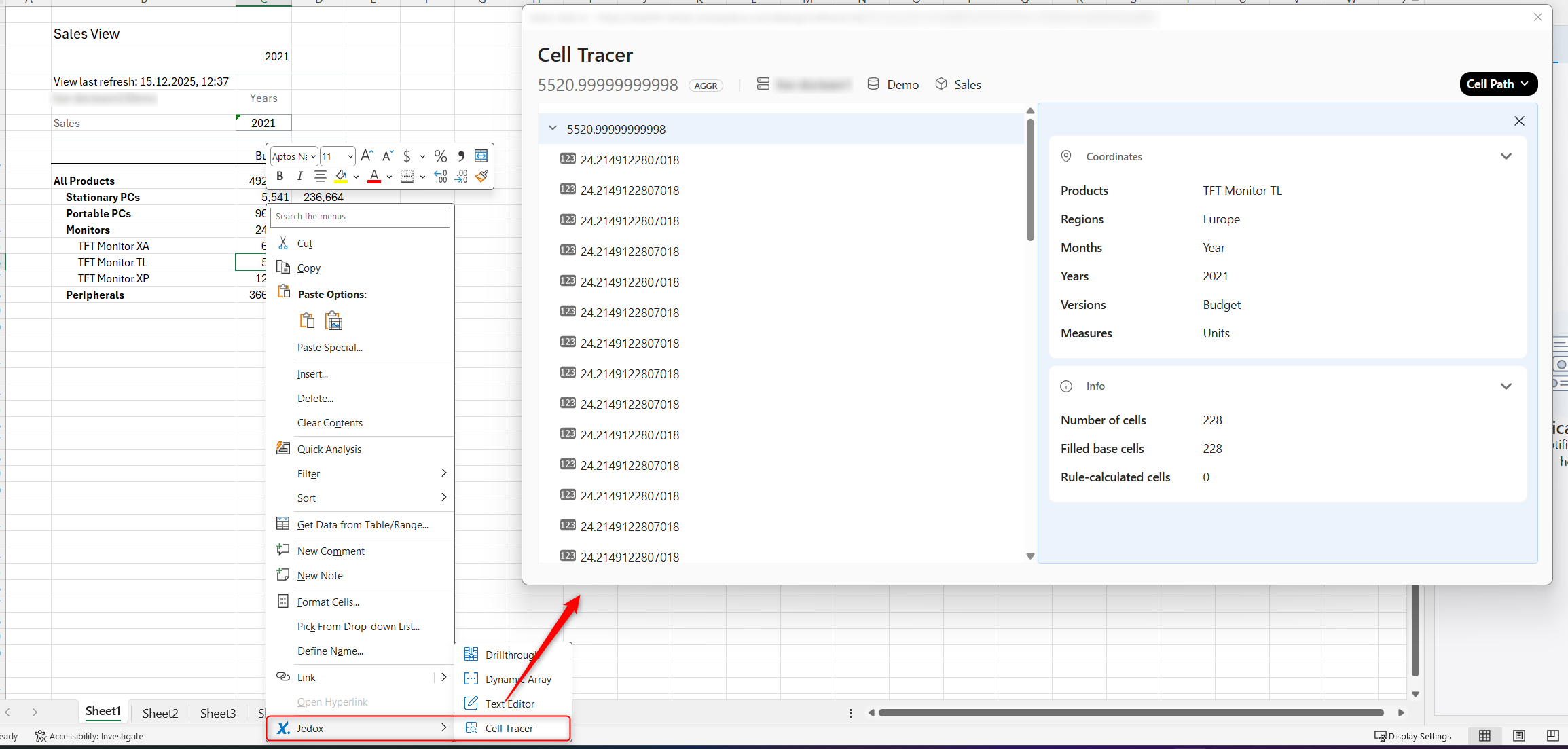
It shows, e.g., whether it is a numeric base value, an aggregated value, or a rule-based calculated value. In rule-based calculated cells, the ID of the rule is displayed, making it easier to locate in the cube. You can also check the rule itself via the dialog box. The Cell Path menu displays the coordinates.
Updated November 10, 2026