
Dynamic Arrays and Dynamic Subsets enable you to create variable-driven, dynamic data selections in Excel—features available exclusively in the Add-in for Excel 365.
Dynamic Arrays were the original approach for managing stored Subsets in Excel, but they exhibit performance limitations and produce unreliable results when used with variables. Dynamic Subsets was introduced as a specialized alternative designed specifically to handle stored Subsets with variables, providing improved stability and performance. If your workflow uses Subsets with variables, use Dynamic Subsets instead of Dynamic Arrays.
Dynamic Array
Jedox Dynamic Array allows you to dynamically insert data into an Excel spreadsheet by spilling multiple values into adjacent cells, the contents of which are based on dimensions and elements from a Jedox In-Memory Database (OLAP). If the array contains consolidated elements, you can expand or collapse them directly in the spreadsheet.
Creation
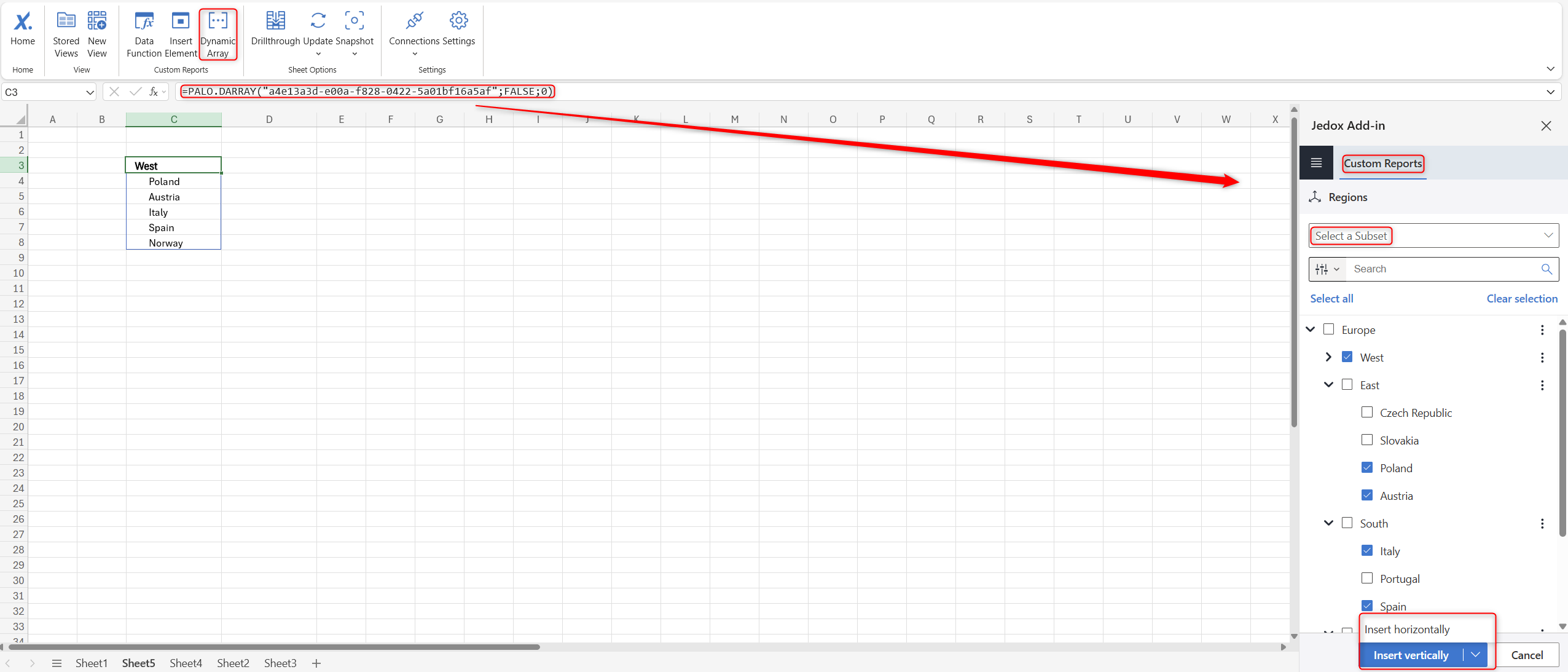
To create a Dynamic Array, select the option from the “Custom Reports” section on the ribbon or in the task pane, or right-click a cell and select Jedox > Dynamic Array. Choose the database and dimension, and either manually select the desired elements. Once you have selected the source, you can insert the array either vertically or horizontally. The array utilizes the formula PALO.DARRAY.
Interaction
If the array consists of consolidated elements, you can expand/collapse them directly in the spreadsheet. For convenience, you can enable the click area.
If there are populated cells to the right of the vertically pasted array formula or below the horizontally pasted array formula, these cells can interact dynamically with the expand/collapse actions of the array. This range is called extended interaction area.
By default, the argument is set to zero (“0”), meaning that only the array itself will expand, with no adjacent interaction.
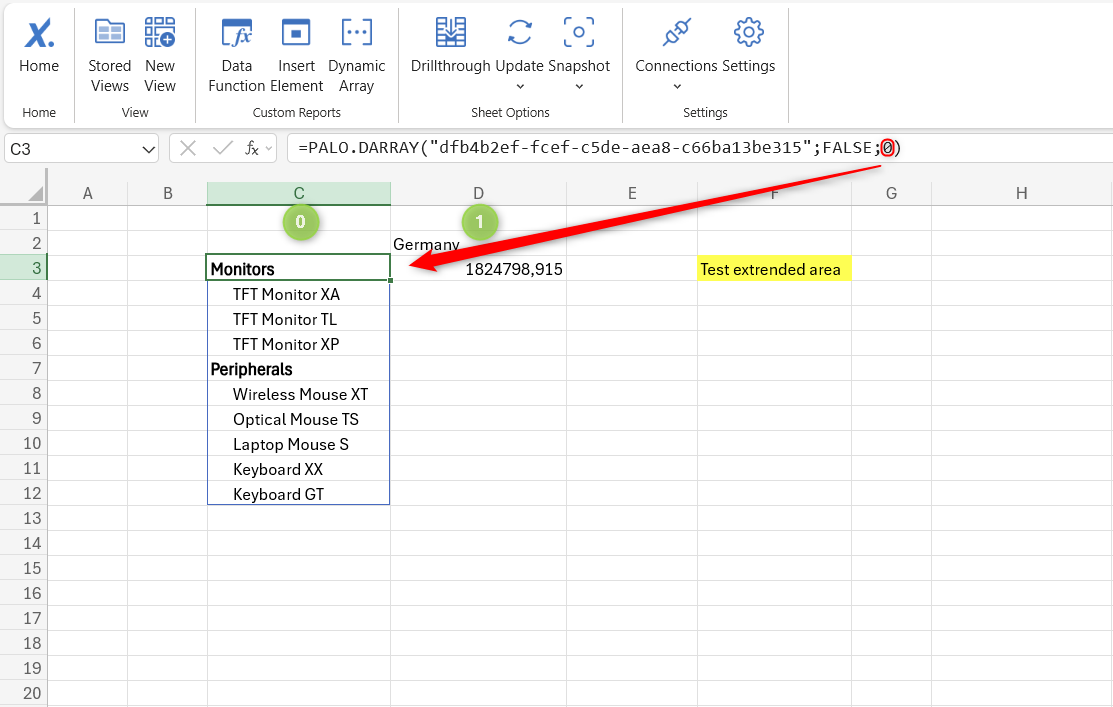
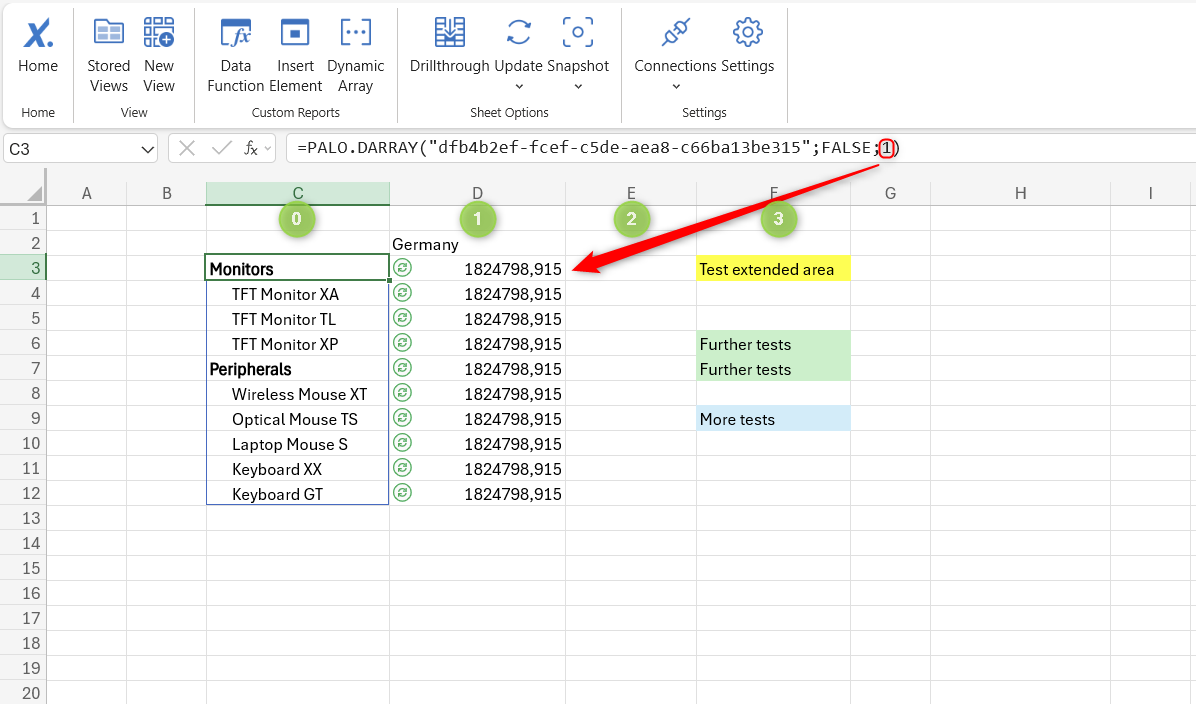
You can manually increase the number to the desired amount of adjacent rows/columns, which will then spill dynamically as the array expands. It is recommended to use a reasonable number (e.g. up to 10) to avoid performance issues.
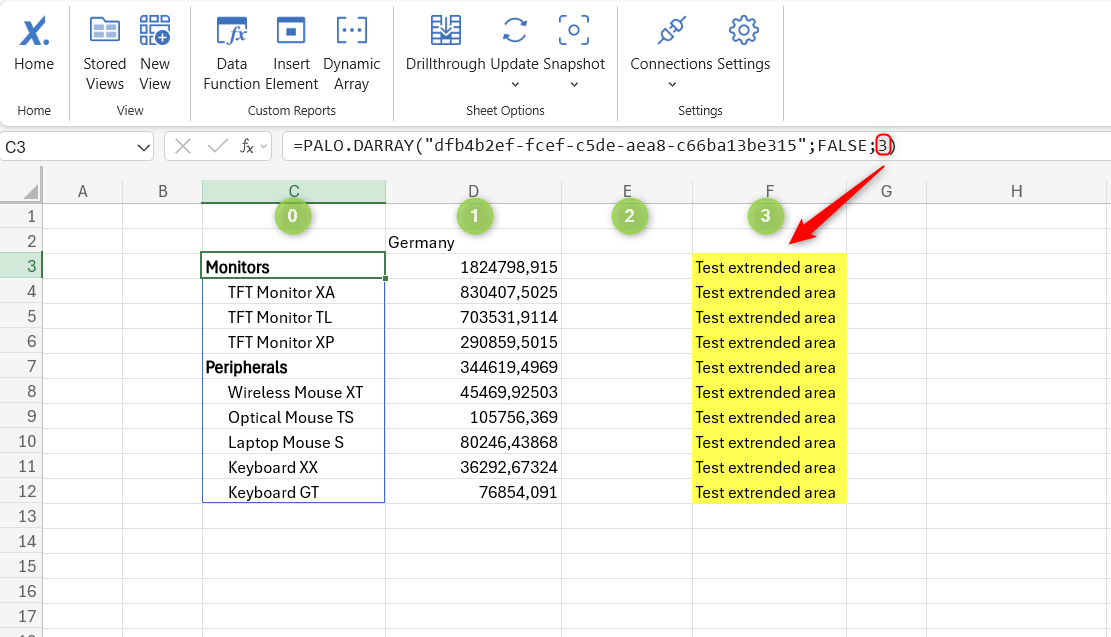
If there are populated cells parallel to the expansion area of the array, but not parallel to the formula (e.g. the colored cells in the screenshot above), these cells will be overwritten as soon as you include this row/column in the extended interaction area.
Updating the array
If the data source of the array is derived from a stored Subset where all elements are selected at once (i.e. “select all”) and not individually, then the array will automatically update when the Subset is changed, either by interacting with the array or by updating the sheet/workbook. If only some elements from the Subset are used or all elements are selected individually, the array will not be updated automatically.
To edit the array, right-click on an array cell and select Jedox -> Dynamic Array from Excel's context menu or select the option from the ribbon.
Furthermore, you can copy/cut and paste the Dynamic Array (with all its definitions, i.e. function, source, and related settings) to another area of the sheet or to another sheet within the workbook.
Dynamic Subsets
Dynamic Subsets provide an improved way to manage stored Subsets from Jedox Web in your Excel worksheet. They enable Subset management without manual formula updates while supporting expand/collapse navigation, named ranges as parameters, and hierarchy-based display options.
Configuration options
Click on the Dynamic Subset button in the ribbon to configure it. If your database contains a stored Subset, it will become available for selection. You can then customize the display using the following options:
- Show alias — Display Subset aliases instead of element names
- Invert hierarchy — Reverse the order of hierarchy levels
- Drill down at level — Set the initial expansion depth
- Indent text — Add spacing to show hierarchy levels visually
- Orientation — Choose horizontal or vertical layout
Note: "Show alias" is automatically checked in the task pane if defined in the Subset configuration, but you can uncheck it to override this setting. The checkbox for "Invert hierarchy" is disabled when the Subset has the "show parents below children" setting enabled in its definition.
How they work
The PALO.DYNAMIC.SUBSET.OPTIONS function holds the configuration arguments and passes them to the PALO.SERVER_SUBSET function. This linked approach preserves your existing Subset formulas, allowing you to update configurations without losing your work.
For example:
=PALO.SERVER_SUBSET("localhost/Biker";"Customers";TRUE;"Customer Level 2-4";PALO.DYNAMIC.SUBSET.OPTIONS(0;0;TRUE;1;TRUE))
Using variables
Dynamic Subsets support two approaches to variable handling: invisible variables and visible variables. Your choice affects how Excel handles updates.
Visible variables (recommended)
With visible variables, the named range and its value are added directly as additional arguments at the end of the function:
=PALO.SERVER_SUBSET("localhost/Biker";"Customers";TRUE;"Customer Level 2-4";PALO.DYNAMIC.SUBSET.OPTIONS(0;0;TRUE;1;TRUE);"Customer_NR";Customer_NR1)
In this example, Customer_NR is the variable name and Customer_NR1 is its value, both appended after the options argument. Because the variable now appears as an explicit function dependency, Excel automatically triggers recalculation whenever the value changes. The Dynamic Subset stays up to date without any manual intervention.
Invisible variables
An invisible variable is referenced only within the Subset definition itself and does not appear as an explicit argument in the function:
=PALO.SERVER_SUBSET("localhost/Biker";"Customers";TRUE;"Customer Level 2-4";PALO.DYNAMIC.SUBSET.OPTIONS(0;0;TRUE;1;TRUE))
Because Excel has no visibility into this dependency, changing the variable's value does not automatically refresh the Dynamic Subset. You must manually recalculate the sheet or workbook to see the update.
Videos
- Vertical Dynamic Arrays
- Horizontal Dynamic Arrays
- Dynamic Arrays - vertical & horizontal
- Dynamic Subsets in Excel
Note that some of these videos were recorded with an earlier version, but their functionality has remained the same.

Notes
- Dynamic Arrays and Dynamic Subsets are only available in the Add-in for Excel 365.
- The import of spreadsheets containing the PALO.DARRAY formula into Jedox Web is not supported and will display the error #NAME in the corresponding cells.
- If there is data in any cell in the direction of the expansion, the array cannot be spilled and a blue line will appear showing the error #SPILL!
- The "show symbols" option is not compatible with Dynamic Arrays and should be deactivated. Otherwise it could break the formula.
- Nesting Dynamic Arrays is not supported.
- It is not possible to copy/cut and paste Dynamic Array into another workbook.
For more information, see Custom Reports in Add-in for Excel 365
Updated November 10, 2026