Rule templates are created in the Rule Editor in the Jedox Web Modeler. The first step to creating a rule template is to select a query type. There are several query types available, each allowing a different form of instantiation. Each query defines a set of user-specified input parameters. Based on the values for the input parameters, the query is executed.
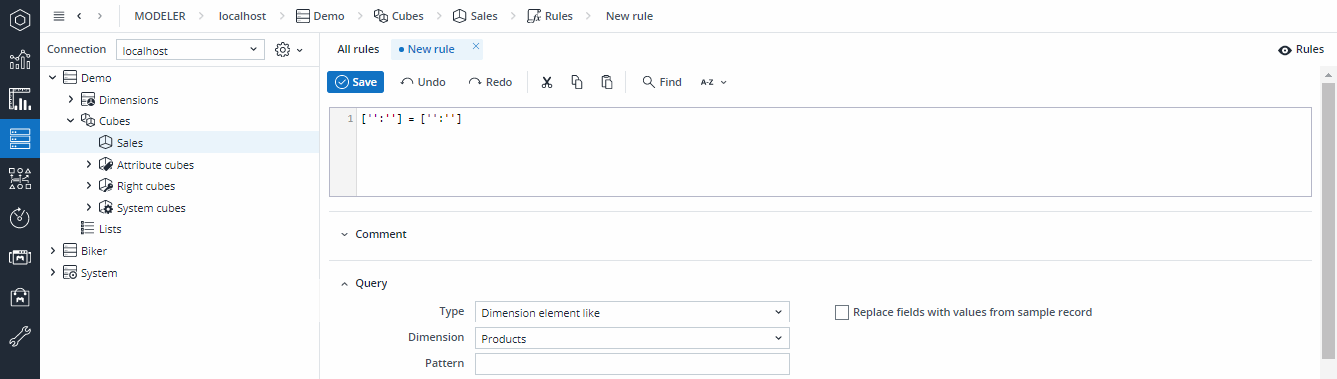
The result of a query is a record set consisting of rows and columns. Each column represents a potential variable that can be used in a rule definition; each row represents a record that will later be instantiated. Thus, for each returned row, there will be one rule instance generated, replacing the parameters from the rule template definition with the specific values from that row.
Note: rule templates use the same syntax for variables as Integrator projects: ${varname}. If a rule template and an Integrator project use a variable with the same name, the variable will be handled by the Integrator task, not the rule template. Problems can be averted by changing the Integrator variable name on a project level.
In the following example, a rule template is generated to create instance rules for each Desktop... element in a Products dimension. To achieve this, the query type Dimension element like is used. The query expects two input parameters: a dimension (Products, in this case) and a RegEx filter pattern, which will be applied to all element names in the dimension. Each matching element is returned as a row in the query's record set.
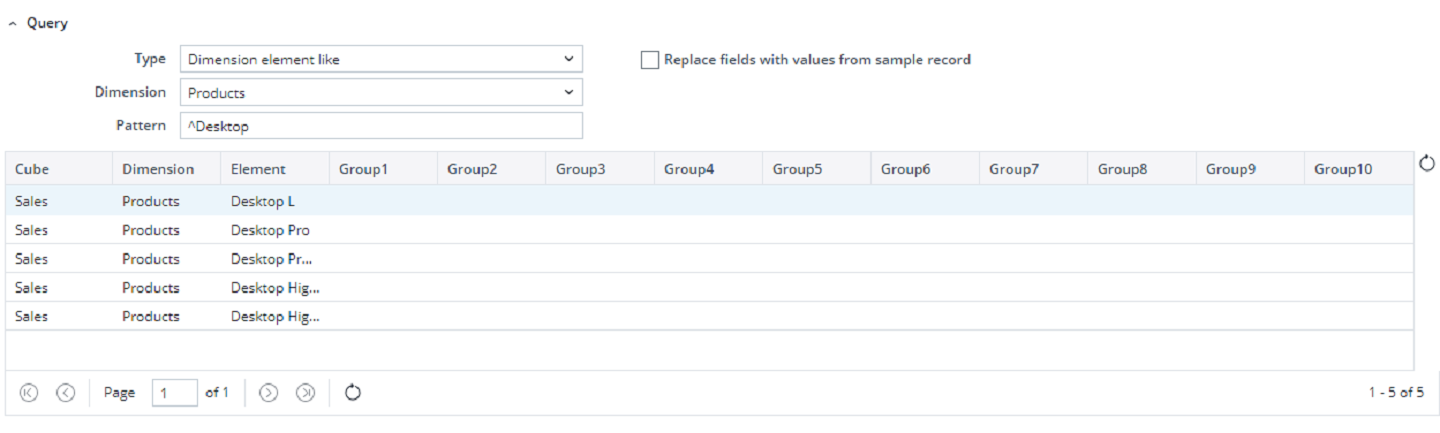
The columns represent variables to be used in the rule definition. The variables can also be chosen from the combobox controls in the rule definition section. variables are defined in the rule definition using the ${varname} decoration.
If you select a row in the query's returned record set and use the "Replace variables with fields from sample record" option, an example instantiation of the rule template is shown in the rule definition field.
When saving the rule template, the rule instances are automatically generated based on the returned record set. In the list of rules, instances are not shown by default, but can be shown by checking the "Show instance rules" checkbox. The Template column then shows the ID of the rule template from which the rule was generated.
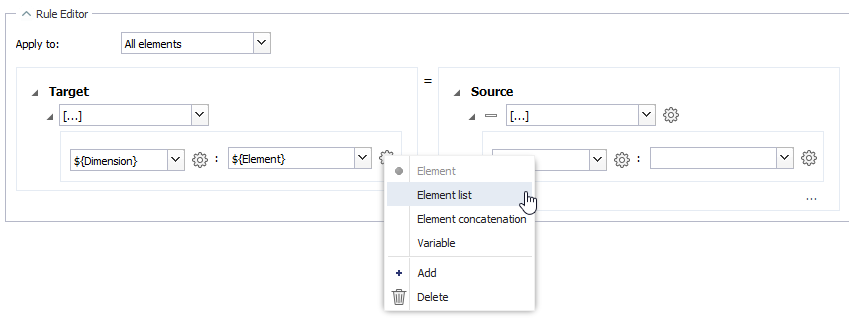
Some queries (such as Dimension element like (list)) return an array, or a list of elements in a single record. To use the variables of these record sets with correct syntax in the rule controls, select Element list from the cog wheel, as shown below. Afterwards, on the inner menu, select variable.
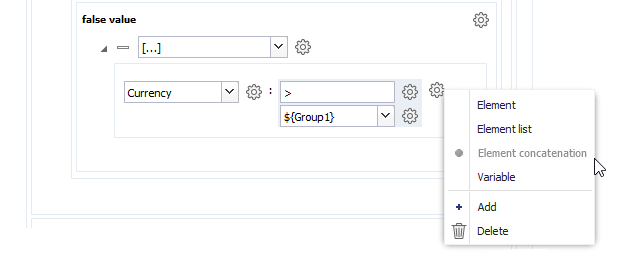
In some cases, it may be necessary to concatenate a static string and the result of a field in a rule query within a rule parameter. This can be done by selecting Element concatenation from the cog wheel. You can then create multiple fields within the concatenation, each of which can be either a static text or a variable from the query:
.Next step: Management and Update of Rule Templates
Updated May 19, 2026