This article explains how Lists are used in Views and Paste View dialogs, and outlines the technical behavior, limitations, and constraints associated with Lists. It also covers formatting options, naming rules, writeback behavior, and known restrictions when working with Lists in Jedox.
Formatting Lists
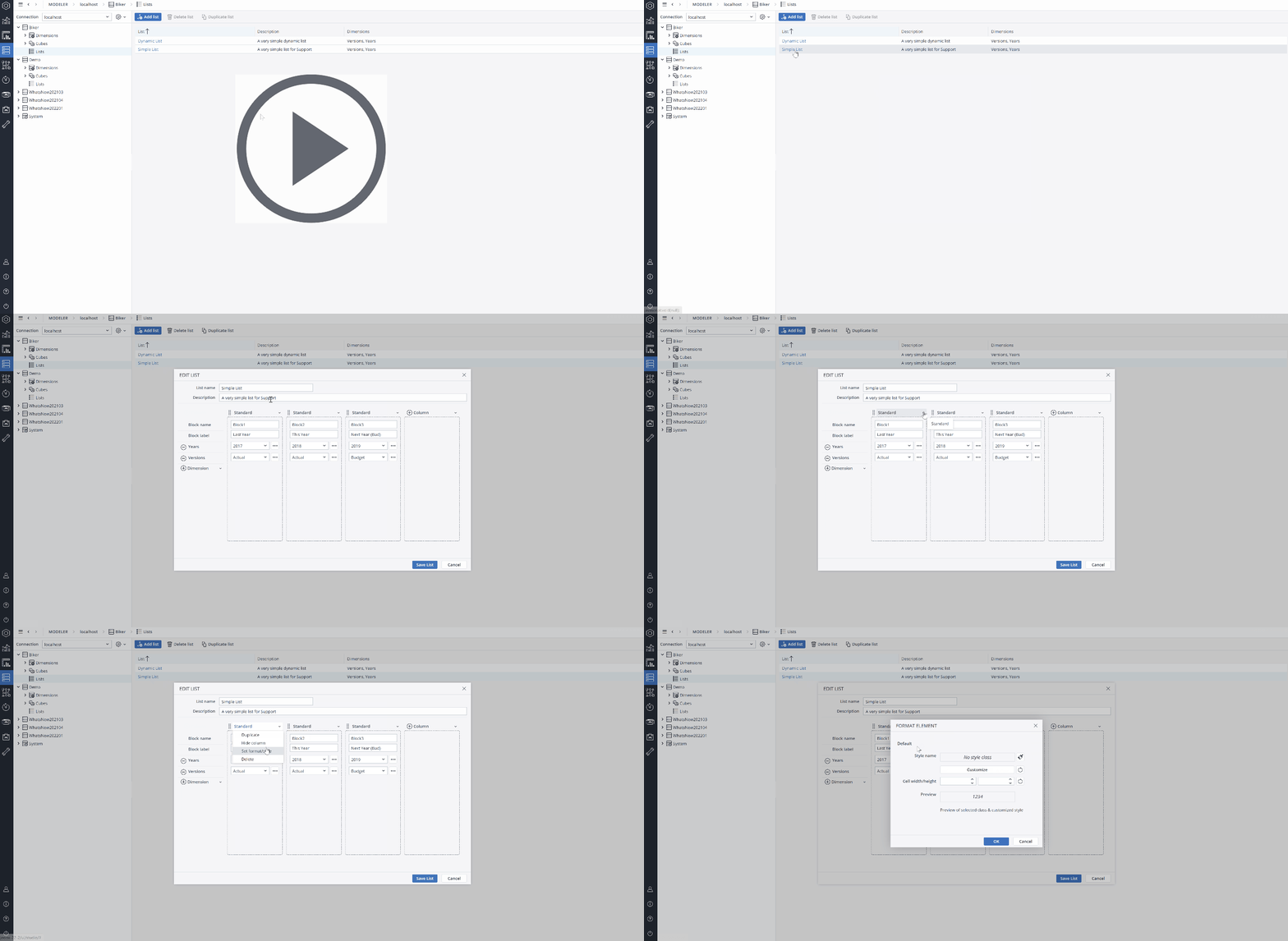
You can directly customize the columns of a List. To do this, click on the dropdown menu above the column and choose Set Format/Style.
Lists in Paste View
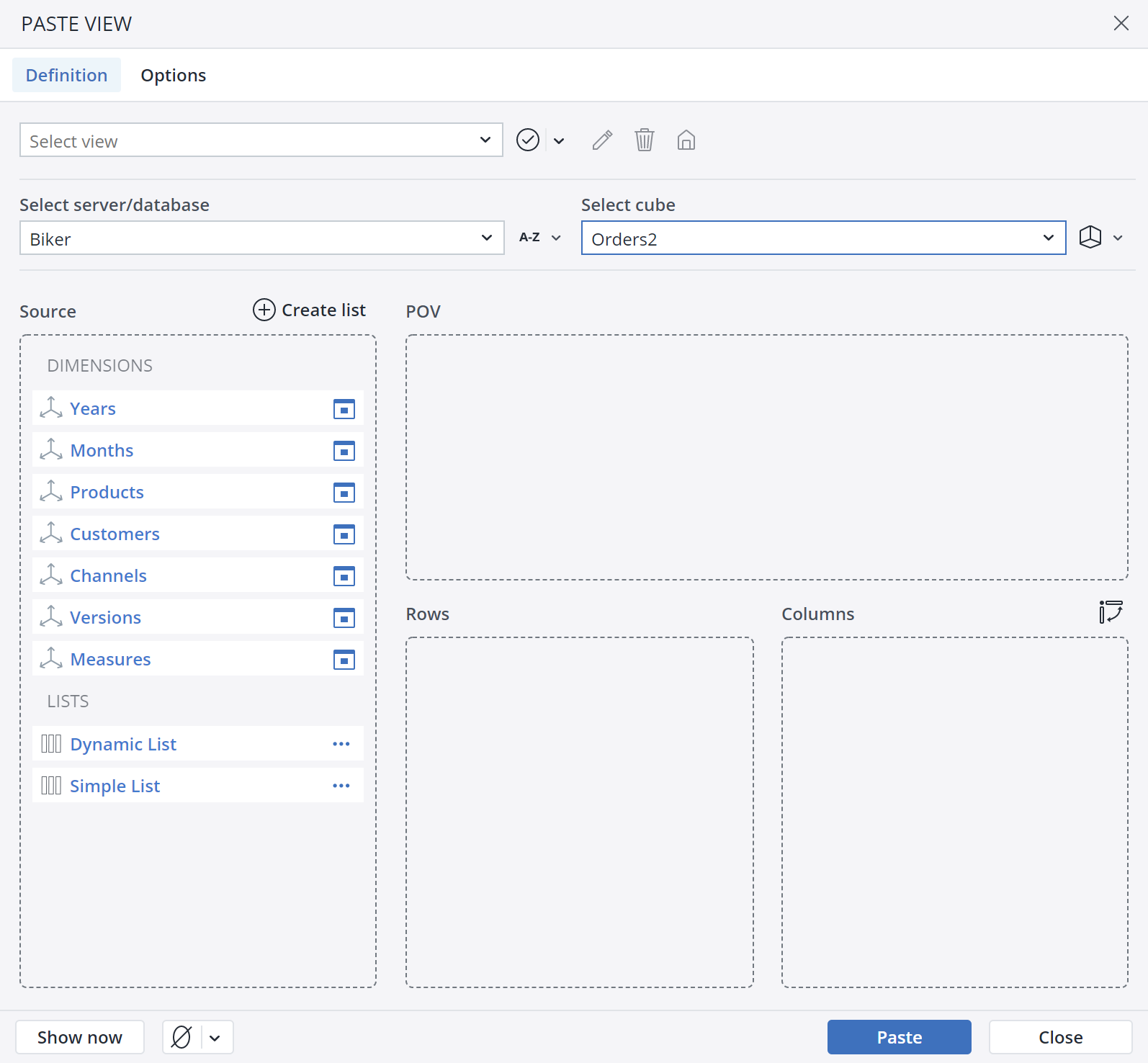
The Paste View dialog in Jedox Web enables you to use Lists the way you use dimensions. The Paste View dialog shows all the dimensions and Lists available for a given cube. You can drag and drop Lists in the column, row, POV, or the header sections of the Paste View dialog.
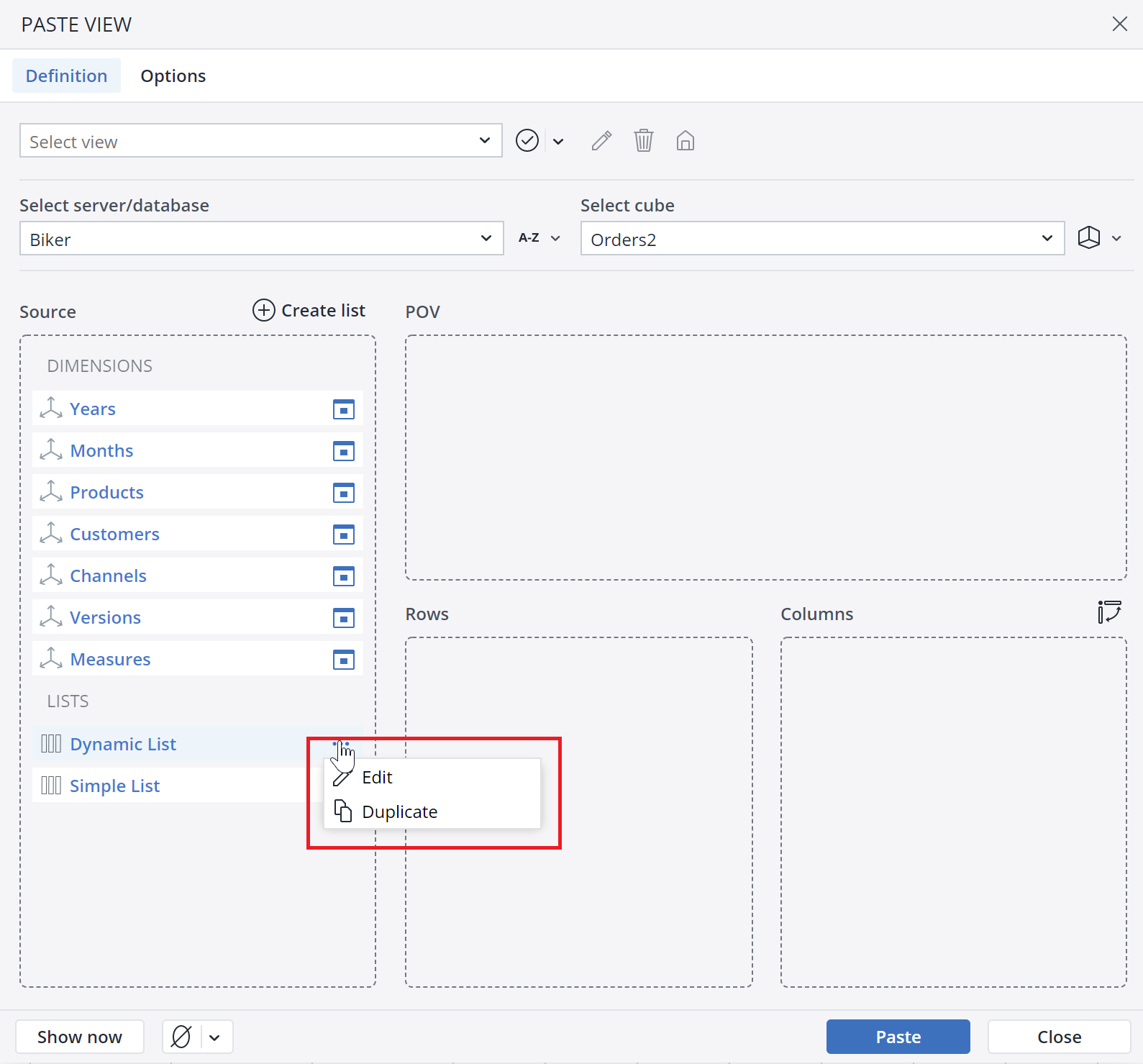
You can also Edit or Duplicate a List by clicking on the  icon.
icon.
Technical details on Lists
When creating a new List or dimension, the Jedox In-Memory DB (OLAP) checks whether a List or dimension of the same name already exists and returns an error if it does.
Lists intersect with dimensions, and using a List in a View restricts the way you can use the dimensions that are covered by the List in the View.
-
If a dimension in a List uses static expressions (e.g. fixed element names) for all blocks of the List, then you cannot use the dimension and the List within the same View. The reason for this restriction is that your data cells are already getting the coordinates from the List, and getting them from the dimension would be duplication. For example, if your List has “Actual” and “Budget” hard-code inside it, there would be no need to use the “Version” dimension here anymore.
-
If a dimension in a List uses dynamic expressions (like ${“Years”}) for at least one block of the List, then you can also use that dimension in the View header, but only in the header and not on rows or columns. The reason for this constraint is that the ${} expression can only handle a single element as input.
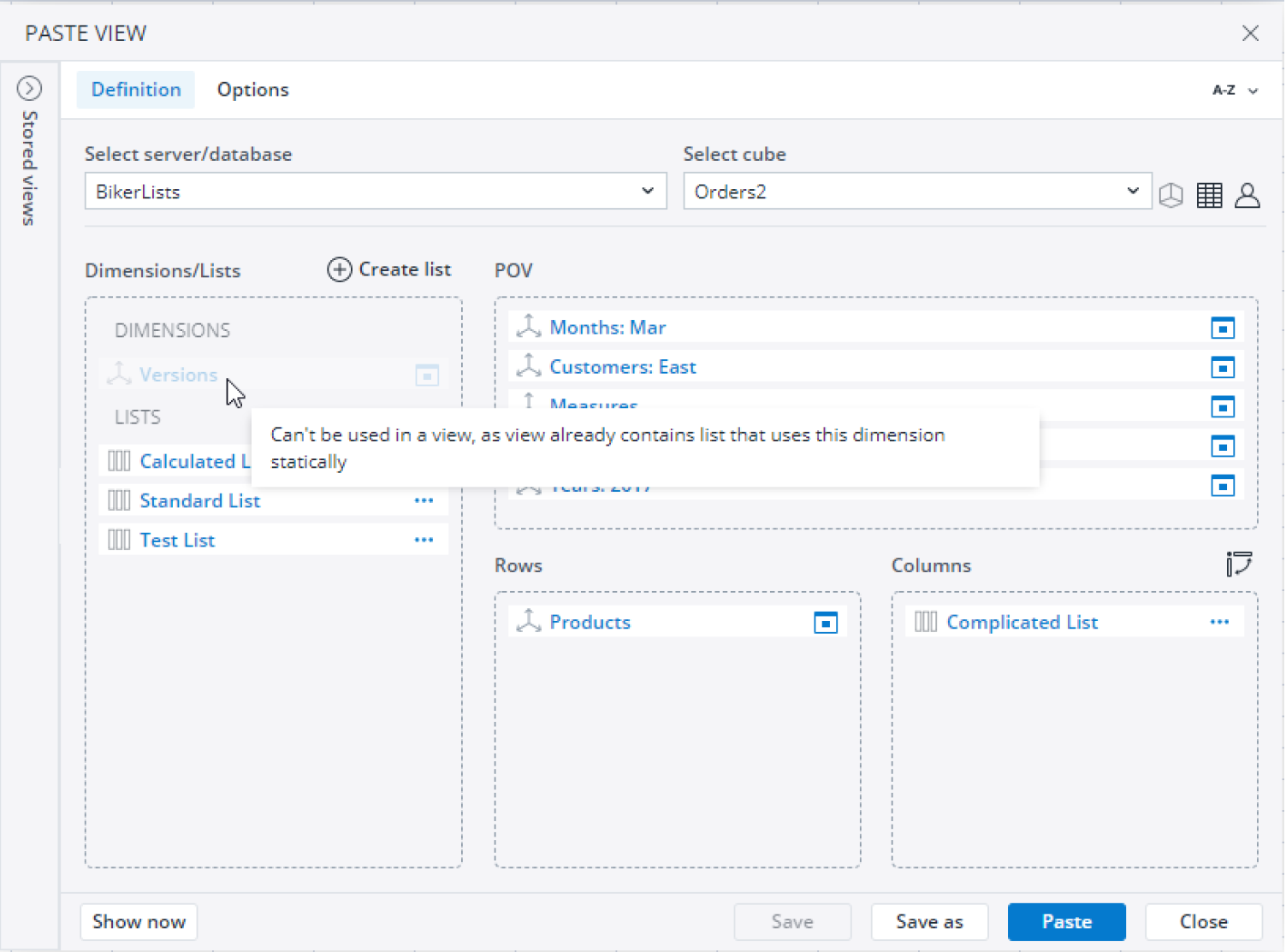
The new Paste View dialog automatically disables items that cannot be used in the current View and shows tooltips on those items.
Note: you can writeback on List Blocks (except for calculated blocks) in a View.
Naming rules for Lists
The naming rules for Lists are the same as for Dimensions and cubes. To see which characters are allowed or not allowed when naming Lists, see here.
Constraints
-
For calculations, you must still type the (correct!) syntax. However, it is planned to be simplified.
-
Lists are not supported in the native Excel View dialog, but you can paste a stored View with a List from the View ribbon dropdown menu.
-
Instead of using ${x-1} expressions, you can also specify any valid spreadsheet formula, as long as it resolves to an element name.
-
Cell Tracer does not work with Lists.
-
You cannot use Lists outside of Views, or in detached Views.
-
Currently only one List can be used within a single View.
-
If a dimension is renamed in a database, and this dimension is used in a List, the List will not be updated automatically but must be recreated manually.
Updated August 24, 2026