This article explains how Standard Lists and Calculation Lists are created and used in Jedox. It describes how List Blocks are defined, arranged, and calculated, and how calculations behave in Views, including formatting, shortcuts, and access restrictions.
Standard Lists
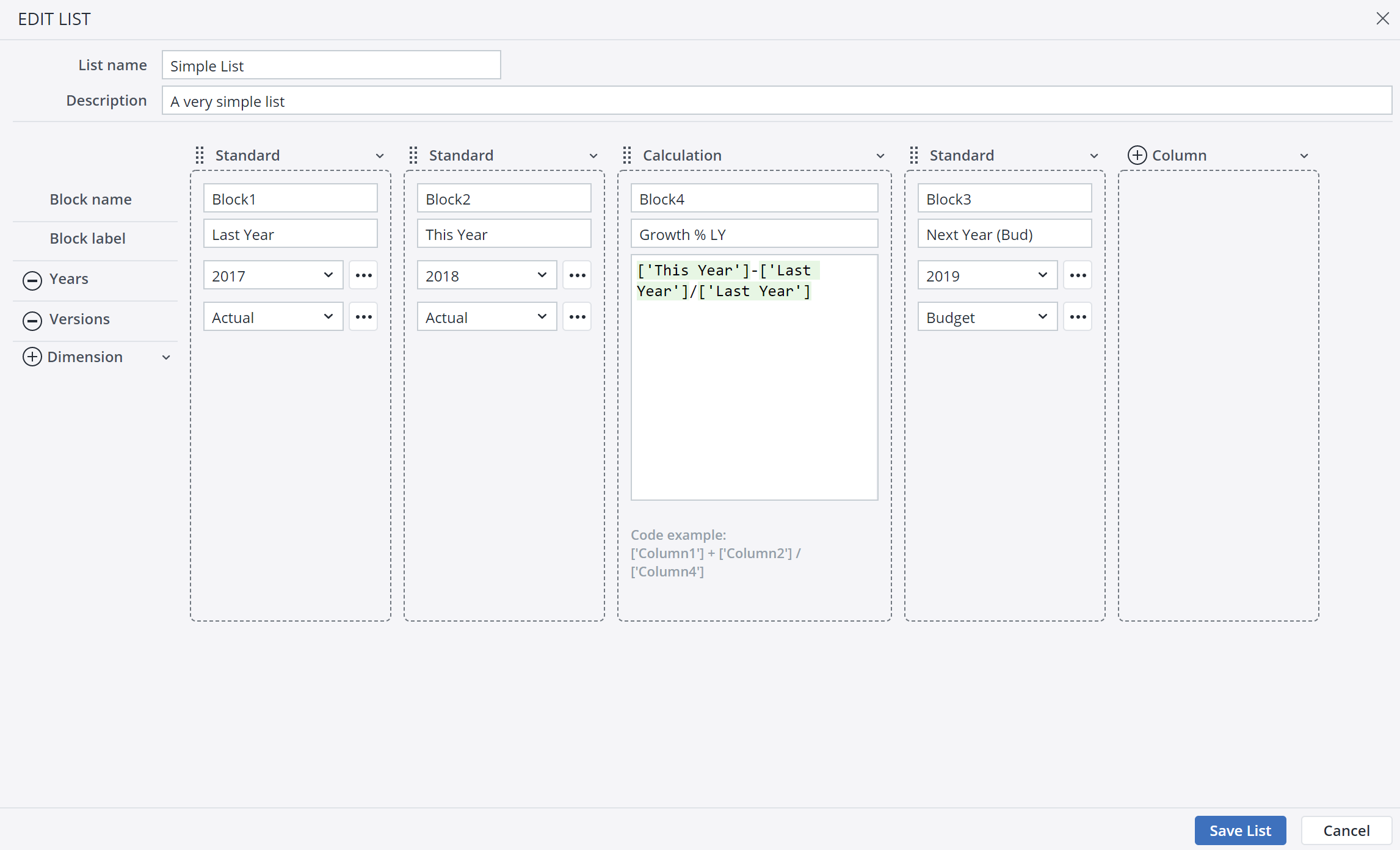
Once you have selected to build a Standard List, you can combine the specific elements of several dimensions in a Standard List Block.
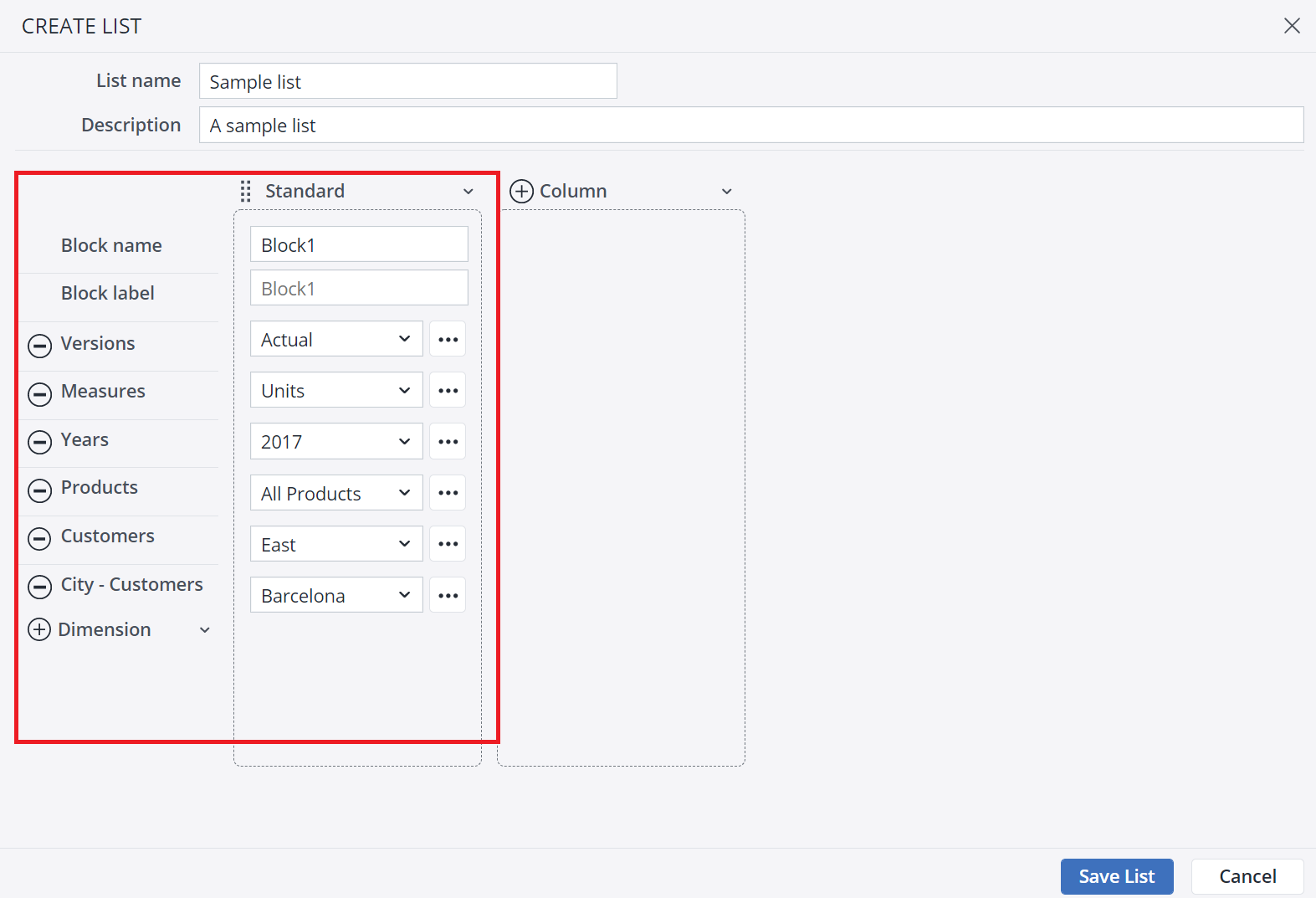
When creating new columns, each column is automatically populated with a default Block name, e.g., Block1, Block2, etc. This way, you can set a Block label without having to enter a Block name first, saving time when creating many columns that include a Block label name which must be different from the Block name (e.g., when the label is resolved from formula / expression).
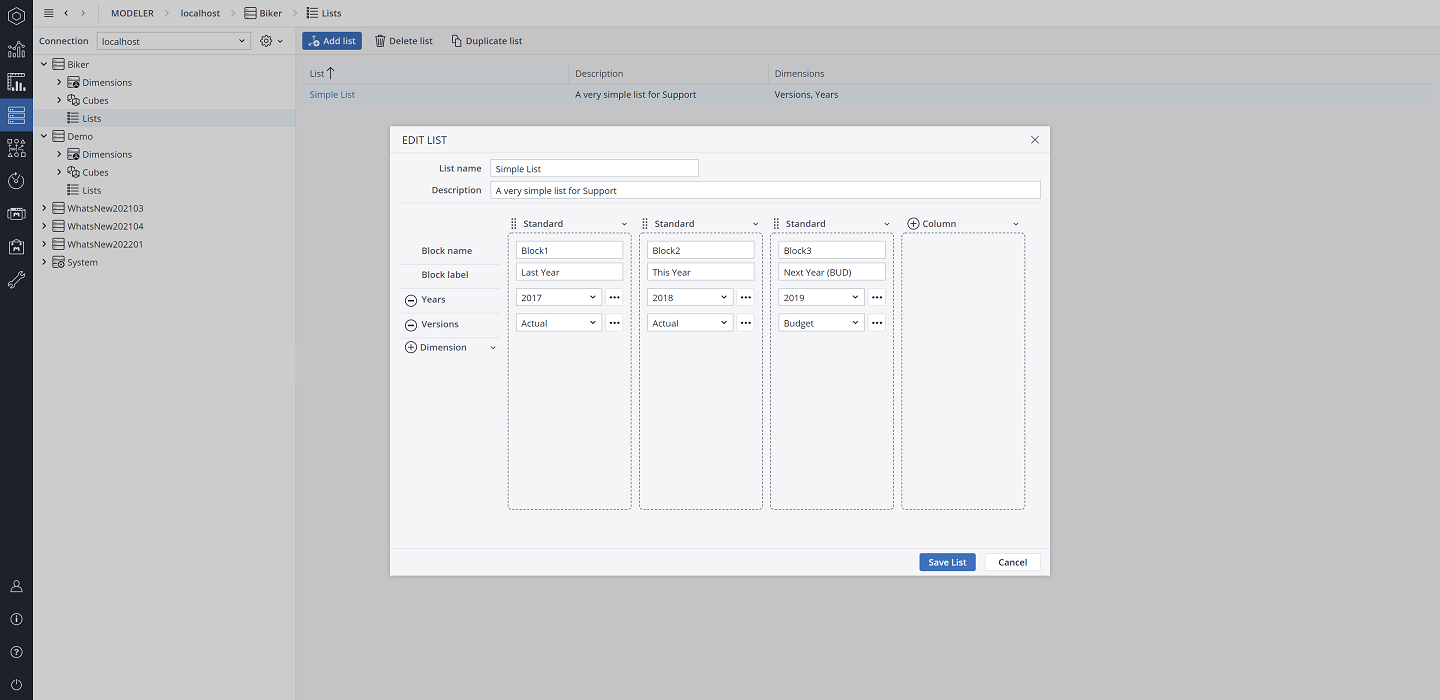
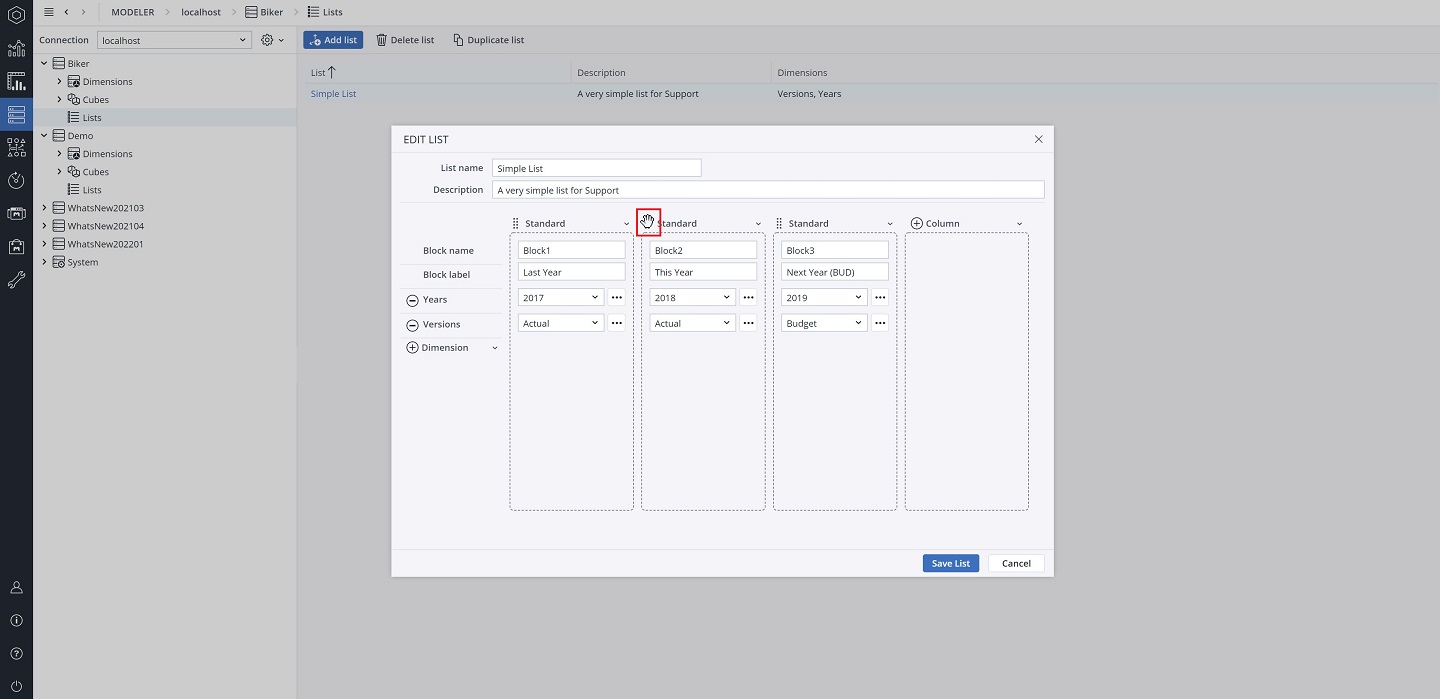
You can rearrange List Blocks by dragging and dropping them. Lists also provide visual cues to ensure you drop the Block into the intended position.
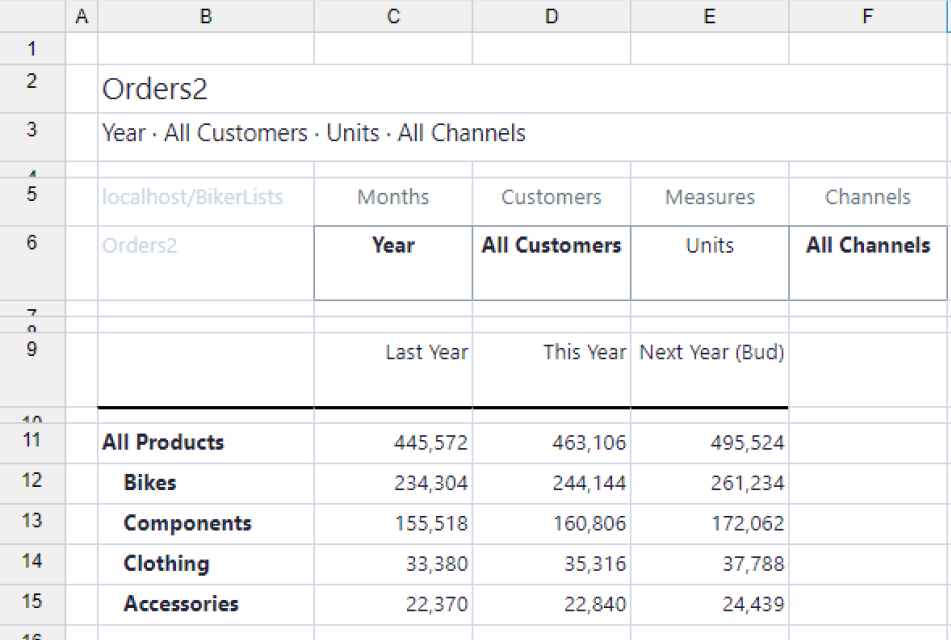
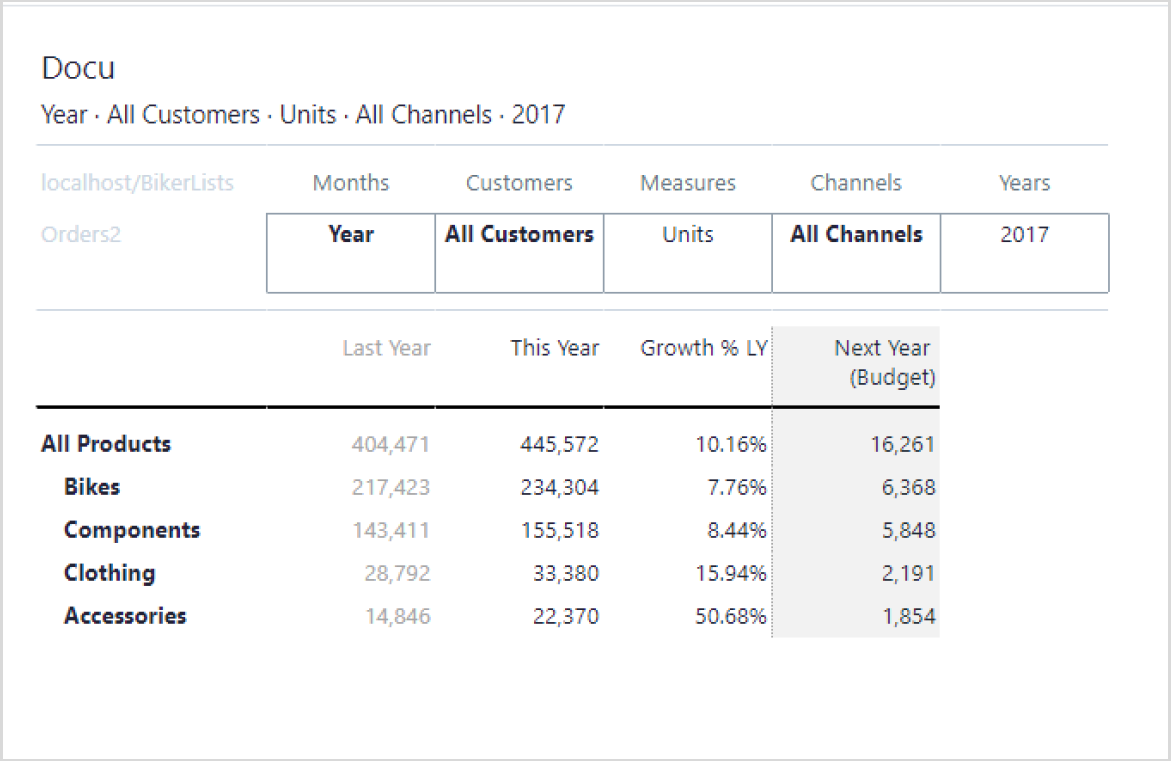
The result of the above List in a View looks like the screenshot below:
Calculation Lists
By creating a “Calculation” type List, you can calculate in a View. In the Calculation column, you can write a string of code that refers to the other columns of the List and apply mathematical operations on those columns. For example, if you wanted to see the percentage of growth from the “Last Year” to “This Year” you can fill the calculation column as the screenshot below:
After adding some styles and formats, the result of the above List in a View looks like the screenshot below:
You can use the keyboard shortcut CTRL + Space to select other available List Blocks and use them in the calculation.
Note: when #_Rights cell property is checked in a View, Calculated List items will be locked for non-admin users.
Next step: Dynamic Lists, Expressions, and Labels
Updated August 6, 2026