Return to the Financial Consolidation Model Overview
The Time Editor in the Financial Consolidation model allows administrators to define, extend, or modify the time dimension used for reporting and consolidation. It provides a structured interface to configure the time range, hierarchy levels, fiscal year settings, and additional time-related elements.
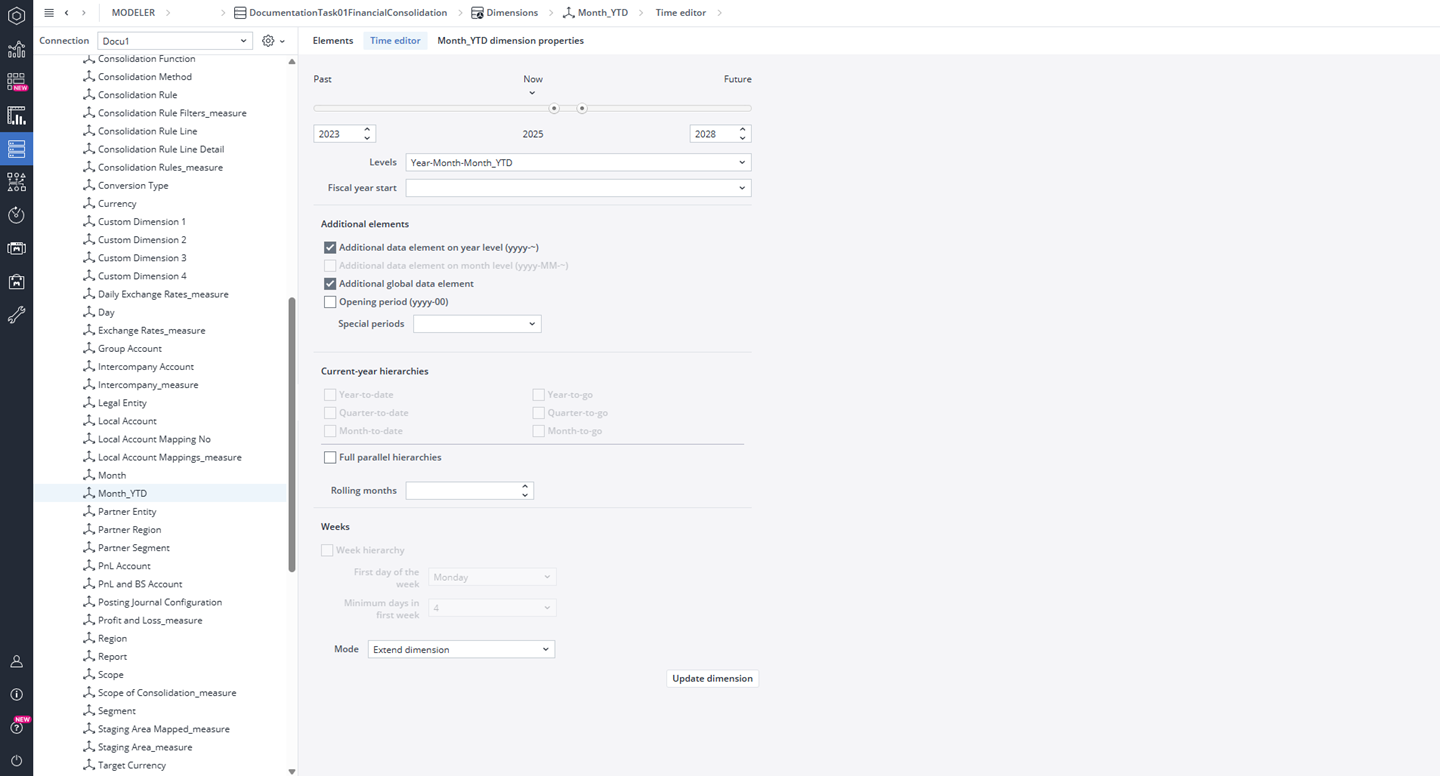
To access the Time editor, go to Modeler, select your Financial Consolidation model instance, open the Dimensions dropdown, and choose either the Month_YTD or Day dimension.
Enabling the Time Editor
To enable the Time Editor, you must first assign the dimension type as “Time dimension.” This can be done in the Advanced section of the dimension’s Properties page. Note that once a dimension is defined as type Time, this setting cannot be changed later.
After assigning the type, the Time Editor tab becomes available for that dimension.
Configuration Options
In the Time Editor, you can define the time span of the model, including past, current, and future years. You can configure hierarchical levels such as Year, Quarter, Month, and Year-to-Date, and choose when the fiscal year begins. It also allows you to add special elements like YTD or opening periods. You can specify current-year hierarchies such as year-to-date or quarter-to-date and include week hierarchies if needed. Finally, you can decide whether to extend, rebuild, or preserve the existing time dimension.
Time Range
Use the sliders or dropdowns to set the start and end years for the time dimension. The Past / Now / Future settings define the visible timeline range, covering both historical and forecast data. For example, selecting 2023–2028 includes both past years, the current year, and future years.
Levels
Select the desired hierarchical structure for the time dimension. This determines how elements are nested and displayed in reports.
-
Year
-
Year – Quarter
-
Year – Quarter -Month
-
Year – Quarter -Month – Month_YTD
-
Year – Quarter -Month – Day
-
Year – Month
-
Year –Month – Month_YTD
-
Year -Month – Day
Fiscal Year Start
Defines the starting month of the fiscal year if it differs from the calendar year (e.g., April for a fiscal year running April–March).
Additional Elements
These settings create extra elements to support data collection and reporting processes:
-
Additional data element on year level (yyyy~): Creates a generic element for entering or storing yearly-level data.
-
Additional data element on month level (yyyy–MM~): Creates similar input elements for each month (optional).
-
Additional global data element: Adds a non-time-specific element for global adjustments or consolidated entries.
-
Opening period (yyyy–00): Generates an opening period before the first month for balance carry-forward purposes.
-
Special periods: Allows inclusion of custom periods (possible values: 13, 14, 15, or 16).
Current-Year Hierarchies
Enable one or more YTD or to-go hierarchies for easier year-based comparisons. These hierarchies enhance dynamic reporting, such as showing progress versus remaining time in the year.
-
Year-to-date: Accumulates values from the beginning of the year up to a specific date.
-
Year-to-go: Accumulates values from a given date through the end of the year.
-
Quarter-to-date: Accumulates values from the start of the quarter up to a specific date.
-
Quarter-to-go: Accumulates values from a given date through the end of the quarter.
-
Month-to-date: Accumulates values from the start of the month up to a specific date.
-
Month-to-go: Accumulates values from a given date through the end of the month.
Full Parallel Hierarchies
The Full Parallel Hierarchies option allows YTD or YTG elements to be placed under separate, dedicated root-level hierarchies.
When this option is enabled, the system creates the following structure:
-
One main hierarchy (for example, All Months) that contains no current-year hierarchies, providing easy access to all standard time elements.
-
Additional hierarchies for each current-year variant, such as All Months_YTD, each with its own distinct root node.
These parallel hierarchies produce the following outcomes:
-
The total-year element (e.g., 2026_YTD) represents the sum of all monthly values.
-
If the option is disabled, the structure of total-year elements (e.g., 2026_YTD) mirrors that of regular year elements (e.g., 2026), making it easier to switch between standard and current-year views.
-
All related logic—such as quarter definitions, fiscal year offsets, and additional elements—remains consistent across both structures.
This setup ensures accurate aggregation of values while preserving flexibility between standard and current-year hierarchies.
Rolling Months
Specifies how many months are continuously rolled forward to maintain a dynamic reporting horizon (for example, a rolling 12-month period).
Weeks
Enable Week hierarchy to add a week-based structure to the time dimension.
-
First day of the week: Choose the day that marks the start of the week (e.g., Monday).
-
Minimum days in first week: Defines how many days a week must contain to be counted as the first week of the year (commonly 4).
Mode
Specifies how the changes affect the time dimension:
-
Extend Dimension: Keeps all existing elements and adds the newly generated ones to the dimension.
-
Rebuild Dimension: Replaces the current structure entirely, keeping only the newly created elements.
-
Extend and Preserve Dimension: Adds new consolidation elements while retaining existing custom structures, such as half-year consolidations.
Update Dimension
Click Update dimension to apply the selected settings. The system will generate or extend the time dimension accordingly, including all defined levels, hierarchies, and attributes. Once the update is complete, you will receive a detailed log of the procedure.
Attributes
The Time Editor automatically generates several attributes—such as Name, Description, Next/Previous Month, and Time Aggregation—to provide additional context and functionality for the elements within a time dimension. The exact set of attributes created depends on the configuration selected in the Time Editor.
The attributes YearValue, MonthValue, QuarterValue, and DayValue allow navigation within the time dimension to corresponding elements in other periods (for example, from one month or quarter to another). These attributes are automatically created and populated whenever the time dimension is modified. The DayValue attribute is also beneficial as it is an integer in Excel's date format.
All attributes are unique within the dimension, allowing elements to be easily referenced by their attribute values using the PALO.EALIAS() function.
Additionally, when the hierarchy levels Year–Quarter–Month–Month_YTD or Year–Month–Month_YTD are selected, the Time Editor creates the PriorPeriod attribute. This attribute identifies the logical period that directly precedes each YTD element.
Example
Time Editor setting:
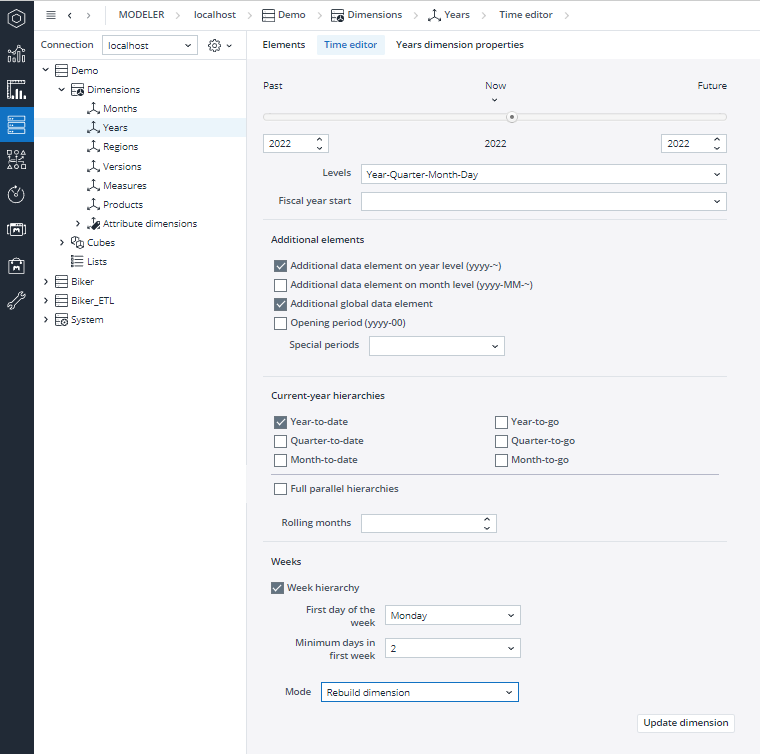
The setting above has the following result (in the screenshot are only displayed the first elements, as result of the setting have been created 456 elements):

The following attributes have been created: Name, Description, TimeAggregation, YearValue, QuarterValue, NextMonth, MonthValue, PreviousMonth, DayValue, NextYear, and YearToDate.
Additional Information
-
The mode „Rebuild dimension“ deletes all existing elements and attributes. The updated dimension includes only the newly by the time editor created elements and attributes.
-
Day and Month_YTD dimension should have the same attributes
Updated May 19, 2026