Return to the Financial Consolidation Model Overview
The Staging Area is a centralized data repository designed to improve integration, traceability, and accuracy in financial reporting within the Jedox Financial Consolidation model.
It serves as the starting point for collecting, validating, and mapping financial data from individual entities into the group structure. By standardizing data integration and mapping processes, the Staging Area helps ensure consistency and auditability throughout the consolidation process.
Key Benefits
-
Centralized integration: Collect and validate data from multiple entities in one place.
-
Improved accuracy: Ensure consistent mapping to the group chart of accounts.
-
Reduced manual effort: Streamline the consolidation process and shorten reporting cycles.
-
Enhanced auditability: Maintain full traceability of all uploaded and mapped data.
The Staging Area provides a unified platform for data storage, transformation, and mapping, ensuring that all financial information is consistent and ready for group-level consolidation and reporting.
How to Use the Staging Area
Working with the Staging Area in Jedox Financial Consolidation is simple and intuitive. Just follow these steps to collect, map, and integrate your financial data into the consolidation process.
-
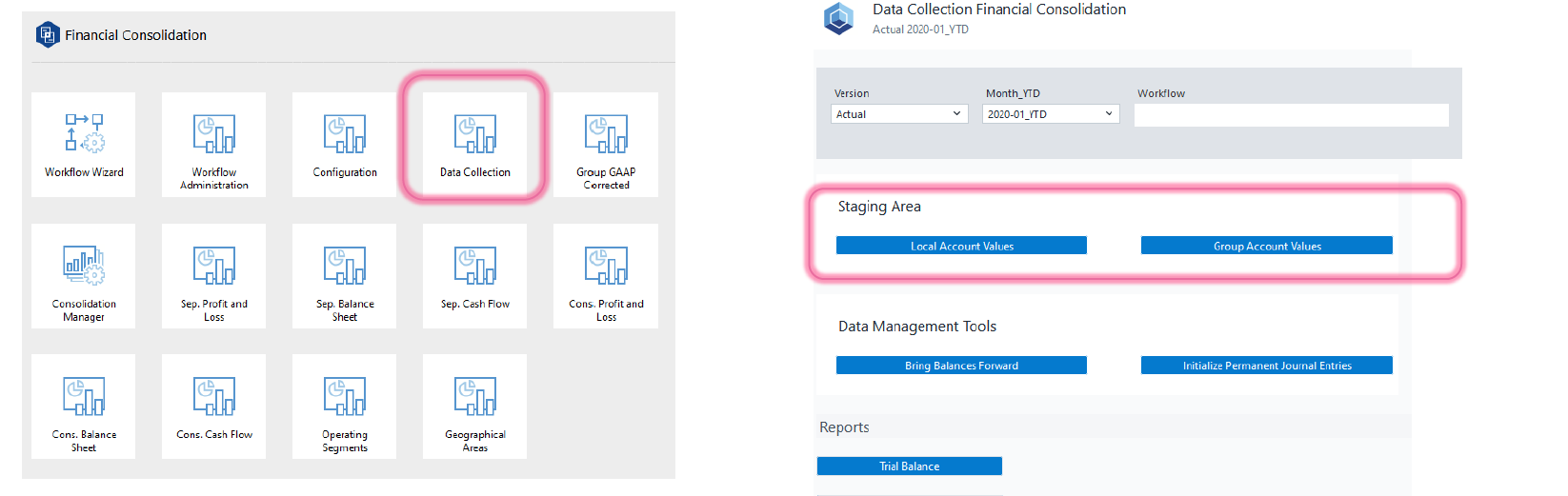
Access the Staging Area: Navigate to the Data Collection section of the Financial Consolidation model and open Staging Area.
-
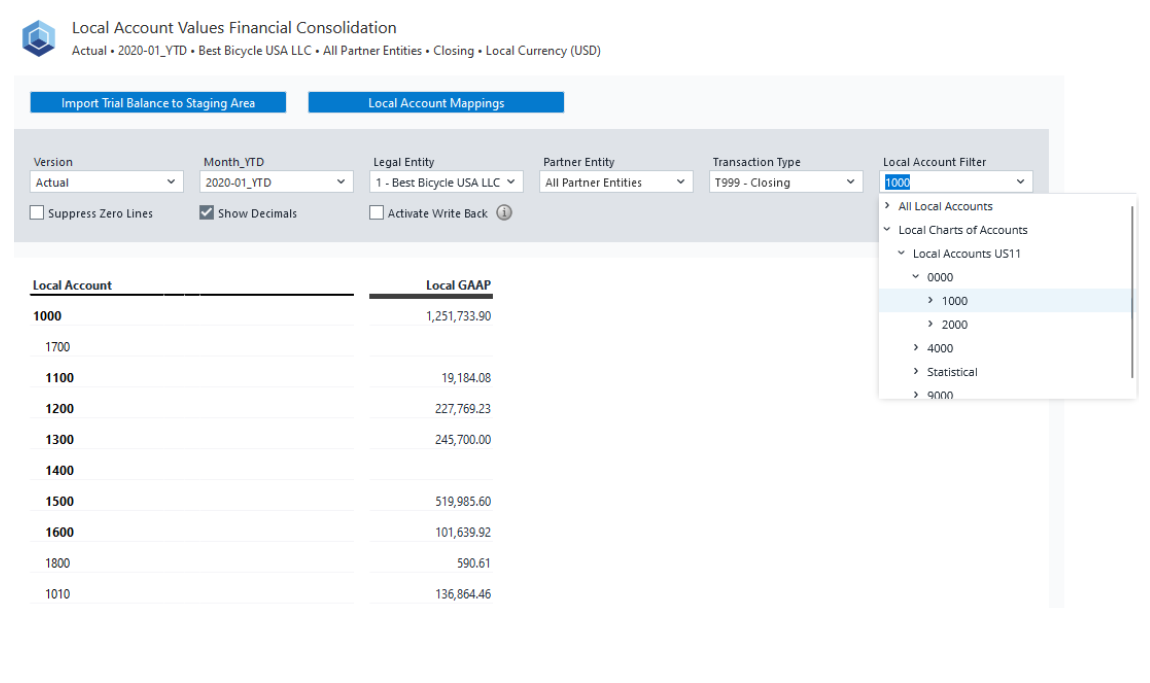
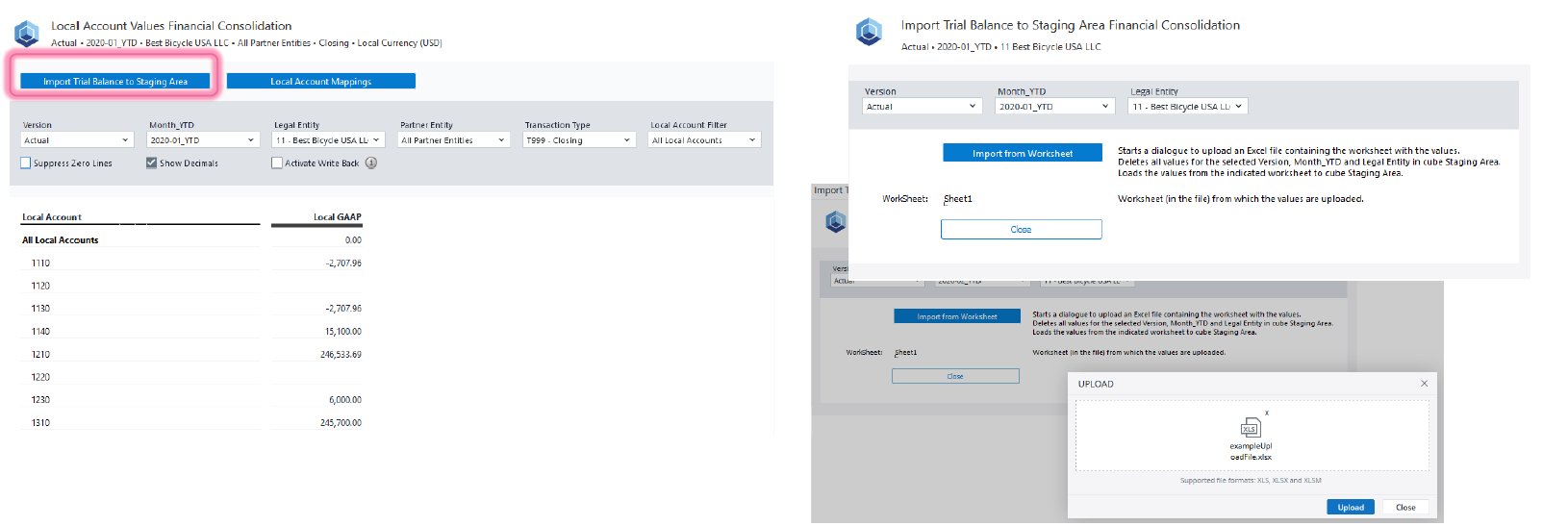
Local Account Values Report: The Local Account Values report provides an overview of uploaded or manually entered values at the local account level. It is used to collect the separate financial statements of each legal entity.
-
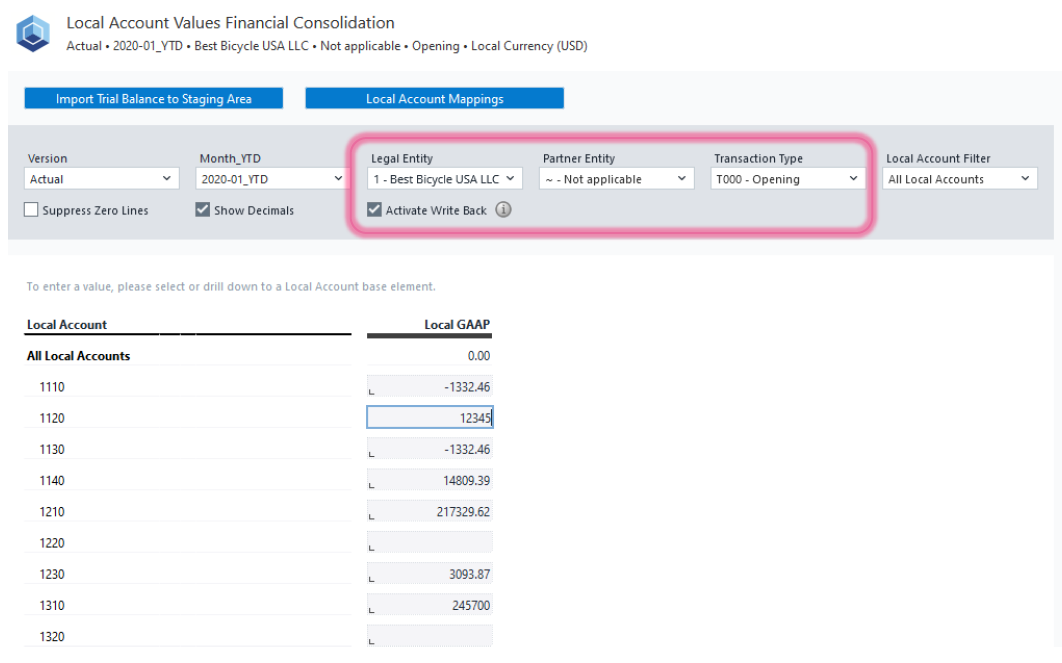
Activate Write Back on Local Account Values: The Write Back feature allows you to record or update data back into the database. To use it, make sure the Legal Entity, Partner Entity, and Transaction Type are all at the base level, then select 'Activate Write Back.'
-
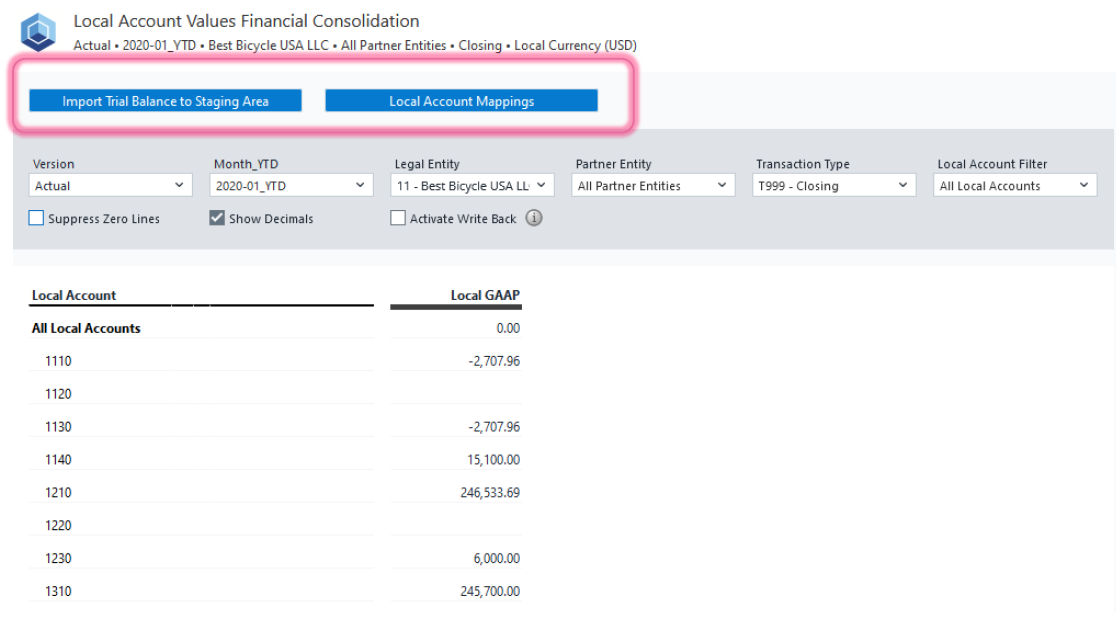
Local Account Values: In this report, you can review existing mappings in Local Account Mappings. Furthermore, you can use the Import Trial Balance to Staging Area to upload trial balance data from Excel.
-
Import Trial Balance: Use the 'Import Trial Balance to Staging Area' option to upload a worksheet directly into the model. This streamlines data collection by integrating trial balance data without manual entry.
-
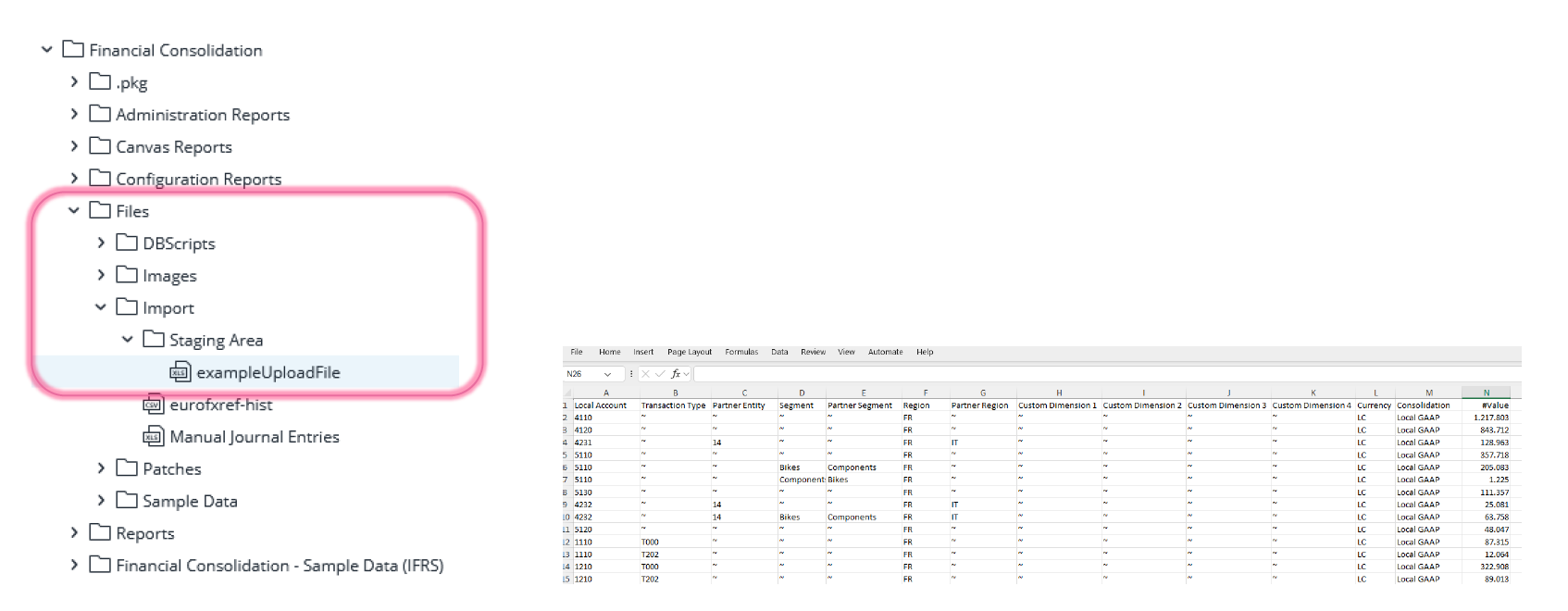
Use the Sample Upload File: A sample upload file is available in the Report Designer > Files folder. Use this file as a reference to understand the correct structure and format for future uploads.
-
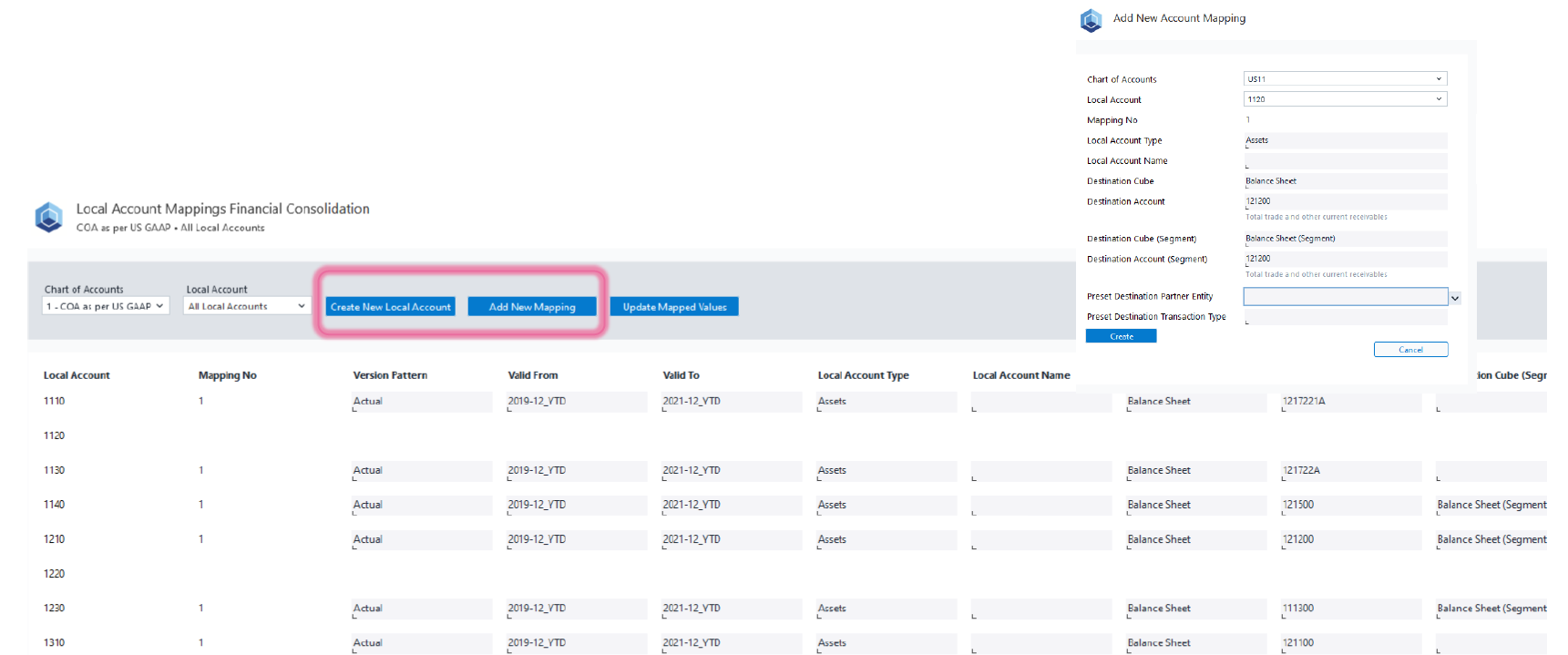
Create New Local Accounts and Mappings: If required, create new local accounts and set up mappings to the group accounts. Mapping connects each local account to its corresponding group account, ensuring proper categorization for consolidated reporting.
-
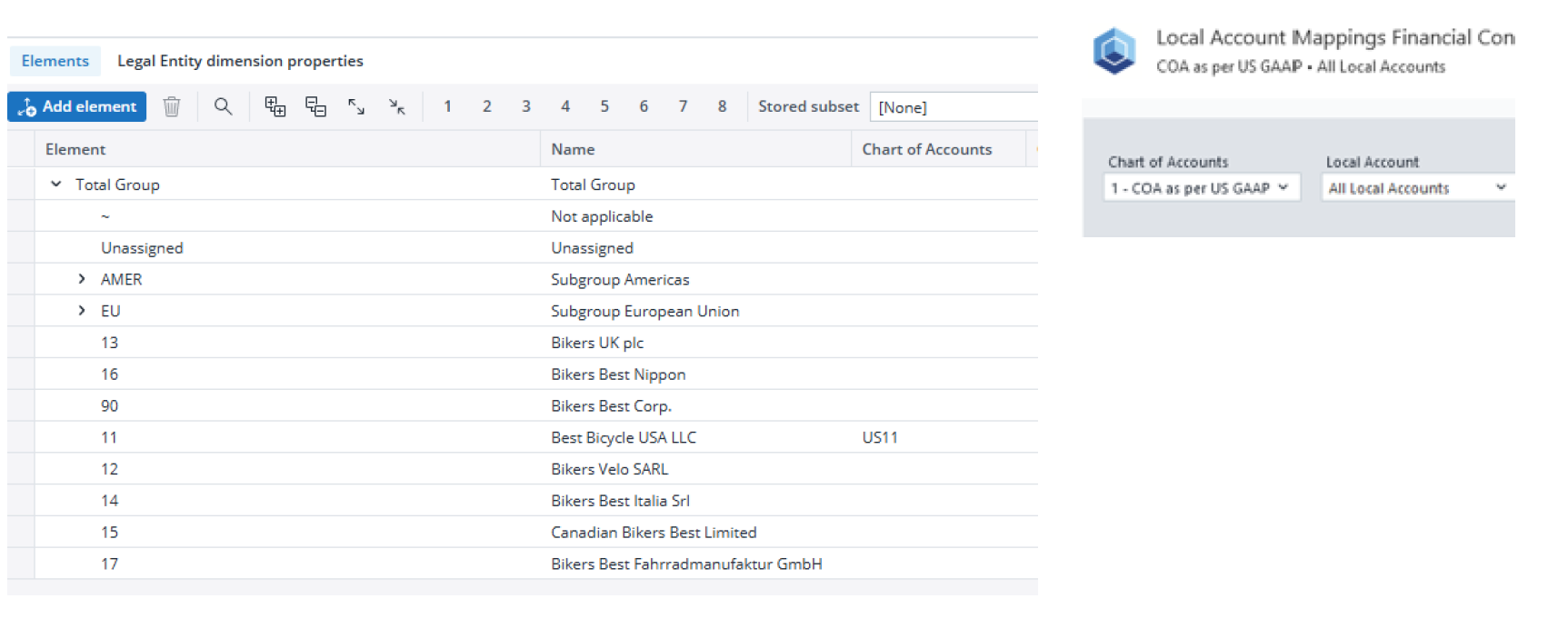
Configure Chart of Accounts: Mappings are defined per Chart of Accounts. Using the Chart of Accounts attribute in the Legal Entity dimension, you can specify which chart of accounts applies to each legal entity.
-
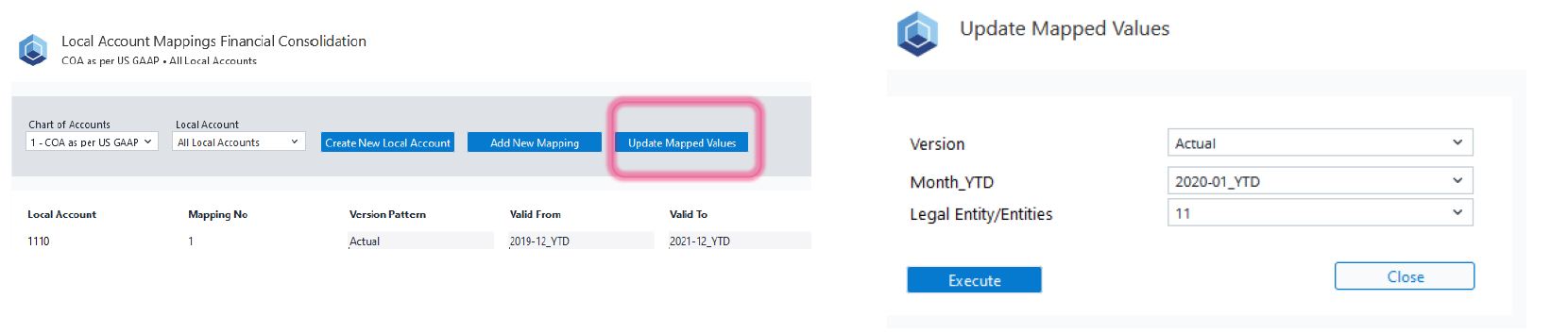
Update Mapped Values: Update these values to modify the Group Account dimension according to the assigned mappings. This is a crucial step for viewing financial information at a consolidated level. Furthermore, by updating the mapped values, you’ll transfer the local account balances to their corresponding group account levels in the Staging Area. Note that skipping this step will prevent consolidated data from appearing in subsequent reports.
-
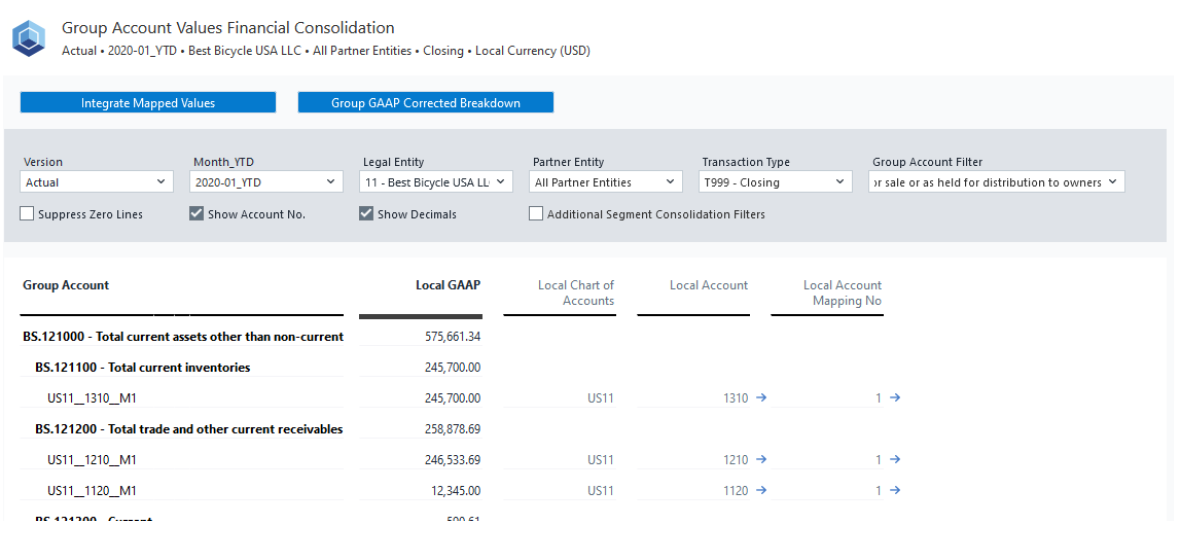
Group Account Values Report: This report provides an overview of your data at the group account level, showing the aggregated figures for each category. To ensure the correct report is displayed, please verify that it includes all balance sheet group accounts when "BS" is selected as the reporting dimension.
-
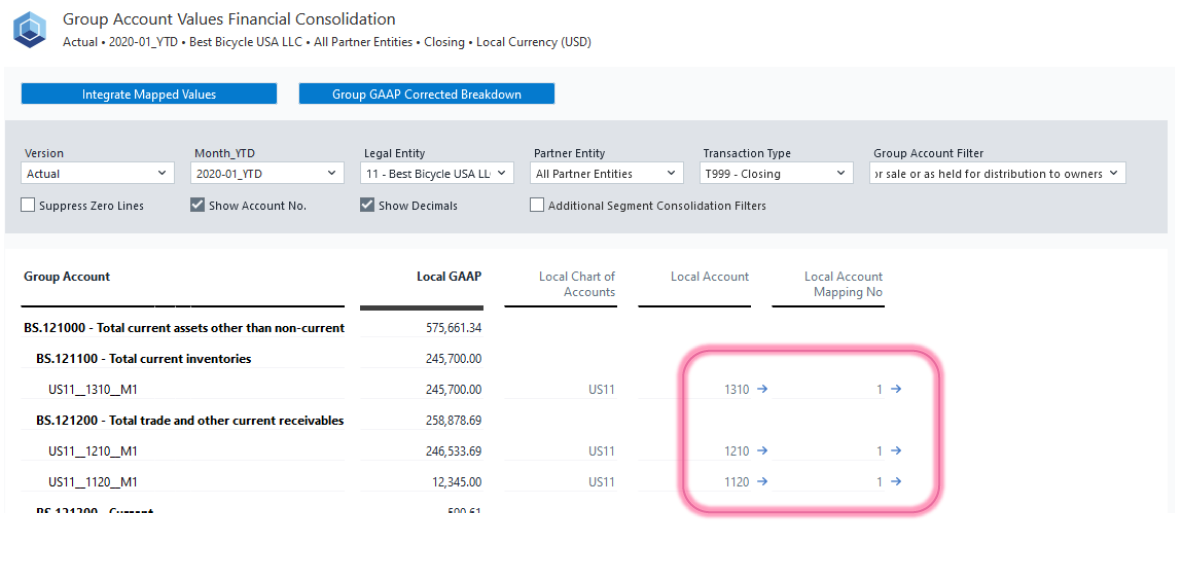
Drill Down to Local Accounts: If a group account shows a value, you can drill down to view the underlying local accounts that contribute to it. This provides transparency into how local accounts roll up into consolidated figures.
-
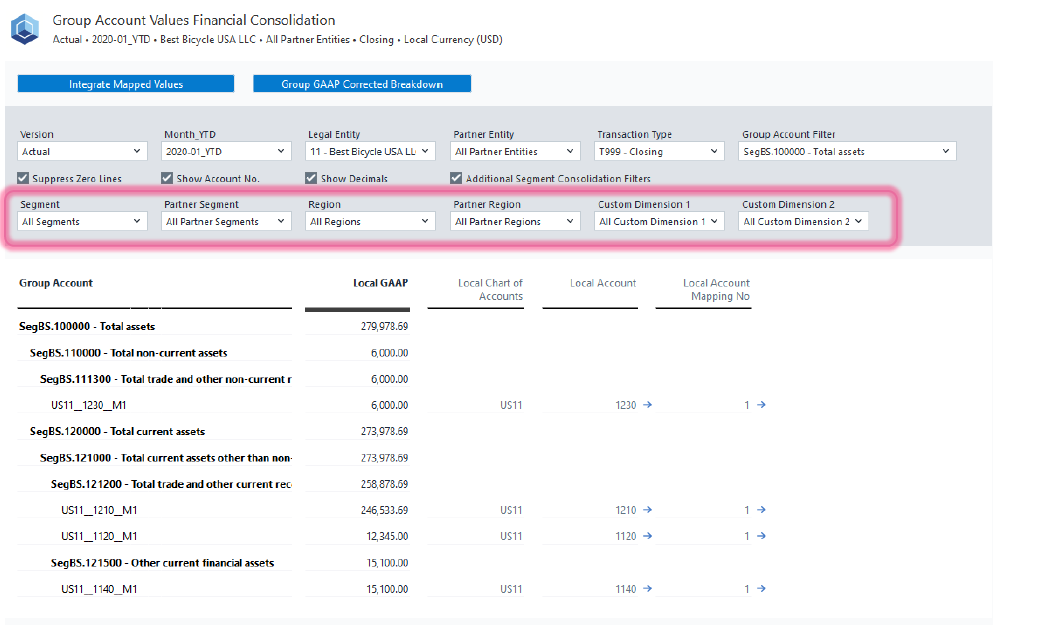
Apply Additional Segment Filters (Optional): If Additional Segment Consolidation Filters are enabled, you can filter by Segment / Partner Segment, Region / Partner Region, Custom Dimension 1, and Custom Dimension 2. These filters allow for more detailed and segmented analysis.
-
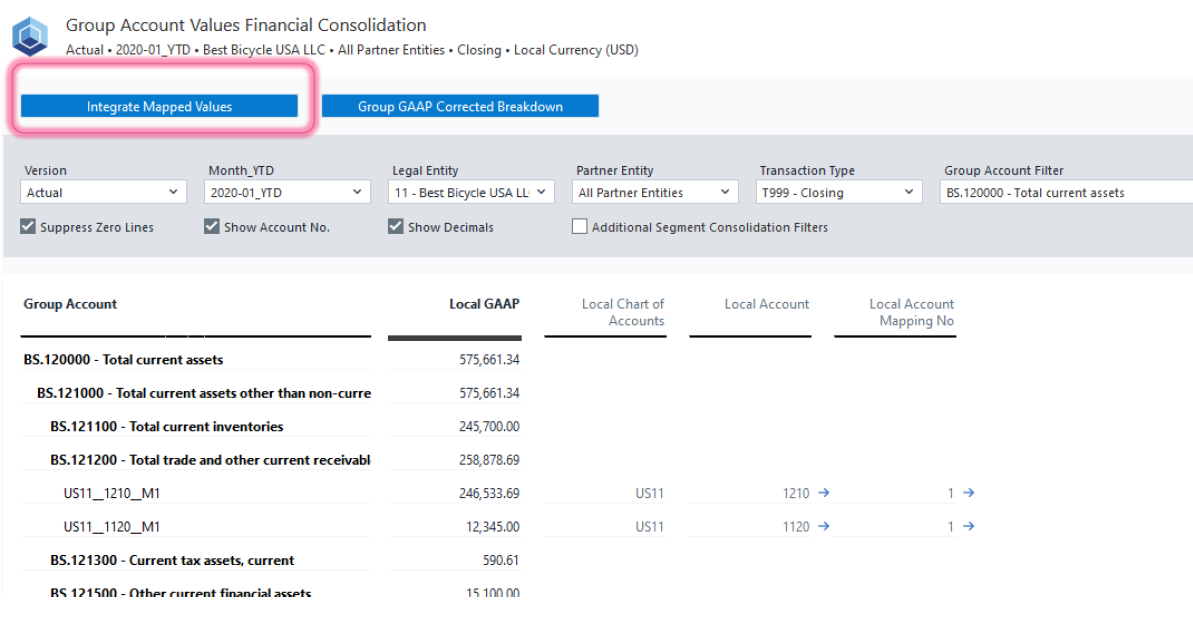
Integrate Mapped Values: This action transfers the accurately mapped values from the Staging Area to their designated destination groups, such as the Balance Sheet or Profit and Loss statement. These values are then moved to the local GAAP, preparing them for the next stage of the consolidation process.
-
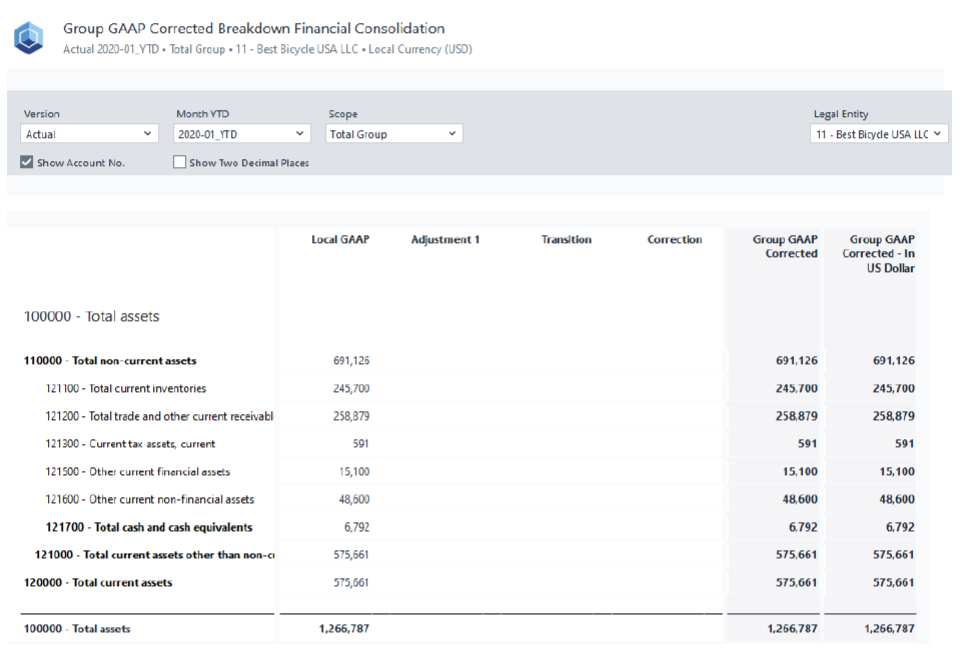
Group GAAP Corrected Breakdown: The values from the Staging Area appear in the "Group GAAP Corrected Breakdown" report at the Local GAAP level, as well as in the Trial Balance report. The Staging Area ensures that all financial data is standardized and accurately mapped to the Group GAAP structure. This process facilitates detailed, reliable breakdowns in the report, enhancing traceability and consistency throughout the consolidation.
Updated November 24, 2025