Return to the Financial Consolidation Model Overview
After installing the Financial Consolidation model, you can configure language settings to ensure a localized, user-friendly experience. Jedox supports multiple languages, allowing you to:
-
Define the default language for the application.
-
Enable additional languages for users across different regions.
-
Customize labels and descriptions in reports and workflows for multilingual environments.
Configuring the language settings ensures that all users can interact with the model in their preferred language, improving usability and collaboration.
Internationalization
The Internationalization section allows administrators to configure and manage the languages supported by the Financial Consolidation model. This ensures that users working in different locales can access the model in their preferred language, including translated database names, report labels, and interface elements.
To access the Internationalization, navigate to Modeler and click on your Financial Consolidation model instance. You will find the Internationalization option in the middle of the screen.
Supported Languages
The Supported languages table lists all available languages that can be activated for the model. Each language entry includes:
-
Code: The ISO language code (for example, de_DE for German or fr_FR for French).
-
Language: The corresponding language name.
Adding or removing languages
You can add or remove languages using the Add ( ) and Delete (️
 ) icons. Once added, these languages become available for translation across the model components.
-
To add a language, open Modeler and navigate to [Database Name] → Internationalization. Click New (+) and select the desired language from the list.
After adding the language, open the worksheet for the dimensions or cubes you want to update with translations. Add a new column for the translation, using the same naming pattern as above. For example, to add a Portuguese (Brazil) translation for theNameattribute in theVersiondimension, add a new column labeledName@pt_BRto the worksheet.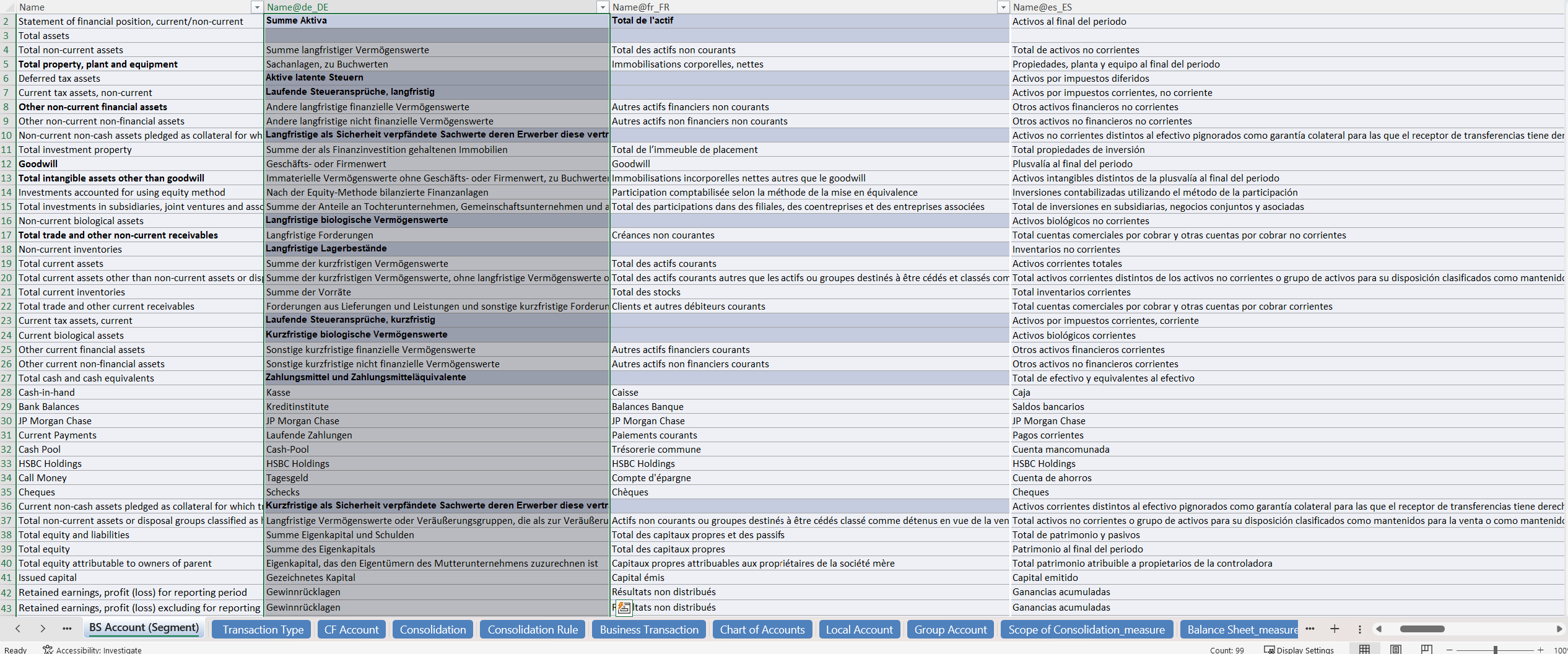
-
To remove a language, open Modeler and navigate to [Database Name] → Internationalization. Select the language(s) to remove, then click Delete (–).
After removing a language, you can ignore any workbook attributes associated with it. Localized columns follow the pattern AttributeName@xx_XX where xx_XX is the language and country code. For example, in theVersionworksheet, the attributeLabelwill appear asLabel@de_DE(German),Label@fr_FR(French), andLabel@es_ES(Spanish).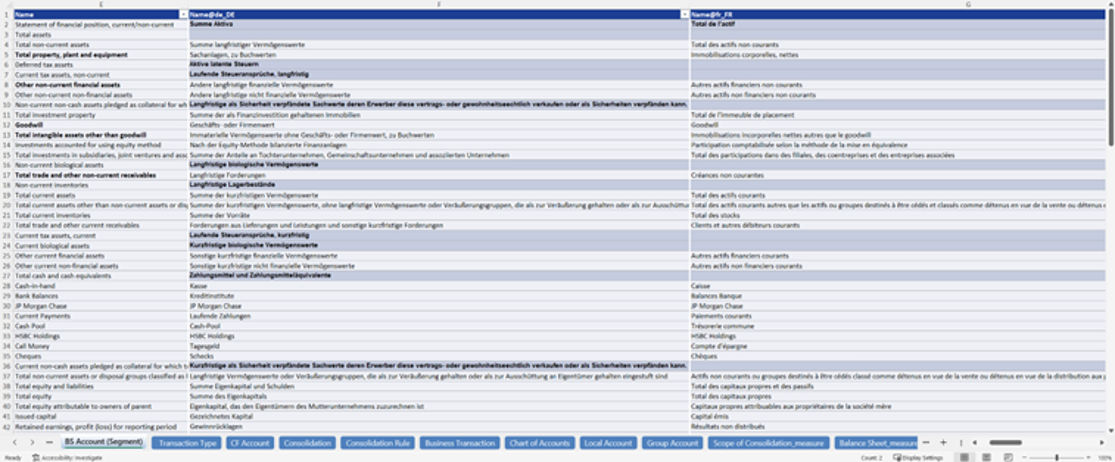
Additional Information:
-
Updating the model does not impact newly added languages. However, it will reset all existing language settings and restore any languages that were previously deleted.
-
The addition of more languages will impact performance, as each database object requires conversion, which takes time and affects processes.
Updated May 19, 2026