To insert a new widget in a Jedox Spreadsheet, Insert > Custom Widget. The following dialog appears:
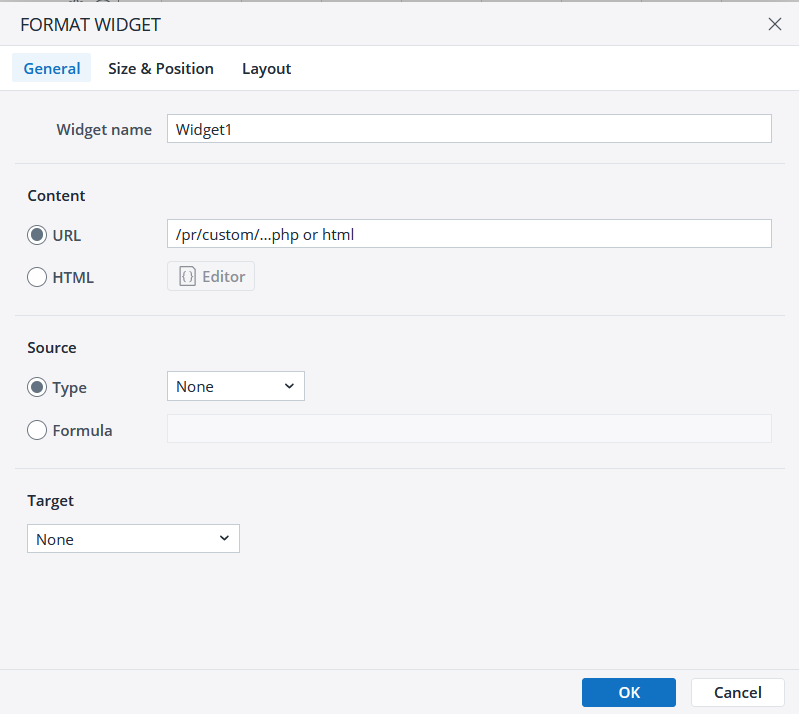
General tab
| Widget name | The name of the widget. This will also be the named formula by which you could access data received from the widget code (if any). |
| Content | The widget content (code) can be directly retrieved from a URL or defined as HTML. The following options are supported:
|
| Source | The source of the data that you want to pass to the widget (if any). This can be a cell (or cell range), named range, variable, macro function, or a Subset list. |
| Target | The target to which the widget will return data. It can be a cell (or cell range), a named range, or a variable. |
Size & Position tab
Here you can customize the size and position of your widget. Settings are in pixels. The Visibility setting controls whether the widget is visible or hidden. It can be set to =TRUE (visible), =FALSE (hidden), or any other formula. If the widget has been hidden, you can view it in your workbook by selecting Display > Hidden Objects.
Layout tab
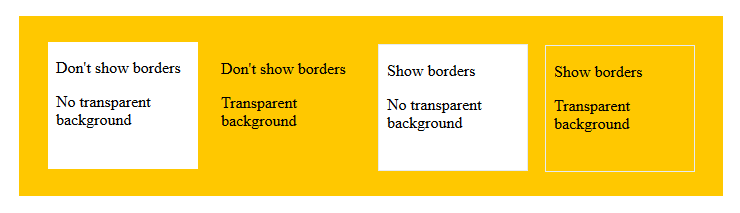
In the Layout tab, you can opt to show borders in user mode and/or have a transparent background. If a transparent background is chosen, the <body> of the document inside the widget should also have a transparent background, or it should be set to transparent, as in: <body STYLE="background-color: transparent;">.
The image below shows the appearance of a simple widget with various combinations of layout options:
Updated July 13, 2026