 Cube Delta Extract
This extract pulls only the new or changed data since the data was last extracted. It creates an OLAP extract of the changes done between two time periods (i.e., a Delta).
Main settings
| Connection | Connection name |
| Query cube | Name of the cube to extract; available cubes will appear in the dropdown list. |
| Read rule-based values |
If set, all rule-based cell values are extracted. Empty cell values are not extracted. In case of zero values:
|
Query filter on dimensions
A query filter on the dimension allows filtering according to specified elements or values. The filter type can be set to "accept" or "deny" as required. This type of filter allows particular cube areas and / or cube cells to be filtered out. Only cube cells that meet the filter conditions for all dimensions are extracted.
Text and numeric values can be filtered.
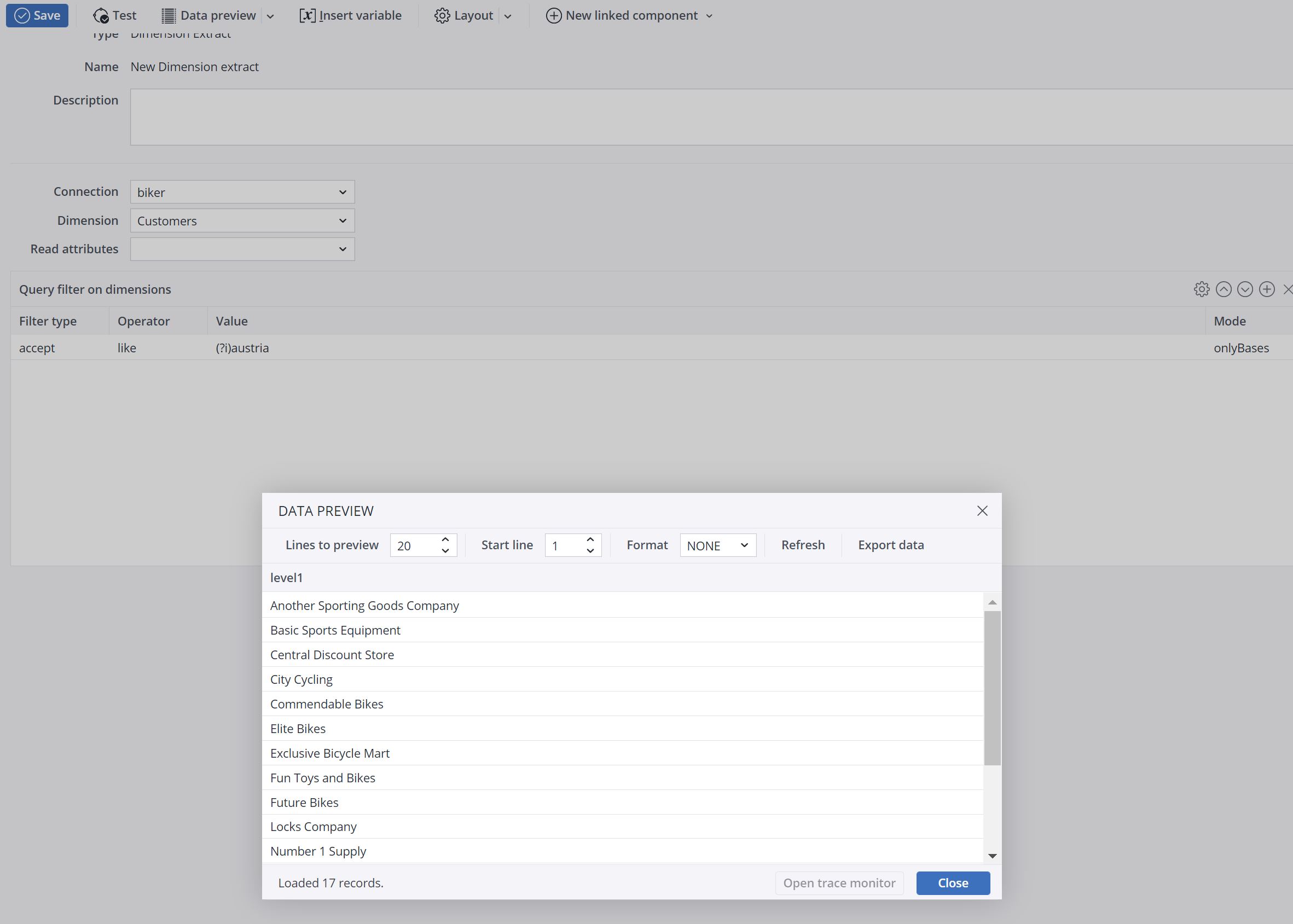
Note: "Equal" is case-insensitive, while "Like" is case-sensitive. You can change the case-sensitivity by using a (?) modifier. See https://www.regular-expressions.info/modifiers.html
 Dimension
Set the dimension to be filtered here. Available dimensions are shown in a dropdown list in the input field.
Filter type
Various filter lines to the same input column are evaluated like a rule chain with the filter types "accept" and "deny". If only accept filters are used, this behaves like a logical OR.
Operator
Comparison operators can be used on element names.
equal The element entered here will be filtered. Filter behavior depends on the type of data:
- String: the filter must be exactly equal to the source value.
- Decimal number (floating or double): the filter value must be the most minimal representation of the value. For example, if the source value is 1.0, the filter value must be 1. If the source value is 1.5000, then the filter value must be 1.5.
- Non-decimal number (int or long): the filter value must be exactly the same as the number.
- Boolean (true/false): the filter must be "true" or "false" as appropriate.
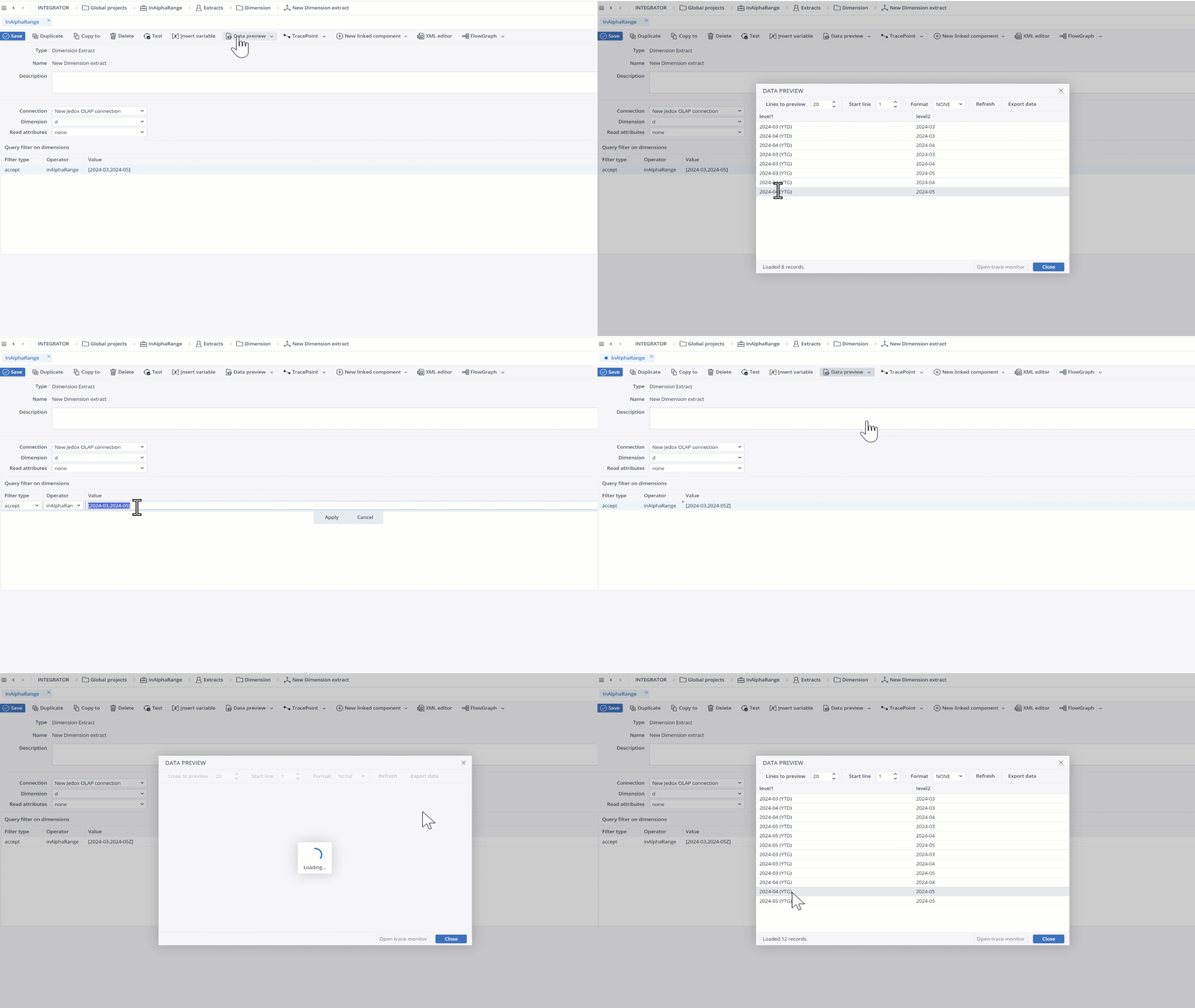
inAlpharange Alphanumerical values in a particular range are filtered. Example: [A100,D200]. The short GIF below shows how this functionality works with dates.
inRange Numerical values in a particular range are filtered. Example: [1000,2000] Other examples:
- “[100,200]” - inclusive range: 100, 101.....199, 200
- “(100,200)” - exclusive range: 101, 102, ... 198, 199
- “[100,]” - inclusive half-open interval: numbers greater or equal to 100
- “[,100)” - exclusive half-open interval: numbers lower than 100
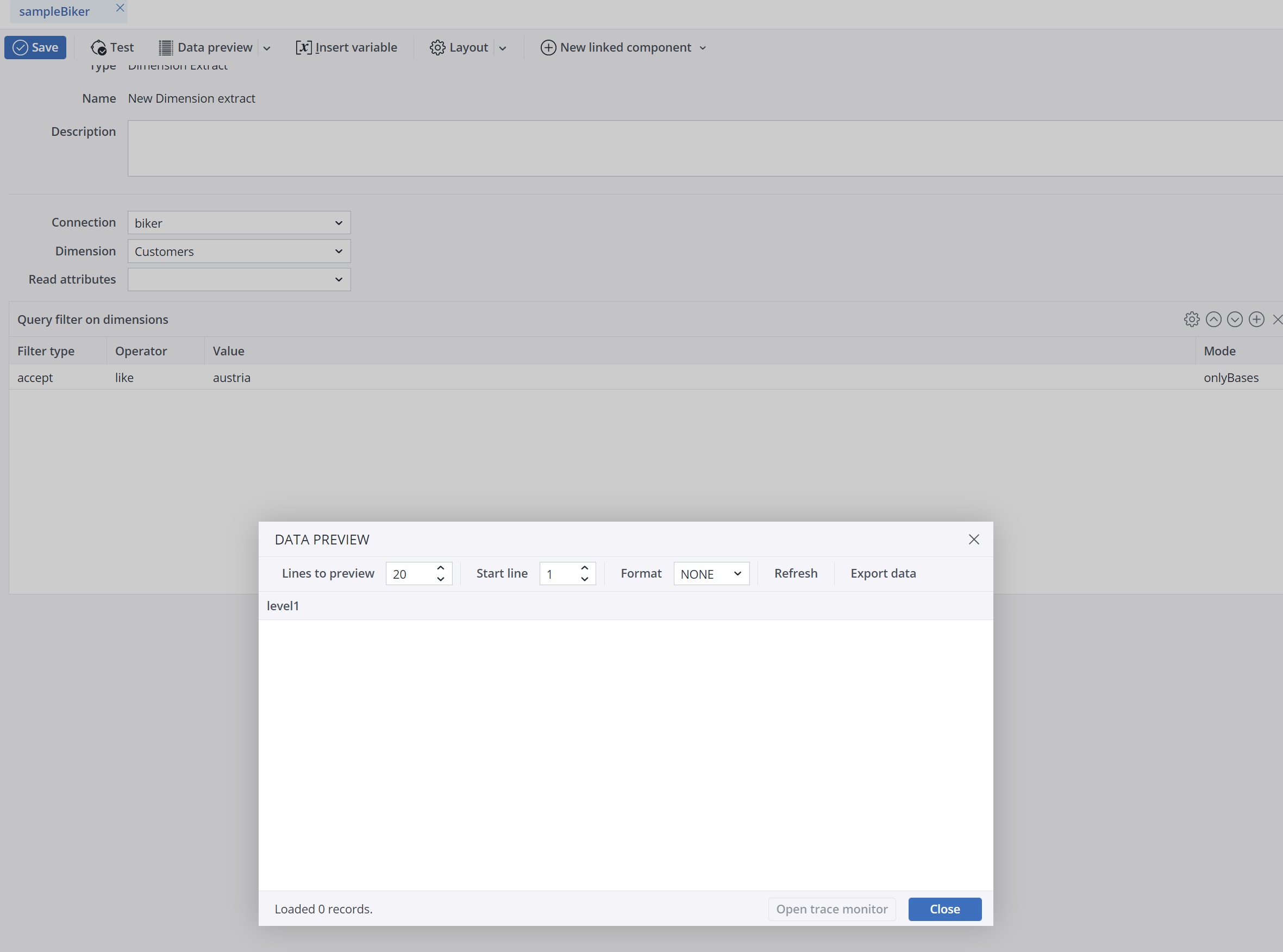
isEmpty Empty values (blank, space, or multiple space values). For this operator, the Value field should be left blank. like Filters the dimension elements according to regular expressions. This operator is case-sensitive. You can change that by using the (?i) modifier at the start of a regular expression.
After using the regular expression, the data preview must look like in the example below:
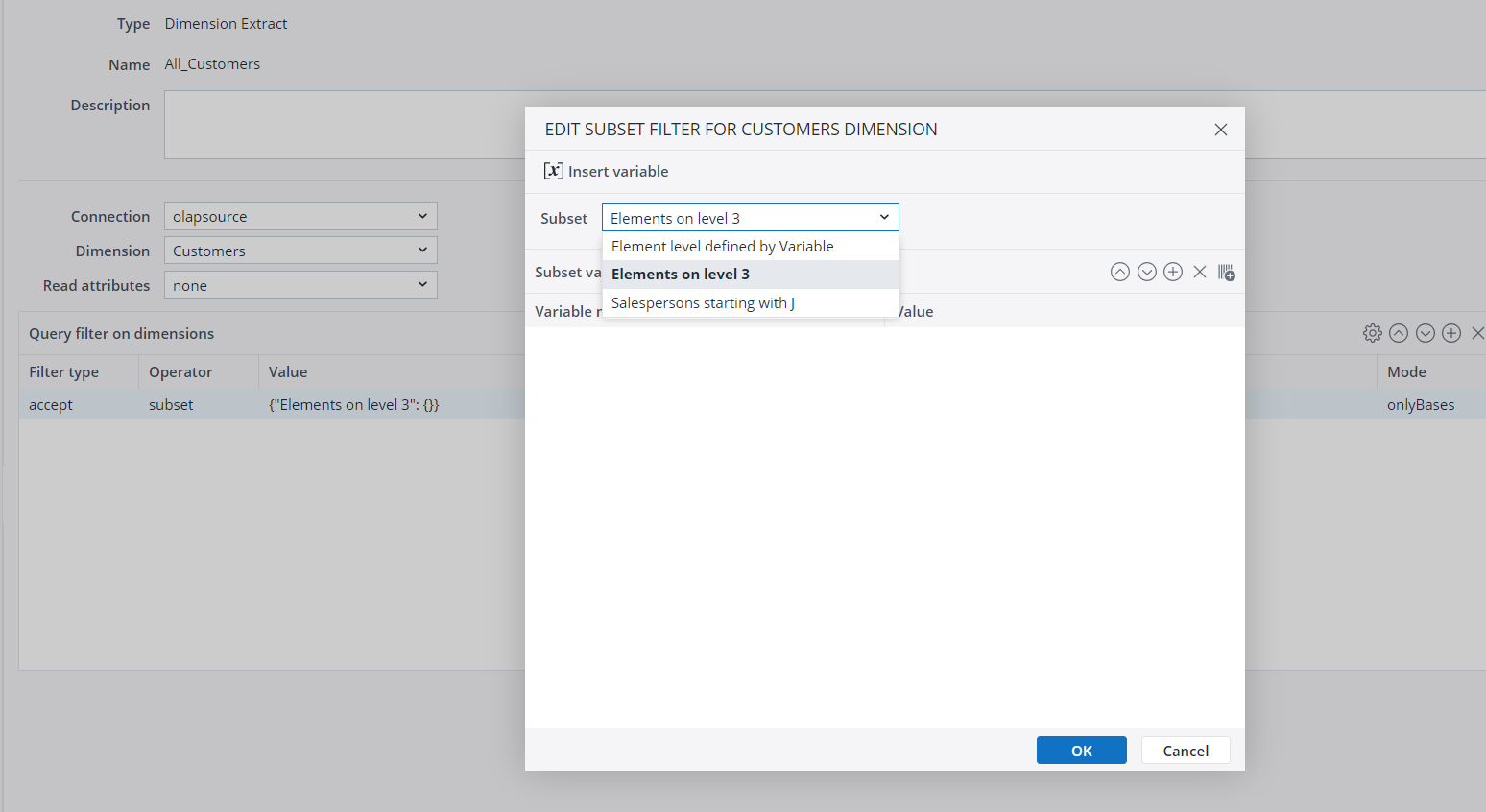
subset Filters the dimension elements based on any stored global Subsets for the dimension. The extract can filter from Subsets with one or more defined filter criteria or variables: Filtering from a stored Subset
Select the stored Subset from the "Edit Subset" dialog:
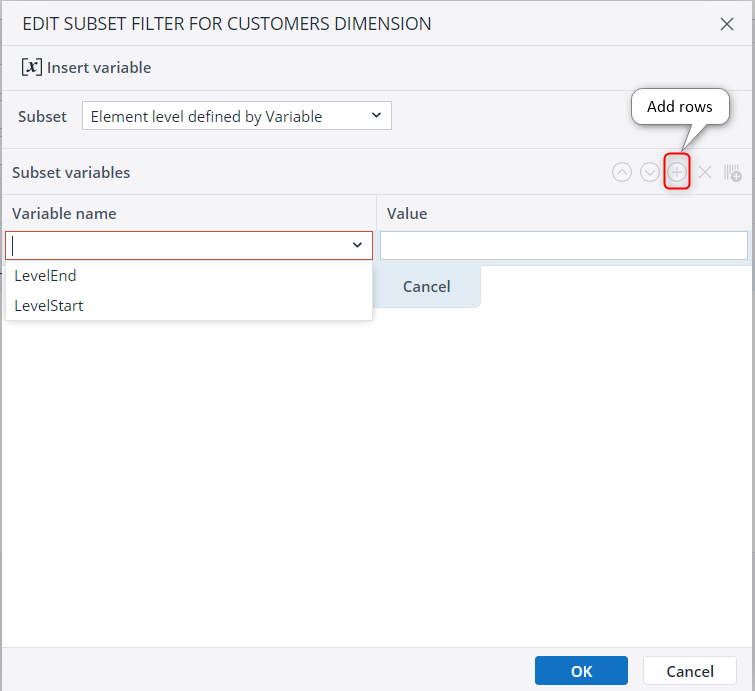
If the Subset uses variables, you must select them manually by adding as many rows as there are defined variables within the "Edit Subset" dialog.
Filtering with an Integrator variable
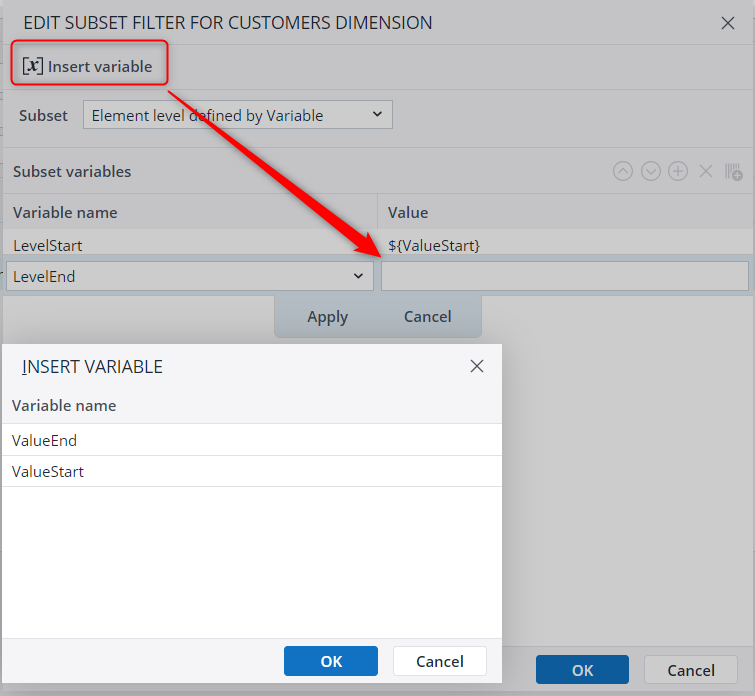
For more dynamic design, you can replace the value of the Subset variable with an Integrator variable, as shown in the screenshot below:
Note: the value " has to be escaped as \"

 Value
Value
The element you want to filter for in the source data. This field is required for all operators except "isEmpty".
Mode
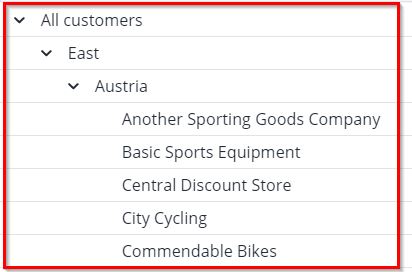
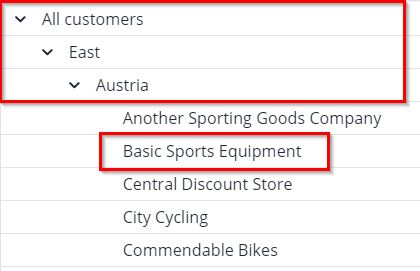
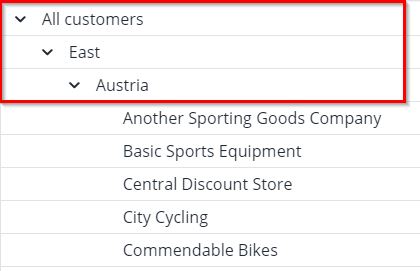
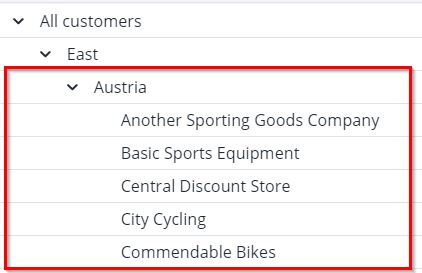
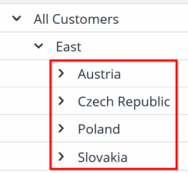
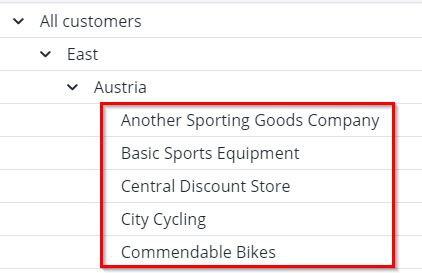
Defines a hierarchical filter for the dimension. If not set, the default mode "onlyNodes" is applied, returning only the filtered elements independently of the hierarchy. In case of a global Subset filter, a mode is in general not reasonable.
Cube output columns
The cube output columns of the extract can be specified by defining for each column:
- The name of the column (default: Name of the dimension)
- The cube dimension
In most cases this manual definition is not necessary: by default, all cube dimensions are output columns of the Cube extract with the dimension name as column name and with the order as defined in the cube.
The manual definition offers the options of
- reordering columns
- renaming columns
- omitting some of the cube dimensions
When a cube dimension is omitted from the output columns, the cube values are extracted on the default read element of this dimension. This default read element has to be specified for the dimension in the Modeler. Additionally, no filter condition can be applied on this dimension.
Extract mode
Previous delta: returns the previous delta values and can be used for validation.
Recalculate: calculates new delta values. Note that if you run recalculate mode two times in a row, and the values in the OLAP cube slice did not change in the meantime, the second result will be empty, as there was no change calculated.
Use caching
If caching is activated, the complete output of the extract is temporarily stored during the first call of the extract, using an internal H2 database. Subsequent calls of the extract read directly from the cache without connecting to the underlying source system of the extract. If the extract or the underlying connection contains variables, a separate cache is build for different values of these variables.
See Caching in Extracts and Transforms for more information.
Advanced settings
Rename value: name of the last column containing the cube cell value.
Updated July 6, 2026